
The Miro and Slack integration is all about connecting your team’s visual workspace with their daily chat. It’s a simple but powerful bridge that lets you get Miro notifications, share boards, and even spin up new ones without ever leaving your Slack channel. This turns your quick chats into real, visual projects without missing a beat.
Table of Contents
Why Your Team Needs This Integration Now
Let’s be honest: context switching kills productivity. A brilliant idea pops up in a Slack thread, but by the time someone opens a new tab, finds the right tool, and tries to recreate the conversation, the spark is gone. This back-and-forth creates fragmented discussions and slows everything down.
Modern teams need a seamless flow between talking and doing. That's exactly what the Miro-Slack integration delivers. It transforms Slack from just a chat app into a launchpad for creativity. Conversations stop being dead ends and instead become the starting point for actual work.
Stop Losing Great Ideas
Picture your product team hashing out a new feature in a busy Slack channel. Instead of letting that momentum fizzle out, you can capture it instantly.
- From Chat to Canvas: A quick slash command (
/miro) immediately converts that conversation into a fresh Miro board. - Context is King: The core ideas from the thread are already there, giving everyone the perfect jumping-off point for a brainstorm.
- No More "I'll Do It Later": The immediacy means great ideas don't get buried and forgotten in a flood of other messages.
This workflow is all about turning a fleeting thought into a collaborative reality.
The real magic here is how it removes friction. Ideas flow from discussion to a visual canvas without interruption, keeping that creative energy high.
Foster a Culture of Visibility and Recognition
Beyond pure efficiency, making work visible is a massive morale booster. When people can see progress and contributions, they can celebrate them. The integration makes this second nature. For example, a project manager can drop a link to the final sprint board into the team channel, and the rich preview instantly shows off all the hard work.
You can't celebrate what you can't see. This visibility is the bedrock of genuine team recognition, which is crucial for keeping team members engaged and motivated. Recognizing achievements, both big and small, shows employees that their efforts are valued, which directly contributes to higher job satisfaction and lower turnover.
By bringing visual updates directly into your team's daily conversations, you create constant opportunities for peer-to-peer acknowledgment. It connects the "what" (the work) with the "who" (the contributors), making recognition timely and specific.
This seamless connection is a core reason why Miro is a go-to for over 90 million users globally. It’s part of a larger ecosystem of over 130 apps, and the Slack integration ensures every comment, mention, and invitation lands right where your team is already working. You can discover more about Miro's powerful integrations and see how they keep distributed teams on the same page.
A Practical Guide to Connecting Miro and Slack
Getting Miro and Slack to talk to each other is surprisingly simple. Think of it less like a complicated IT project and more like opening a direct line between your team's visual brainstorming hub and their daily chat. The whole setup takes just a few minutes, but the payoff in smoother collaboration is immediate.
Making the Initial Connection
First things first, you'll need to head over to the Miro app listing in the Slack App Directory. This is where you'll give Miro the green light to communicate with your Slack workspace. It’s a standard, secure process that lets the two apps share just enough information to be useful—like posting notifications or showing those handy board previews.
After you approve the connection, Slack will ask you to link your specific Miro account. This step is key because it makes sure that all the updates and new boards are correctly tied to you, keeping everything organized and secure.
Getting Your Notifications Just Right
Once you're connected, the real magic is in the notification settings. It's tempting to just dump all alerts into your main team channel, but that's a fast track to creating a lot of noise that everyone will eventually tune out. The key is to be deliberate.
A practical example: Create a dedicated channel, something like #miro-updates-projectx, for any board that gets a lot of action. This keeps the alerts contained and relevant, so stakeholders can see important comments and mentions without derailing other conversations.
To set this up, just go to the Miro board you want to sync, click the "Share" button, and you'll find an option to connect it to a specific Slack channel. From there, you can decide exactly what you want to be notified about:
- All comments and mentions: This is perfect for active project boards where everyone on the team needs to be looped in on the conversation.
- Only your mentions: A better choice for individual contributors who just need a poke when they're specifically tagged.
Why Making Work Visible Matters for Recognition
Setting up these notifications does more than just send alerts; it brings your team's work out into the open. When a designer drops a link to a new wireframe and it automatically unfurls into a rich, visual preview in Slack, the entire team sees progress happening in real-time. This is huge for building a culture of recognition because it makes praise both timely and specific.
Imagine a product manager getting a Slack notification that a complex user flow diagram has been finalized. They can instantly jump into the thread, @mention the team members who built it, and offer specific, timely praise: "@Jane and @John, this user flow is incredibly clear and solves the core issue we discussed. Amazing work!" That simple act shows people their hard work is noticed and appreciated, boosting team morale far more than a generic "good job" at the end of the week. This is a small but powerful way the Miro Slack integration transforms everyday updates into opportunities for meaningful recognition.
And if you want to take that automation a step further, you can always explore how to connect Slack with Zapier to build even more sophisticated workflows. This kind of setup ensures that progress isn't just made—it's seen and celebrated, keeping the whole team motivated.
Unlocking Powerful Day-to-Day Workflows
Alright, now that you've got the integration up and running, let's get into the good stuff: weaving Miro into your team's everyday conversations. This is where the connection stops being just a tech setup and starts feeling like a core part of how you get work done, turning simple chats into real, creative action.
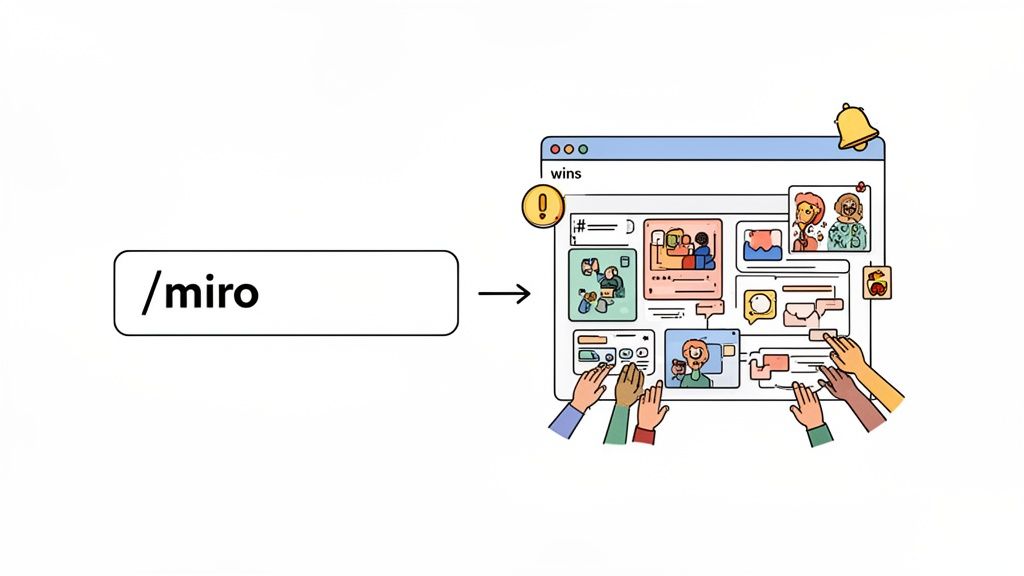
The first thing you’ll probably notice is the way Miro links magically transform in Slack. Drop a link to a board into a channel, and it unfurls into a rich, visual preview. It seems like a small thing, but trust me, it’s a huge timesaver. Everyone gets instant context without having to click away and open another tab.
From Idea to Action in Seconds
Picture this: your marketing team is spitballing taglines in the #marketing-campaign channel. The ideas are flowing fast, but a long Slack thread can get messy and hard to track.
Instead of letting that creative spark fizzle out, someone can just type the /miro command right into the channel.
Boom. A new board is instantly created and shared, capturing all that energy. This one simple move turns a scattered conversation into a structured, visual workspace. Now the team can drag ideas around, vote on their favorites with digital sticky notes, and start building out the full campaign plan right then and there.
The numbers back this up. Over 90 million users worldwide use this integration because it cuts down on the constant app-switching that kills productivity. While Miro connects with over 130 tools, its link-up with Slack is a real standout for how it helps capture ideas and keep projects moving.
For a quick overview of what this integration really brings to the table, here's a look at the core features.
Key Miro Slack Integration Features at a Glance
| Feature | Description | Primary Benefit |
|---|---|---|
| Board Previews | Links automatically expand to show a visual preview of the Miro board. | Provides immediate context without leaving Slack, saving time and clicks. |
| /miro Slash Command | Instantly creates and shares a new Miro board within any Slack channel. | Captures brainstorming momentum by turning conversations into workspaces in seconds. |
| Actionable Notifications | Get Slack alerts for comments, mentions, and board access requests. | Keeps feedback loops tight and ensures important updates are never missed. |
| Board Sharing | Easily share boards to specific channels or direct messages from Miro. | Makes work visible and ensures the right people see the right information at the right time. |
These features work together to bridge the gap between where your team talks and where your team works, making collaboration feel much more connected.
Managing Feedback and Celebrating Wins
The integration is also fantastic for streamlining feedback. Let’s say an HR manager shares a new hire’s onboarding map in a private channel. When they comment on a specific task in Miro—like “@newhire, let’s connect on this”—that new employee gets a ping in Slack instantly. No more missed updates. This is a perfect example of how to automate repetitive tasks and free up headspace for more important work.
But maybe the most powerful use case is in fostering team recognition. When work is visible, it's so much easier to celebrate. This matters because recognized employees are more engaged, productive, and likely to stay with the company. It's a cornerstone of a healthy team culture.
Team recognition thrives on specificity and timeliness. When you can instantly show what was accomplished and praise the people responsible, the acknowledgment feels more genuine and has a much greater impact on morale.
Here’s a simple, practical way a team lead can put this into action:
- Capture the Moment: At the end of a solid two-week sprint, the lead grabs a screenshot of the completed Miro board, showing all the finished tasks and progress.
- Share the Success: They post that image in the public
#team-winschannel with a quick note: "Amazing sprint, everyone! Look at everything we accomplished." - Recognize Contributors: In the thread, they can then @mention specific people for their hard work. For example: "@Sarah, your UI mockups were a game-changer. @Tom, thanks for squashing that critical bug!" This public praise builds a company-wide culture of appreciation.
This simple workflow directly connects visual proof of accomplishment with public praise, making recognition feel like a natural part of your team's rhythm. And if your team uses other knowledge-sharing tools, you might find our guide on the Notion Slack integration helpful, too.
Strategic Insights for Managers and Team Leads
As a manager, you're always looking for ways to shape your team's culture. The Miro and Slack integration is more than just a tool to get things done; it's a way to standardize your team's rhythms, boost transparency, and, maybe most importantly, create a system for meaningful recognition. When you bring your team's visual work directly into their daily conversations, you're building a more engaged and efficient environment from the ground up.

This isn't just theory—it's a massive part of Miro's own success story. The Slack integration was a key driver in helping the platform grow from 5 million users to over 90 million. By embedding itself so deeply into a core communication hub like Slack, Miro became an indispensable part of the modern team's toolkit. You can actually read more about Miro's strategic growth to see how its network of over 100 integrations cemented its place in the market.
Standardize Your Key Processes
One of the best things you can do with this integration is to create standardized Miro templates for your team's recurring rituals. It takes the guesswork out of common tasks and keeps everyone on the same page, whether they're in the next cubicle or a different time zone.
- Practical Example (Sprint Retrospectives): Build a go-to Miro board for retros with columns for "What went well," "What could be improved," and "Action items." When the meeting rolls around, you just drop the link into the team channel. Everyone knows exactly what to expect and can jump right in.
- Practical Example (Weekly 1-on-1s): I like to use a simple 1-on-1 template with three sections: wins, challenges, and goals. I'll share it in a DM with my direct report ahead of time so they can add their thoughts before we even meet.
- Practical Example (Project Kickoffs): A solid kickoff board ensures every project starts with clear goals, defined roles, and a realistic timeline. Sharing that in the dedicated project channel gets the whole team aligned from day one.
This simple habit doesn't just save time; it creates a consistent operational rhythm that helps your team run smoothly.
Foster a Culture of Recognition
Let's be honest: vague praise doesn't stick. "Good job, team" is nice, but it's forgettable. Real recognition is specific, timely, and visible—and the Miro-Slack integration is perfect for this. It lets you connect the visual proof of great work directly to your praise. That's critical because when employees feel seen and appreciated, they are more motivated and committed.
Instead of just saying, "Great teamwork this month," you can show it.
Real-World Example: Visualizing and Celebrating Collaboration
Imagine you want to highlight how well your team worked together on a tough project.
- Visualize the Data: First, pull together a simple Miro board that shows key collaboration metrics from the past month. It could be a flowchart illustrating how a feature moved between engineers and designers, or a simple chart tallying the number of ideas everyone contributed during a brainstorm.
- Share in Slack: During your next team huddle, share your screen and walk everyone through the board. Afterward, post the link in your main team channel. The rich preview will unfurl, giving everyone a snapshot of the achievement.
- Recognize Top Contributors: Now for the best part. In a thread under that Miro preview, give a public shout-out to the people who really stood out. You might use a recognition tool or just a simple @-mention: "Huge props to @anna and @david for their incredible work on the Q3 launch! This Miro board shows just how much they hustled to get this done."
This approach transforms an abstract idea like "teamwork" into something tangible and celebrated. It creates a powerful feedback loop where the behaviors you want to see are not just mentioned but are actively showcased and rewarded in front of everyone, reinforcing the exact culture you're trying to build.
Troubleshooting Common Integration Issues
Even the most reliable tools can hit a snag now and then. When your Miro-Slack integration starts acting up, it’s usually because of a small, easily fixable issue. Let's walk through the most common culprits so you can get your team’s workflow back on track without missing a beat.
More often than not, the problem is simple: notifications just aren't showing up in the right Slack channel. Before you start digging into complex settings, always check the basics. Is the Miro app still properly authorized in your Slack workspace? Sometimes a security update or a change in user permissions can knock it loose, and all it needs is a quick re-authentication.
Solving Notification and Preview Problems
Another frequent headache is when a Miro board link doesn't "unfurl" into that nice, visual preview. When that happens, it almost always comes down to permissions.
Think of it this way: if the person seeing the link in Slack doesn’t have at least view access to the actual board in Miro, the preview won't show up. This isn't a bug—it's a security feature working exactly as intended to keep your work private.
If you run into these issues, here are a few things to try:
- Check Board Permissions: Jump into Miro and click the "Share" button on the board that's causing trouble. Make sure the people in your Slack channel have the right viewing or editing rights.
- Re-authorize the App: Sometimes the connection just needs a reset. Head to the Miro app page in Slack's App Directory, disconnect the integration, and then immediately reconnect it. This simple trick fixes a surprising number of authentication glitches.
- Verify Channel Settings: It's easy to make a small mistake here. Double-check that you've set up notifications for the correct Slack channel within Miro’s own sharing settings.
I've seen this happen firsthand. A project manager drops a link to a critical timeline in a stakeholder channel, but all anyone sees is a plain URL. After a moment of panic, they check the Miro board’s share settings and realize it was only shared with the internal team. A quick switch to "Anyone with the link can view" fixed it instantly for everyone.
A broken preview can really kill the momentum. Imagine sharing a finished project board in a
#winschannel to celebrate a team milestone. If the preview is broken, the moment just falls flat. A visible, celebrated achievement reinforces that the team's hard work is seen and valued, so getting the preview to work is key for recognition.
When Permissions Don't Match
It's also incredibly frustrating when your permissions feel out of sync. You might have full editing access in Miro, but for some reason, you can't get notifications or create new boards directly from Slack.
This kind of mismatch usually happens for one of two reasons: either your Slack account and Miro account are tied to different email addresses, or your organization's Slack admin has put restrictions on app permissions.
First, confirm that the Miro user profile connected to your Slack workspace is the right one. If that looks correct and you're still stuck, it's time to talk to your workspace admin. A quick message can help you find out if any new security policies are blocking the app from working correctly. Taking these simple steps ensures the Miro-Slack integration stays the reliable bridge it's meant to be.
Got Questions? We've Got Answers
When you're hooking up two of your most-used tools, a few questions are bound to pop up. Here are some quick answers to the common things people ask about the Miro and Slack integration.
Can I Stop My Slack From Blowing Up with Miro Notifications?
Yes, absolutely. Nobody wants a constant stream of alerts. Thankfully, the Miro app gives you fine-grained control over what notifications hit your Slack channels, so you only see what’s truly relevant.
You can set up alerts for specific boards and pipe them into dedicated channels. For instance, you might have a high-traffic board for a major project. Instead of spamming your main team channel, you can create a specific #miro-updates-project-alpha channel just for that board's updates.
You can also choose what you get notified about. In your Miro settings, you can dial it in to get pings for all comments, just your @mentions, or only for important things like board access requests. This keeps the noise down and your focus sharp.
Is This Integration Actually Secure for My Company's Data?
Security is baked right into this integration, so you can connect the two with confidence. It all runs on OAuth 2.0, the industry standard for authentication. This isn't some free-for-all connection; you have to explicitly grant permissions, so you're always in the driver's seat.
For companies on Miro's Enterprise plan, you get another layer of security with advanced admin controls and data residency options.
One of the smartest security features is how it handles permissions. If you drop a Miro board link into a Slack channel, a preview only shows up for people who already have permission to view that board in Miro. This simple but powerful rule prevents sensitive info from accidentally getting seen by the wrong eyes.
How Can I Use This to Give Better Team Shout-Outs?
This is one of my favorite uses. It turns a generic "great job, team!" into a much more powerful and visual form of recognition. You’re not just telling people about the great work; you’re showing them. The importance of this cannot be overstated; visible recognition reinforces positive behaviors and makes employees feel truly valued.
Here’s a practical example:
Let's say your product team just wrapped up a huge launch. Instead of a simple text post, try this:
- Share the board: Grab the link to the final Miro board—the one with the polished roadmap and user flows—and post it in your company's
#winsor#shoutoutschannel. - Show the work: The link automatically expands into a visual preview of the board. Instantly, everyone in the channel can see the sheer amount of planning and effort that went into the launch.
- Tag the heroes: In a thread right under the preview, @mention the key people who made it happen. For instance: "Incredible work on the V2 launch! A special shout-out to @Mike for the brilliant user flow design and to @Chloe for leading the QA process. This board shows how much effort went into this win!"
It’s a simple workflow that makes recognition feel so much more genuine and impactful.
Can I Connect My Miro Account to More Than One Slack Workspace?
You sure can. It's common for consultants, freelancers, or people working across different companies to need this. You can connect your single Miro account to as many Slack workspaces as you need.
You'll just have to install and authorize the Miro app in each workspace one by one. After that, you can manage your notification settings for each Slack environment separately, keeping your client work neatly organized and your alerts under control.
Ready to build a culture of appreciation right inside Slack? AsanteBot makes it easy to celebrate wins, recognize contributions, and track team morale with fun, customizable kudos. Get started for free today.