
Absolutely. You can jump right into a video call on Slack using its built-in Huddles for quick, informal chats or its more structured calls for planned meetings. These tools are baked right into your channels and direct messages, so you never have to leave Slack to start a conversation.
Table of Contents
Why Slack Replaced Your Old Video Conferencing Tool
Remember when Slack was just for messaging? Those days are long gone. It’s now the command center for team collaboration, and hopping on a quick video call on Slack feels as natural as sending a message. The constant app-switching—one for chat, another for video—is becoming a thing of the past as teams realize how much smoother work can be when it all happens in one place.
This is a game-changer for remote and hybrid teams. Instead of booking a 30-minute meeting on someone's calendar just to clarify one small point, you can just start a Slack Huddle. It's the difference between a long, drawn-out email thread and a quick, productive two-minute chat. The impact on meeting fatigue is huge.
The Power of Spontaneous Connection
Picture this: the marketing team is trying to finalize a campaign graphic, but a comment in the design channel is a bit vague. Instead of typing out a novel to explain it, the project manager just clicks a button to start a Huddle.
Seconds later, the designer is sharing their screen. They hash out the feedback in under two minutes, and the project keeps moving. That’s the real magic here: immediacy.
The numbers back this up, too. Slack video calls have helped over 215,000 organizations get more done, leading to 43% faster response times and resolving support tickets three times quicker. With millions of people using it daily, including teams at 77 of the Fortune 100 companies, these features are more than just a nice-to-have; they’re central to how modern work gets done. You can learn more about how Slack boosts team connection and see why so many have made the switch.
Fostering Culture Through Recognition
Beyond just getting work done, these quick video chats are a perfect opportunity to build up your team's culture. Recognizing someone's great work has the biggest impact when it’s timely and public. This is crucial because when employees feel seen and appreciated, they are more engaged, motivated, and likely to stay with the company. Timely recognition reinforces positive behaviors and shows the entire team what success looks like.
For instance, right after a team member nails a client demo over a Slack call, their manager can give them instant, visible praise in the project channel. This small act turns a routine task into a celebrated win.
A practical example: Use a tool like AsanteBot right after the call ends. A quick shout-out in the team channel saying, "Amazing job on the presentation, @anna!" not only celebrates the win but also makes recognition a seamless part of the daily routine.
This simple act ties achievement directly to appreciation, creating a positive feedback loop that motivates the entire team. It proves that the most effective recognition isn't saved for a weekly meeting; it happens right in the flow of work.
How To Start and Join Video Calls in Seconds
Jumping on a video call in Slack should feel as natural as tapping someone on the shoulder, not like scheduling a formal event. The whole platform is built for speed and simplicity, letting you connect with colleagues instantly, whether you're at your desk or on the go.
You’ve basically got two main options: Slack Huddles for quick, informal chats, and dedicated calls for more focused one-on-ones or group discussions. Think of a Huddle as the digital equivalent of leaning over to a coworker's desk. A formal call is a bit more structured. The beauty is that both are incredibly easy to start, cutting out the friction of booking a 30-minute meeting for a five-minute question.
This fluid approach to communication doesn't just save time; it fundamentally changes team dynamics for the better.

As you can see, the path from a quick huddle to faster problem-solving and a real boost in team spirit is a short one.
Launching A Call From Your Desktop
When you're working on your computer, starting a video call is woven right into your workflow. You can kick off a conversation from just about anywhere inside the Slack app.
For a direct call with one person, just open your direct message (DM) with them and look for the phone icon in the top-right corner. A single click, and you're calling. Need to pull a few people into a group call? The process is exactly the same from within a group DM.
For those more spontaneous group chats, a Huddle is your best bet.
- From a channel or DM: Click the headphones icon located in the header.
- With a keyboard shortcut: The fastest way is to use Ctrl+Shift+H (on Windows/Linux) or Cmd+Shift+H (on Mac). This instantly starts or joins the Huddle in whatever conversation you're currently viewing.
Joining and Starting Calls on The Go
The Slack mobile app packs all the same calling power, so you're never out of touch. Imagine a new team member is at a client site and runs into an unexpected question. Instead of a long chain of texts, they can just start a video call from their phone and get immediate, face-to-face help from a manager working from home.
To start a call on your mobile device, simply open a channel or DM, tap the name at the top of the screen, and then tap either Start a call or Start Huddle. This little feature is a game-changer for teams that need to solve problems in real-time, no matter where they are.
This kind of flexibility is what makes modern, distributed teamwork actually work.
Slack Calling Features Across Different Plans
Not all Slack plans are created equal when it comes to video calling. The features available depend on whether your team is on the Free, Pro, or Business+ plan. Understanding these differences is key to making sure you have the tools you need.
| Feature | Free Plan | Pro Plan | Business+ Plan |
|---|---|---|---|
| One-to-One Calls | Yes, unlimited video and voice calls | Yes, unlimited video and voice calls | Yes, unlimited video and voice calls |
| Group Huddles (Participants) | Up to 2 people (you + 1 other) | Up to 50 people | Up to 50 people |
| Group Calls (Participants) | Not available | Up to 50 people in DMs and channels | Up to 50 people in DMs and channels |
| Screen Sharing | Yes, in one-to-one calls and Huddles | Yes, with multi-person screen sharing | Yes, with multi-person screen sharing |
| Video Recording | Not available | Not available | Not available |
For small teams or one-on-one collaboration, the Free plan is surprisingly robust. However, as soon as you need to bring more than one other person into a Huddle or require group calls, upgrading to the Pro or Business+ plan becomes essential.
A Practical Tip For Team Recognition
These quick calls aren't just for troubleshooting; they're golden opportunities to build your team culture. After a great project debrief in a Huddle, a manager can seize the moment for immediate recognition. Recognizing great work is vital for morale because it shows employees that their contributions matter and are valued, which directly impacts motivation and productivity.
Here's a practical example: Right after the Huddle ends, the team lead could post in the channel: "@David, fantastic work on the mockup you shared—your insights were a huge help!" Using a tool like AsanteBot can make this even more powerful by tying formal recognition and points to that praise right in the flow of work.
This habit of timely, public acknowledgment reinforces positive contributions and makes sure that great work—big or small—gets celebrated. To further streamline your workflow, you can learn how to integrate Slack with Google Calendar to keep all your meetings and communications perfectly in sync.
Mastering Your Audio, Video, and Screen Sharing
Kicking off a call is the easy part. The real magic happens when you show up looking and sounding professional, turning what could be a chaotic conversation into a genuinely productive meeting. Getting a handle on Slack’s in-call features—from your audio and video settings to screen sharing—is what separates a choppy, frustrating experience from a seamless one.
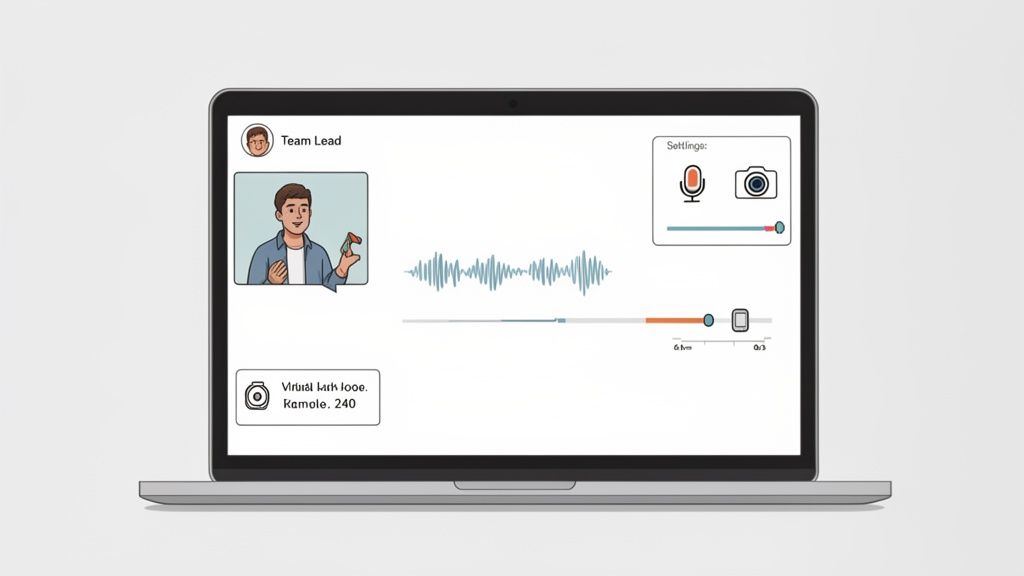
Do yourself a favor and check your settings before you jump into a call. Just head over to Preferences > Audio & video in your Slack app. Here, you can set your default microphone and camera. Taking ten seconds to do this now saves you from that awkward "Can you hear me now?" shuffle at the start of every meeting.
Fine-Tuning Your Setup for Clarity
Once you're live in a call, you still have plenty of control. If you’re suddenly dealing with a weird echo, it's almost always your microphone picking up the sound from your own speakers. The simplest fix? Pop in some headphones. If you're in the same room with colleagues, make sure only one person is unmuted at a time to kill that nasty feedback loop.
And don't forget about virtual backgrounds. They're a lifesaver for maintaining a professional vibe, no matter how messy your home office gets.
- Blur your background: This is my go-to for a quick, clean look that hides any distractions.
- Use a custom image: For a more polished feel, you can upload a company-branded image. It creates a really consistent look when the whole team uses one.
These little touches help everyone focus on the conversation, not the laundry pile in the corner of your room.
Presenting Like a Pro with Screen Sharing
So much of our important work happens over screen share, whether we're walking through quarterly reports or giving design feedback. Slack’s screen sharing is built for this. When you share your screen, you can actually draw on it—a feature that’s incredibly handy for pointing out a specific detail without having to describe "the little blue button in the top left corner."
Here's a practical example: Imagine a team lead presenting a new dashboard in a Huddle. By sharing their screen, they can keep an eye on their team’s video feeds to read the room. When they get to a critical metric, they can use the drawing tool to circle it, instantly focusing everyone’s attention. It keeps people engaged and on the same page.
Getting this right has a huge payoff. Teams that effectively use video integrations have seen a 60% faster project completion rate because they're cutting down on endless email chains. You can discover more insights about Slack's productivity impact and see how it moves the needle for businesses.
Key Takeaway: The point of mastering these settings isn't just to be technically savvy. It’s about removing all the little points of friction in your communication. When your audio is crisp, your video is professional, and your screen share is clear, your message lands with more impact.
Once that killer presentation is over, it’s the perfect time to give credit where it's due. A quick shout-out in the channel using AsanteBot to praise someone's contribution is a great way to wrap things up. Recognizing this effort is important because it motivates team members to maintain high standards and shows them that their hard work is noticed and valued.
Plugging Your Favorite Calling Apps Into Slack
Slack's own Huddles and calls are brilliant for those quick, informal chats inside the team. But let's be realistic—most companies are already using tools like Zoom, Google Meet, or Microsoft Teams for bigger, more structured meetings. The real magic of Slack is that it doesn't try to replace them; it brings them all together under one roof.
This is more than just a convenience. Think about how much time we waste toggling between apps. In fact, research shows 66% of organizations using Microsoft Teams are also running on Slack. By integrating these platforms, a marketing lead can fire up a Zoom webinar directly from their #q4-campaign channel, and everyone in that channel gets the invite instantly. No more jumping over to another app, creating a meeting, and pasting links back and forth. Everything stays right there in the project's home base.
Getting Your Apps Connected
Connecting your go-to video conferencing app is surprisingly straightforward. You just have to head over to the Slack App Directory, find the app your team uses, and give it permission to connect to your workspace.
Once you’ve done that, starting a call is as easy as typing a quick slash command:
- /zoom whips up a new Zoom meeting link and drops it right into the channel.
- /gmeet does the same for a Google Meet call.
- /teams-call launches a Microsoft Teams meeting without you ever leaving Slack.
The App Directory is packed with all sorts of voice and video integrations to fit whatever workflow your team has.
You'll find all the heavy hitters like Zoom, Webex, and Google Meet, as you can see. Pulling these tools into your Slack workspace just makes life easier for everyone. If your team is a big fan of Zoom, we’ve actually put together a detailed guide on how to start a Zoom meeting in Slack to walk you through it.
Don't Let Recognition Get Lost Between Apps
Bringing your favorite calling apps into Slack isn't just about efficiency; it's a chance to keep your company culture front and center. Team recognition is vital because it boosts morale, reinforces company values, and creates a positive work environment where people feel valued. When recognition is visible, it motivates others and highlights what success looks like within the team.
Imagine your sales team just nailed a huge client demo on a Microsoft Teams call. That win deserves to be celebrated, but the excitement can fizzle out if it stays siloed in Teams. The moment that call wraps up, a smart manager brings that energy right back into the main Slack channel.
A practical example: A simple post in the
#sales-teamchannel like, "Incredible job on that demo, @anna and @david! You absolutely crushed it," keeps the momentum going. And if you use a tool like AsanteBot, you can instantly add recognition points to that message, making the praise visible and tangible for the whole company to see.
This little ritual ensures that no matter which tool you're using for your video calls on Slack, the culture of appreciation stays strong. While Slack is powerful on its own, enhancing it with specialized virtual team communication tools can truly elevate how your team connects. It’s a simple way to keep morale high and prove that great work gets noticed, no matter where it happens.
Building a Culture of Effective Video Communication
Knowing how to use video calls on Slack is one thing, but building a team culture that makes those calls count is something else entirely. It’s about shifting the goal from just making calls to making them genuinely collaborative, positive, and productive.
A great place to start is by setting clear expectations around when to use which feature. Does this conversation really need a scheduled, formal call, or could a quick Huddle get the job done faster? I’ve found a good rule of thumb is to use Huddles for those "can I borrow you for five minutes?" moments—quick problem-solving or rapid back-and-forth. Save the more formal calls for things that need structure, like a project kickoff or a weekly sync. This simple habit goes a long way in fighting meeting fatigue.
This distinction is a game-changer for remote teams. It's no surprise that Slack Huddles have become a lifeline for distributed workforces, powering 16% of all remote conversations across Slack's massive user base of over 42 million daily active users. HR managers and team leads are leaning on these tools more than ever to keep their teams feeling connected, no matter where they are.

Driving Engagement and Inclusion in Calls
Making a video call feel inclusive doesn't happen by accident; it takes deliberate effort. Not everyone is comfortable jumping into a conversation, so as a leader, you have to intentionally create space for every voice.
Here are a few tactics that work well:
- Share a quick agenda. Even for an informal Huddle, dropping a couple of bullet points in the channel beforehand gives people—especially introverts—time to gather their thoughts.
- Try a "round robin." Simply go around the virtual room and ask each person for their input. It's a straightforward way to make sure no one gets overshadowed.
- Encourage chat and reactions. Remind everyone they can use the chat for questions or emoji reactions for quick feedback. This offers another way to participate without having to interrupt.
To make sure nothing gets lost after the call ends, you might look into AI meeting summary tools. They can help capture key decisions and action items, which is a huge help in keeping everyone aligned.
Weaving Recognition into Your Call Rituals
Recognition is the glue of a healthy team culture, and the end of a video call is the perfect time to apply it. Public, timely praise has a massive impact on morale and is crucial for retention and engagement. It signals to employees that their work is valued and directly contributes to the team's success, which fosters loyalty and a sense of belonging.
The end of a call is a prime opportunity for recognition. Instead of just abruptly ending the meeting, a team lead can take thirty seconds to acknowledge a specific contribution, strengthening team bonds and reinforcing desired behaviors.
Think about it. You're wrapping up a project debrief in a Huddle. Before everyone clicks "leave," the team lead can immediately pivot.
Here's how that looks in practice:
The lead says, "Before we go, I want to give a huge shout-out to Maria for her incredible work on the new ad visuals." Then, right after the Huddle ends, they post in the channel using a tool like AsanteBot: /asante @maria for crushing the new ad designs! Your creativity really shines through.
That simple, two-step ritual—verbal praise followed by public, written recognition—makes celebrating wins a natural part of your workflow. It transforms your video calls on Slack from just meetings into moments that actually build your team's culture.
Common Questions About Slack Video Calls
Even with a feature as straightforward as a video call on Slack, a few questions always pop up. Whether you're a team lead trying to wrangle a project or an HR manager building a strong remote culture, getting quick answers is key to keeping things moving.
Let's dig into some of the most common ones.
How Many People Can Join a Slack Call?
This is probably the number one question I get, and the answer isn't a single number—it depends entirely on your Slack plan and whether you're hopping into a Huddle or starting a formal call.
Here’s the breakdown:
- One-on-one calls: Good news for everyone. All plans, even the Free version, let you have unlimited one-on-one voice and video calls.
- Slack Huddles: On the Free plan, Huddles are a two-person affair. Once you move to a paid plan (Pro, Business+, or Enterprise Grid), that number jumps significantly to 50 people.
- Group Calls (in DMs or channels): These aren't an option on the Free plan at all. For paid users, you can host a group call with up to 50 participants.
This setup makes the Free plan perfect for quick check-ins and direct collaboration. But as soon as your team needs to gather in larger groups, a paid plan becomes pretty essential.
Are Slack Video Calls Secure?
Security is non-negotiable, and thankfully, Slack treats it that way. All the audio and video traffic from your calls is encrypted in transit. In simple terms, this scrambles the data as it travels between your computer and Slack's servers, protecting your conversations from anyone trying to listen in.
For businesses with serious compliance requirements, Slack offers advanced tools like Enterprise Key Management (EKM). This gives you direct control over the encryption keys, adding a powerful layer of security and control over your company's data.
A quick reminder: tech can only do so much. True security also relies on good habits. I always encourage teams to use strong, unique passwords and be mindful of what they're showing when they share their screens, especially when people outside the organization are on the call.
Can You Record a Video Call on Slack?
This is a big one. Unlike platforms like Zoom or Microsoft Teams, Slack doesn't have a built-in feature to record video or audio from Huddles or calls.
That doesn't mean you're stuck, though. You can always use third-party screen recording software to capture the session. And for teams on paid plans, Slack's own AI tools are a fantastic alternative—they can generate automated transcripts and summaries of Huddles, giving you the key takeaways without needing a full recording.
Do Video Calls Work on the Slack Mobile App?
They absolutely do, and the mobile experience is surprisingly robust. The Slack mobile app gives you the full ability to start or join Huddles and direct calls right from your phone or tablet. You can even share your screen.
This is a game-changer for teams that aren't tied to a desk. I’ve seen a field technician show an engineer a faulty part in real time, saving hours of back-and-forth. It’s perfect for that kind of spontaneous, visual problem-solving.
It’s also a great way to keep team morale high. A manager can give immediate kudos after a team member handles a tough client call while on the move, making recognition feel instant and sincere.
Practical Example:
A sales rep wraps up a great client demo from their phone. Their manager sees the update in the #sales-wins channel and immediately uses AsanteBot to post: /asante @jessica for that amazing client demo! You nailed it. This kind of real-time feedback reinforces positive actions, no matter where work gets done.
Ready to make recognition a seamless part of your team's daily rituals? With AsanteBot, you can celebrate wins, foster a culture of appreciation, and track team morale right inside Slack. It takes just two minutes to set up. Get started with AsanteBot for free.