Using Giphy with Slack is way more than just a fun little distraction. It’s actually a surprisingly powerful tool for adding some much-needed personality and emotion back into our digital conversations. Think about it: a perfectly timed GIF can take a simple "good job" and turn it into a genuine moment of team recognition, which is huge for bridging the communication gap when we're all working from different places.
Table of Contents
Why GIFs Are a Secret Weapon for Team Culture
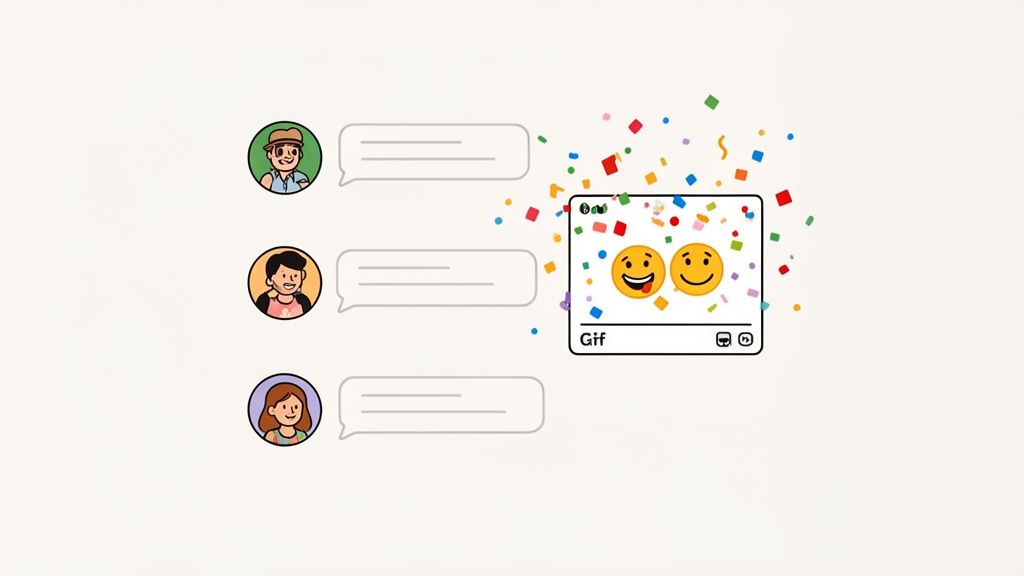
When you're remote or hybrid, all that text can start to feel a little flat, right? We lose all the subtle cues we rely on in person—the tone of voice, a smile, a nod. This is exactly where integrating Giphy with Slack completely changes the game.
GIFs bring back that missing emotional layer. They inject nuance and personality into our day-to-day chats, helping to head off misunderstandings by making the tone crystal clear. Suddenly, feedback feels friendlier, and celebrations feel much, much bigger.
Transforming Team Recognition
We all know team recognition is important for morale, but it's easy for it to get lost in the shuffle. A quick "thank you" is nice, but when you pair it with a visual, the praise really lands and stands out.
Imagine a team member finally ships a new feature they've been grinding on for weeks. A simple text message like "Great work on the launch" might just scroll by unnoticed in a busy channel. But drop in a "standing ovation" or a "mic drop" GIF with that message? Now the praise is public, visible, and the whole team gets to share in that celebratory feeling. It’s a small thing that transforms a routine thank-you into something memorable, reinforcing the importance of that achievement.
By making praise more expressive and visible, GIFs help build a workplace culture where appreciation is a daily habit, not a rare event. This fosters a positive environment where everyone feels seen and valued for their contributions.
Fostering Connection and Empathy
Visual communication isn't just for celebrations, either. It’s a fantastic way to build stronger team bonds and a more empathetic culture. Just think about these everyday situations:
- Acknowledging Effort: Someone posts a super detailed project update. A "mind blown" GIF is a fast, visual way to say, "Wow, I'm impressed."
- Boosting Morale: It’s been a long, tough Monday. A funny, relatable GIF can instantly break the tension and remind everyone that you're all in it together.
- Welcoming New Hires: A "welcome to the team" GIF in their introduction channel immediately makes a new person feel like they're part of the group.
The use of GIFs in our daily lives is just massive. Way back in 2017, Giphy was already serving 200 million daily active users, which just goes to show how deeply this kind of visual media is baked into how we connect with each other. This integration is just one of many ways to improve your workspace; exploring the best Slack apps can reveal even more tools to boost team engagement.
Setting Up Giphy in Your Slack Workspace
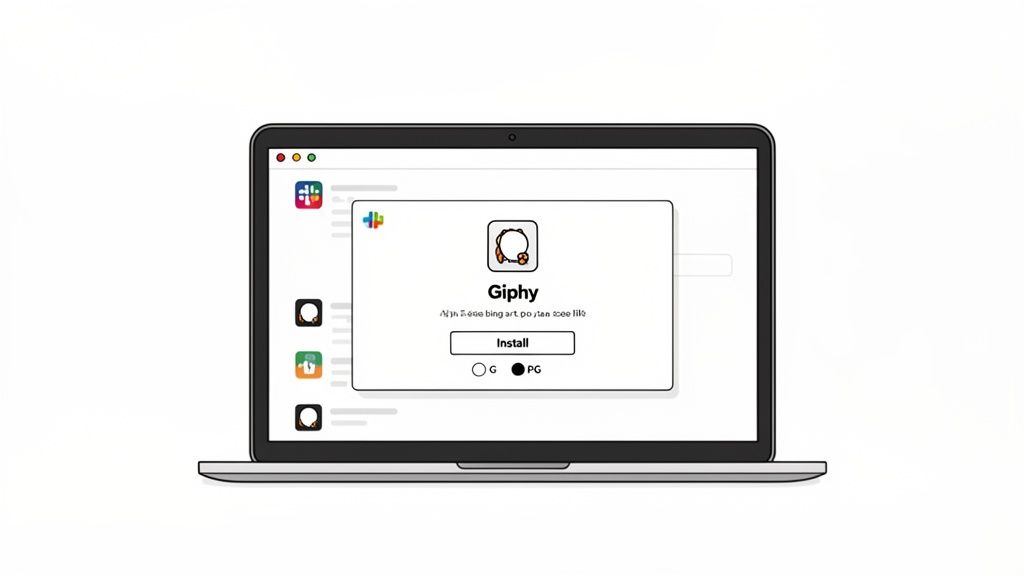
Alright, let's get Giphy hooked up to your Slack workspace. It's actually a really simple process that can make a huge difference in how your team connects and communicates.
First, you’ll need to pop over to the Slack App Directory, find "Giphy," and hit the "Add to Slack" button. It feels like a small click, but you're essentially flipping a switch that can make your team’s culture more visual and fun. Think of it this way: you’re giving everyone a new tool to turn a quick "good job" into a memorable high-five that the whole channel can see.
Configuring Your Initial Settings
After adding the app, Slack will ask you to authorize it. This is where you make your first—and most important—decision: setting the content rating for the GIFs. This one setting is your main line of defense for keeping everything professional and aligned with your company’s vibe.
It works a lot like movie ratings, and you’ll want to choose carefully.
- G (General Audiences): This is the go-to for most workplaces. It’s the safest bet, keeping everything clean and appropriate for everyone. We strongly recommend starting here.
- PG (Parental Guidance Suggested): Mostly fine, but you might get some GIFs with milder themes that could be borderline in some office cultures.
- PG-13 (Parents Strongly Cautioned): This category can include suggestive humor or language that probably doesn't belong in a professional chat.
- R (Restricted): It's best to avoid this one altogether in a work environment.
By setting the content rating to G from the very beginning, you establish a clear boundary. It takes the guesswork out of it for your team and prevents any awkward moments down the road, letting everyone use GIFs without worrying about what might pop up.
Imagine a team lead wants to shout out a junior dev in the #wins channel for squashing a tricky bug. They can type /giphy you rock and know with certainty that the result will be a fun, work-safe animation. This confidence encourages those small, spontaneous moments of recognition that are so important for morale.
The Impact of a Seamless Integration
What makes the Giphy and Slack integration so great is how it smooths out the whole process of sharing. Before, you’d have to leave Slack, go find a GIF, save it, and then upload it. It was a hassle.
Now, it’s all done right inside the chat window. Just type /giphy followed by your search term, and an animation appears instantly. This small change saves a surprising amount of time and makes it effortless to inject a bit of personality into any conversation. You can find more details about how this integration helps teams on latenode.com.
Practical Giphy Commands Everyone Should Know
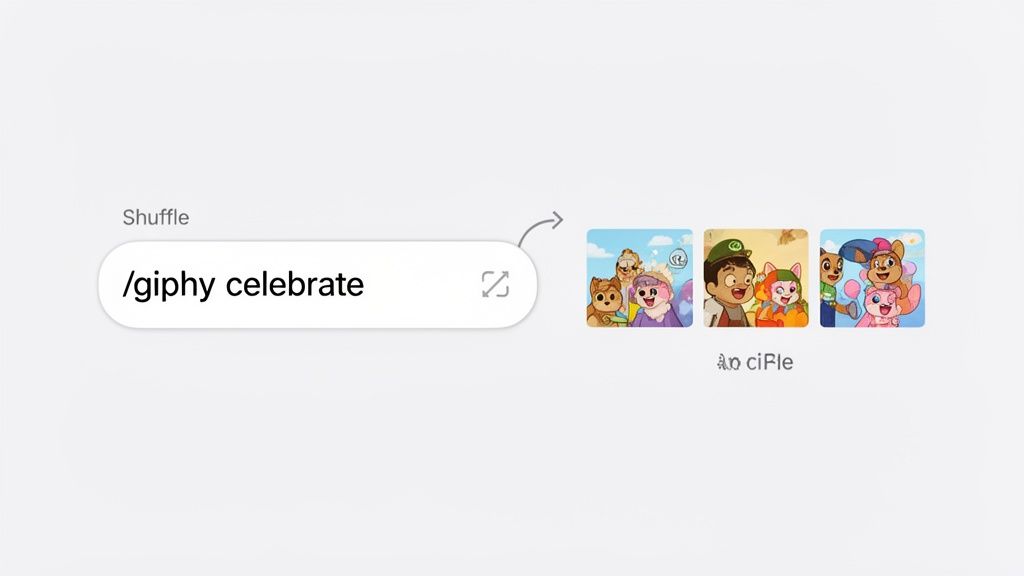
Alright, let's get beyond just typing /giphy and a single word. That’s where the real magic happens and you can make your team's conversations feel more alive. While a basic search is fine for a quick thumbs-up, learning a couple of extra tricks can turn Giphy with Slack from a fun distraction into a genuinely useful tool for celebrating wins and keeping the team spirit high.
The biggest frustration people have is that the first GIF that pops up isn't always the right one. Don't just send it and hope for the best! When you type your command, Slack gives you a preview only you can see. Right there, you’ll find the all-important Shuffle button. Keep clicking it to cycle through different GIFs for your search term until you land on the perfect one. No more awkward or slightly-off-the-mark animations.
Refining Your GIF Searches
The secret to finding great GIFs is getting specific. Instead of a generic /giphy happy, try something more descriptive like /giphy excited dance or /giphy success celebration. Think about the action or feeling you want to convey. The more context you give Giphy, the better it gets at finding what you're picturing.
This is a game-changer for team recognition. A simple "good job" GIF is okay, but it lacks punch. When someone on your team finally launches a huge project, a command like /giphy mic drop success delivers a much more memorable and energetic pat on the back. It shows you put a little extra thought into it, which makes all the difference in making employees feel valued.
Mastering these commands ensures your visual praise is intentional and effective. It elevates a simple "good job" into a public, celebrated moment that reinforces a culture of appreciation and high performance.
Adding a Personal Touch with Captions
Here’s a feature I see people miss all the time: the caption command. This lets you write your own text right on top of the GIF, making it a completely custom shout-out. The format couldn't be simpler: /giphy #caption "Your Text" search term.
Let's say your colleague, Sarah, just nailed a presentation. You could type /giphy #caption "Amazing job, Sarah!" standing ovation. This instantly pairs a great visual with a direct, personal message. It’s a small detail, but it makes the praise so much more powerful and specific, ensuring Sarah feels truly seen for her work.
To help you and your team get up to speed, here’s a quick-reference table with the most useful commands.
Essential Giphy Commands for Slack Users
This table is a handy guide to the most useful Giphy slash commands. Keep it nearby to level up your daily Slack conversations.
| Command | Function | Example Usage |
|---|---|---|
/giphy [search] |
Finds a random GIF based on your search term. | /giphy good morning |
| Shuffle Button | Cycles through GIF options before sending. | Use after /giphy to find the perfect GIF. |
/giphy #caption "text" [search] |
Adds your custom text as a caption on the GIF. | /giphy #caption "We did it!" team win |
Once you start using these, encourage your team to do the same. When recognition is fun, visual, and personal, it stops feeling like a chore and becomes a natural part of how you all communicate. It’s a small thing that can genuinely help build morale and strengthen your team's connection, all from within Slack.
How to Keep Your GIF Game Professional
Bringing Giphy into Slack is a great way to boost team culture, but nobody wants it to turn into the Wild West. For anyone managing a workspace, the trick is finding that sweet spot between fun and focus. Thankfully, Slack gives you the admin controls to do just that, making sure GIFs add to the conversation, not derail it.
The first and most important move is to lock in the content rating for the Giphy app. This is your frontline defense against anything weird or distracting popping up in your channels. It’s a simple setting that sets the tone for the entire workspace.
Setting the Right Content Rating
As a workspace admin, you get to decide the maximum GIF rating your team can access. You'll find this in your Slack admin panel right in the Giphy app's management settings. The options are easy to understand, just like movie ratings.
- G (General Audiences): This is the gold standard for any professional setting. Stick with this, and you can be confident that all GIFs will be safe for work. It’s the one I always recommend.
- PG (Parental Guidance Suggested): This is usually okay, but it can sometimes surface GIFs with subtle humor or themes that might not land well in every workplace culture.
- PG-13 & R: Just avoid these entirely. They open the door to content that has no place in a professional environment.
By choosing G, you’re filtering out any potentially problematic content before it even has a chance to appear. It's a "set it and forget it" solution that lets your team use Giphy without second-guessing what might show up.
Establish Simple, Clear Guidelines
Technical settings are only half the battle. You also need to set some clear, common-sense expectations for how your team should use GIFs. This doesn't need to be a formal, multi-page policy; a quick message in a general channel or a short paragraph in your company wiki usually does the trick.
I've found it helps to focus on the why. Encourage your team to think of GIFs as a tool to:
- Amplify Recognition: A well-chosen celebratory GIF in a
#winschannel makes that praise feel so much more energetic and visible. For instance, you could suggest using/giphy partywhen a major milestone is hit. - Clarify Tone: We’ve all sent a text message that came across wrong. A friendly GIF can soften constructive feedback or just make it clear you’re joking. A practical example is adding a winking GIF to show a comment is lighthearted.
- Build Connection: Nothing builds camaraderie like a perfectly timed, relatable GIF that gets the whole team laughing.
The key is to frame GIFs as a tool for building people up. When everyone understands that the purpose is to celebrate wins and strengthen communication, the tool naturally gets used in a more constructive way. Recognizing achievements, big or small, is vital for morale and retention.
Manage Giphy on a Per-Channel Basis
Let’s be honest, not every channel needs a constant stream of moving pictures. For more serious channels like #announcements or key #project-updates, you can simply turn the Giphy integration off for that specific space.
Just head into the channel’s settings, click on the "Integrations" tab, and you can remove the Giphy app from there. This gives you fantastic granular control, letting you keep things focused where it matters while allowing for more fun in social channels like #random or #watercooler.
To make sure your GIFs always look crisp and don't bog down your channels, it's worth learning how to optimize GIF size without losing quality. And if you want to take your team's visual language even further, you can also learn more about using custom emojis in Slack. Combining smart admin settings with clear cultural guidelines is the secret to making sure your team's GIF game stays both fun and professional.
Using GIFs to Amplify Team Recognition
A quick "thank you" in a busy Slack channel is fine, but it can easily get lost in the scroll. When you pair that message with the perfect GIF, suddenly that small bit of praise becomes a memorable moment for the entire team. This is where using Giphy strategically really shines—it turns routine praise into something that genuinely resonates.
Adding a visual element simply carries more emotional weight. It’s no surprise that a Slack study found 50% of Gen Z workers feel GIFs and emojis help them feel more connected to their coworkers. You're not just typing text; you're creating a shared, celebratory event. Consistent recognition is a cornerstone of a positive work culture, making employees feel valued and motivated.
Make Praise Public and Specific
The real magic of using GIFs for recognition is taking praise out of private DMs and putting it into a team channel. It makes appreciation a public, energetic act that boosts morale and shows everyone what kind of behavior gets celebrated.
The trick is to match the GIF to the actual achievement. It’s a small detail, but it shows you're paying attention and makes the praise feel far more authentic.
- For a Killer Presentation: Someone just aced a client demo. A simple "great job" works, but
/giphy mic dropor/giphy standing ovationturns it into a real victory lap. - For a Colleague Who Helped Out: A team member stayed late to help you crush a deadline. A heartfelt
/giphy you are the bestor/giphy lifesaveradds a layer of warmth that text alone can't capture. - For Crushing a Team Goal: Your team just smashed a sales target or launched a new feature. A celebratory
/giphy we did itor/giphy teamworkmakes it a genuine shared win.
When praise is visible, it does more than just reward one person—it signals to the entire team what success looks like and what actions are valued. It's a low-effort, high-impact way to build a culture of appreciation.
Turn Recognition into a Daily Habit
Often, it's the consistent, small acknowledgments that have a bigger impact than the rare, grand gestures. GIFs make it incredibly easy to weave recognition into the daily fabric of your team's workflow. This builds an environment where everyone feels comfortable giving and receiving praise, for both the big wins and the small acts of helpfulness.
Think about a dedicated #wins or #kudos channel. When someone shares a positive customer review, team members can pile on with a /giphy chef's kiss or /giphy excellent. That simple interaction transforms a minor update into a powerful moment of connection and reinforcement, building the kind of team cohesion that truly drives results. This daily practice is crucial because it ensures that employees feel consistently valued, not just during annual reviews.
Got Questions About Giphy and Slack? We've Got Answers
When you roll out Giphy in Slack, a few common questions always pop up. Getting the answers sorted out early helps everyone feel confident using GIFs, which is key to making team recognition feel natural and fun.
Let's dive into the most frequent ones.
Can I Add GIFs From My Phone?
You bet. The fun doesn't stop when you step away from your computer. The Slack mobile app fully supports Giphy, so the /giphy command works exactly the same on your phone as it does on your desktop. You can also just upload any GIF you've saved to your phone's camera roll directly.
This is a game-changer for celebrating wins in real-time. Picture a field sales rep closing a huge deal. They can fire off a perfect "victory dance" GIF into the #wins channel right from their phone. That kind of instant celebration keeps the entire company plugged into the team's successes, no matter where they are. This immediacy is important because timely recognition has a much stronger impact on employee morale.
How Can I See a GIF Before Posting It?
Yes, and this is a feature you'll want to use every single time. After typing /giphy [your search term], Slack gives you a private preview of the GIF that only you can see. From there, you have two choices: Send or Shuffle.
This preview step is your best friend. It’s what stops you from accidentally dropping a weird or off-brand "congratulations" GIF into a public channel. If the first result isn't quite right, just keep hitting Shuffle until you land on one that perfectly nails the tone you're going for. It makes your message feel so much more authentic.
Taking that extra second to preview is the difference between a funny, morale-boosting high-five and a cringey moment that falls flat. It’s how you make sure your recognition always lands just right.
Is It Possible to Turn Off Giphy in Certain Channels?
Absolutely. Some channels are meant for serious business, and that's perfectly okay. It's easy to keep spaces like #company-announcements or a critical project channel free from distractions by disabling Giphy just for that conversation.
Just pop into the channel's settings, click over to the "Integrations" tab, and find Giphy in your list of apps. You'll see an option to remove it for that specific channel. This lets you have the best of both worlds—plenty of personality in your social channels while keeping your work-focused ones on track. For example, your #random channel can be full of GIFs while your #client-project-alpha channel remains strictly professional.
Ready to build a culture where recognition happens every day? AsanteBot turns appreciation into a fun, measurable habit right inside Slack. Start your free trial today and see the difference.