
Tired of the endless shuffle between apps? The Dropbox Slack integration brings your files and conversations together into one central hub, finally putting an end to that constant tab-switching. It fundamentally changes how teams collaborate by embedding your file library right where you talk, making sure everyone is on the same page.
Table of Contents
Why Connecting Dropbox and Slack Is a Game-Changer
For most of us, the daily grind involves a frustrating dance between different tools. You're deep in a project discussion on Slack, then you have to hop over to Dropbox to find the latest file, download it, tweak it, and then share a new link back in the channel. That constant context-switching kills focus and opens the door for mistakes, like accidentally sharing an old version of a document.
This integration is built to stop that cycle cold. It’s not just about pasting links; it’s about building a single, cohesive workspace where your content and your conversations live side-by-side.
Think about a project channel where the latest design mockups and strategic plans are right there in the discussion thread, ready to view. This one change smooths out the friction in your workflow and lets your team build real momentum.
The Impact of a Single Source of Truth
When you connect your files to your conversations, you create a powerful single source of truth. Your team spends less time digging for the right document and more time actually getting work done.
For distributed teams, where clear communication is everything, this kind of setup is non-negotiable. The enhanced Dropbox app for Slack allows its 500 million users to share and preview files directly in a channel, completely removing the need to jump between platforms. It’s a simple concept with a huge impact on productivity.
This unified approach also has a surprisingly positive effect on team culture. When recognition is due, you can make it immediate and tangible. The importance of team recognition can't be overstated; it's the fuel that drives morale, engagement, and retention. Feeling seen for your contributions is a powerful motivator.
Team recognition is a huge driver of morale. Imagine being able to instantly share the final project file from Dropbox while publicly celebrating the contributors in the Slack channel. You're not just saying "good job"—you're making appreciation visible and directly linking it to the work itself. This act tells your team that their specific efforts are seen and valued.
Real-World Examples of a Better Workflow
So, what does this look like in practice?
- For Marketing Teams: The team's content calendar, living in Dropbox, gets shared in the
#marketing-campaignschannel. As people drop feedback in the thread, the file preview stays up-to-date, so everyone sees the latest version without ever leaving Slack. - For HR and People Ops: Onboarding packets from a secure Dropbox folder can be shared privately with a new hire through a direct message. It keeps sensitive information locked down while making the first-day experience seamless. For more great tools, check out our guide to the best Slack apps for modern teams.
- For Design and Product Teams: A designer drops a new wireframe from Dropbox into the team channel. Stakeholders can immediately see the preview and start a thread with their feedback, keeping all comments tied directly to the file being discussed.
How to Set Up Your Integration in Minutes
Getting Dropbox and Slack to talk to each other is surprisingly fast, and the payoff is immediate. You'll cut down on constantly switching between apps and bring your team's workflow into one central place. It really just comes down to finding the app and clicking a few buttons.
The whole process is designed to be pain-free. You can grab the Dropbox app for free right from the Slack App Directory. Once you sign in with your Dropbox account, you can instantly start sharing files, tweaking access, and getting notifications without ever leaving Slack. It’s a huge time-saver.
This visual shows just how much smoother your day-to-day work becomes once you flip the switch on this integration.
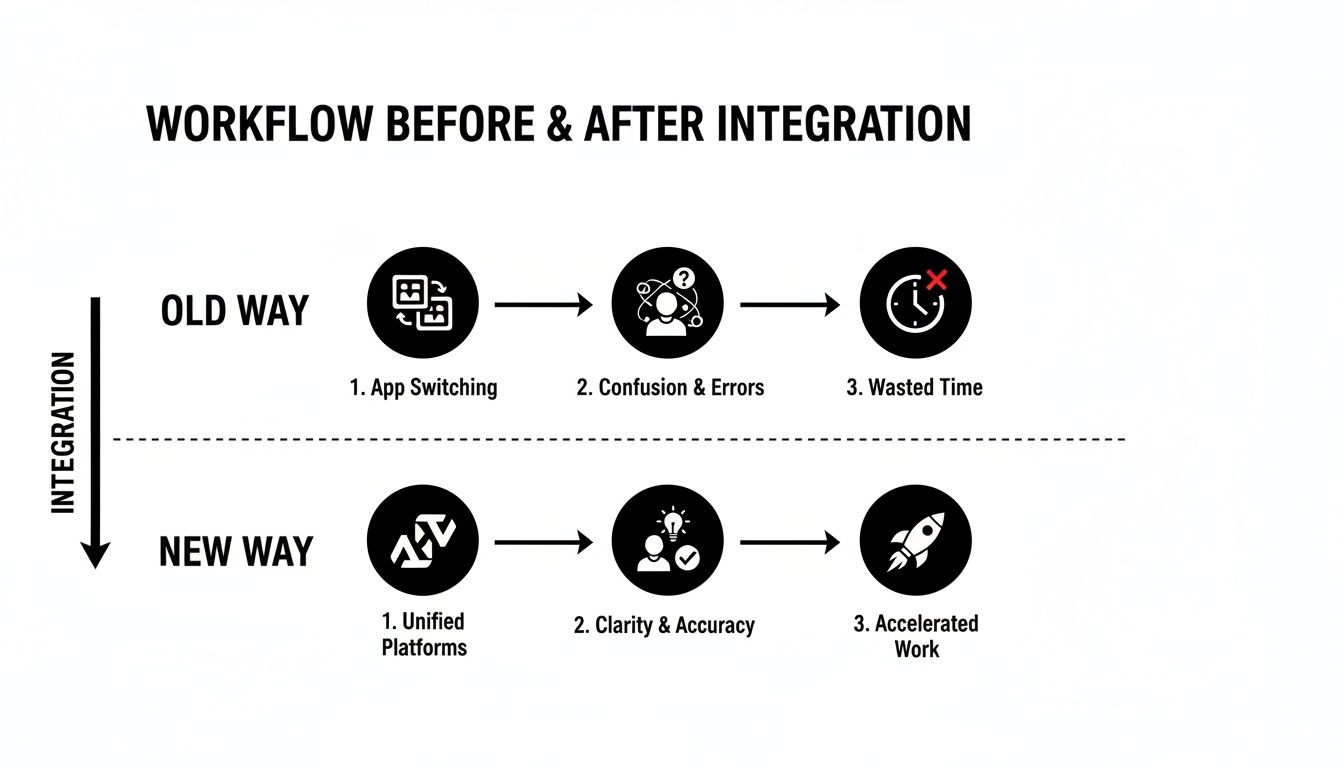
As you can see, it takes the team from a tangled, confusing process to a clear, productive one.
Locating and Installing the App
First things first, you need to head over to the Slack App Directory. The easiest way to get there is to click on "Apps" in your Slack sidebar and just search for "Dropbox."
When you find it, click "Add to Slack." This kicks off the authorization process, where you’ll give the two platforms permission to communicate. This step is a big deal for both security and making sure everything works as expected.
Individual vs. Workspace Installation
You’ll have to decide whether to install the app just for yourself or for your entire workspace.
- For Yourself: This is a great option if you just want to link your personal Dropbox account to Slack for your own use. No need to bother the whole team.
- For the Whole Workspace: If you’re a Slack admin, this is the way to go. Installing it for everyone ensures the entire team is on the same page from the start, creating a consistent workflow for sharing and collaboration.
A workspace-wide installation is the real secret to unlocking team collaboration. It standardizes how everyone shares files, which makes it far easier to manage permissions and avoid those frustrating "you don't have access" moments.
Once you’ve got this down, you’ll find that the same basic ideas apply when integrating other tools with Slack. The core concepts of authorizing apps and granting permissions are pretty much the same across the board.
Understanding Key Permissions
During the setup, Slack will pop up a screen listing the permissions the Dropbox app is requesting. Don't just click through this—it's your opportunity to see exactly what the app will be able to do inside your workspace.
To make this crystal clear, here’s a breakdown of what those permissions actually mean in practice.
Understanding Dropbox App Permissions in Slack
| Permission Request | What It Allows | Why It's Needed |
|---|---|---|
| View content and info about channels & conversations | The app can see basic information about public channels, but not your private messages. | This is necessary to post file previews and notifications in the correct channel when a file is shared. |
| Perform actions in channels & conversations | Allows the app to post messages and previews into the channels you've added it to. | This is the core function—it's how Dropbox files actually appear and become interactive within Slack. |
| View content and info about your workspace | The app can see team information like your workspace name and icon. | This helps the app confirm it's connecting to the right workspace and personalizes the experience. |
| Perform actions as you | Lets the app share a file on your behalf when you use the Dropbox shortcut in Slack. | When you decide to share a file, this makes the action appear as if it came from you, not a generic bot. |
By reviewing these requests, you can approve the connection with confidence, knowing exactly how the integration will function and that your data remains secure. It’s all about transparency.
Alright, let's get into the good stuff. Now that you've got the Dropbox Slack integration up and running, it's time to see where the real magic happens—in your team's day-to-day work. This is where you move from setup to actual impact, turning those clunky, disconnected tasks into a smooth, collaborative rhythm.
Think about the old way of doing things. You download a file, tweak it, and re-upload it with some clunky name like "Final_Draft_v3_final_final.docx." We've all been there. Forget that. Now you can share files and manage who sees what without ever leaving your Slack channel.
It’s a simple but powerful shift. A project manager can drop a new brief from Dropbox straight into the #project-alpha channel. Instead of a dead link, the team gets a full preview of the document right there in the conversation. This keeps everyone on the same page, literally, and anchors the discussion to the work itself.
This preview isn't just a nice visual touch; it’s a feedback machine. Your team can see the content and immediately start a thread with their thoughts. No more hunting for the right file or context—the feedback loop is built right into the conversation, tied directly to the document.
Fostering a Culture of Visible Recognition
Here’s a benefit people often miss: using this integration to make team recognition a visible, tangible thing. We all know that positive feedback is fuel for morale, and feeling seen for your work is a huge driver of engagement. This setup gives you the perfect way to build that habit because when recognition is tied to a specific outcome, it feels more genuine and impactful.
Let’s play out a practical, real-world scenario. Your marketing team just wrapped up a huge campaign presentation after weeks of grinding. As the team lead, you can do so much more than a quick "great job, everyone."
- Share the Final Work: First, post the final presentation file from Dropbox directly into your main team channel, say
#marketing-team. - Give a Shout-Out: In the message you post with the file, @tag everyone who had a hand in it.
- Get Specific: Write a message that highlights their actual contributions. Something like, "@Anna, that data analysis was a game-changer, and @Tom, the new slide designs are killer. Awesome team effort!"
This simple act does something incredibly powerful: it connects the praise directly to the finished product. It's not some abstract compliment—it’s a public celebration of a tangible outcome. That’s what really lands with people and keeps them motivated.
By making recognition a public and file-centric activity, you create a powerful, positive feedback loop. Team members see exactly what success looks like and feel genuinely valued for their specific contributions, which is a cornerstone of a healthy team culture.
Streamlining Permissions and Feedback Loops
Remember the headache of managing file permissions? Toggling back and forth between apps just to give someone edit access? The integration brings that entire process right into Slack, saving you from the constant context switching.
Let's say you share a view-only link, but a colleague realizes they need to make edits. They don't have to DM you or send an email. They can just click a button on the file preview in Slack to request access. You'll get a notification and can approve it with a single click, all without breaking your flow. By centralizing communication and file sharing, your team can uncover new strategies to improve overall team productivity.
This is a lifesaver, especially for:
- Cross-Functional Projects: Easily grant access to people outside your immediate team.
- Client Collaboration: Give external partners quick access in a shared Slack Connect channel.
- Draft Reviews: Keep a document locked down until you’re officially ready for team-wide edits.
Once you master these daily workflows, the Dropbox Slack integration stops being just another tool and becomes the engine of your collaborative work. And for those who want to push automation even further, exploring what you can do with tools like Zapier is the natural next step. We cover this in our detailed guide to connecting Slack and Zapier.
Advanced Plays for Team Leads and HR
Once you’ve nailed the basics of sharing files, you can start exploring what the Dropbox and Slack integration can really do. For team leads and HR folks, this is where things get interesting. We’re moving beyond simple file-sharing and into actively shaping your team’s culture and making your people operations run a whole lot smoother.
This isn't just another productivity hack. It's about building the infrastructure for more meaningful employee experiences, from how you recognize great work to how you chronicle your team's journey.
Build a Seamless Rewards and Recognition System
Let's be honest: team recognition only works when it’s immediate and real. A vague promise of a future reward just doesn't hit the same. With this setup, you can build a system that delivers instant, private, and genuinely thoughtful appreciation.
Here’s a practical idea: create a secure, managers-only Dropbox folder called "Team Rewards." Stock it with digital assets you can deploy at a moment's notice.
Think of it as your digital prize closet, filled with things like:
- Digital Gift Cards: Vouchers for coffee, lunch delivery, or online stores.
- Company Merch Codes: Unique codes for a free hoodie or t-shirt.
- Experience Vouchers: A one-month subscription to a wellness app or a ticket to a cool local event.
Now, imagine an engineer pulls a late-nighter to fix a critical bug. Instead of just a "great job!" message, their manager can immediately pull a relevant gift card from that Dropbox folder and share it directly in a private Slack DM.
That simple, one-on-one gesture feels personal. It reinforces the value of their hard work right when it matters most, closing the loop between exceptional effort and real appreciation. This practical example shows how important it is to make recognition timely and tangible to truly boost morale.
Create a Living Culture Archive
Your team's culture is built on a foundation of shared history—the big wins, the inside jokes, the project milestones. But these moments are fleeting, easily buried in the endless scroll of a busy Slack channel. The integration gives you a simple way to capture and preserve them.
Set up a dedicated Dropbox folder, maybe call it "Team Culture Archive," and use it as a living scrapbook. When something memorable happens in Slack, you can save it directly to this folder.
By archiving these key moments, you're doing more than just saving messages. You're building a historical record of your team's values and victories. For new hires, it's an incredible onboarding tool to quickly get a feel for what the team celebrates.
What goes in there?
- Major Announcements: Screenshots of the message dropping the news about a huge new client.
- Celebratory Messages: That thread full of praise and emojis after a monster product launch.
- Team Wins: Photos or files shared that mark the completion of a tough project.
This archive quickly becomes an invaluable asset. It reinforces a culture of shared success and makes it easy to look back and see just how far you've come.
When you use connected tools this way, the payoff is huge. Studies show that integrated teams can see 37% faster decision-making and 36% faster customer responses. On average, organizations save about 97 minutes per week just by making their collective knowledge accessible. You can dig into more of these stats over at The Business Dive.
By moving past the basics, you can use the Dropbox and Slack connection to build a more rewarding, positive, and historically rich team environment.
Keeping Your Digital House in Order
Connecting two powerful tools like Dropbox and Slack is great for productivity, but without some smart governance, it can get messy—fast. Good management isn’t about locking everything down; it’s about creating a secure and intuitive space where people can work freely without accidentally putting sensitive information at risk.
Think of it this way: you want to build guardrails, not walls. A great first step is to get your sharing permissions right from the get-go. Inside Dropbox, you can set default link-sharing options to "view only" for your entire organization. This simple tweak means people have to consciously grant editing rights, which goes a long way in preventing accidental data leaks before they ever happen.
This kind of proactive setup is what gives you real control over your company’s assets.
Match Your Folders to Your Channels
Here’s a simple but incredibly effective trick I've seen teams use to stay organized: mirror your file structure with your communication channels. If your team has a Slack channel for a project, create a Dropbox folder with the exact same name.
It creates a system that’s so logical, it requires zero training. Here is a practical example of how this mapping works:
- Slack Channel:
#project-hydra→ Dropbox Folder:Project Hydra - Slack Channel:
#q4-marketing-campaigns→ Dropbox Folder:Q4 Marketing Campaigns
This one-to-one mapping removes all the guesswork. No more "Where did we save that report?" questions. It also makes life much easier when it's time to archive a project or audit permissions, since everything is neatly contained.
How Security and Compliance Carry Over
For anyone navigating regulations like GDPR, a common question is whether integrations like this create new security gaps. The short answer is no. The integration inherits the robust security protocols of both platforms.
Your files are still protected by Dropbox's encryption and access controls, while the conversations happening in Slack are covered by its own compliance and security policies.
Your data’s security isn’t diluted by connecting these two platforms. It’s a 'best-of-both-worlds' scenario where Dropbox’s file security and Slack’s communication safeguards work in tandem to protect your information at every step.
Ultimately, strong security relies on regular check-ins. Make it a habit to periodically review who has access to sensitive folders and channels. If someone has moved to a new team or left the company, remove their access promptly. A well-managed Dropbox and Slack setup gives you the confidence to empower your team, knowing you have a solid organizational and security foundation in place.
Got Questions? We've Got Answers
Bringing together two powerhouse tools like Dropbox and Slack is a game-changer, but it's natural for a few questions to surface as you get started. Let's walk through some of the common things people ask, so you can feel confident you’re getting this integration right.
How Are File Permissions Handled?
This is probably the biggest question on everyone's mind, and for good reason. The good news is the integration is smart—it fully respects the permissions you’ve already set in Dropbox.
Say you share a link to a sensitive file that's "view-only" in a Slack channel. Your teammates won't suddenly get editing rights. Instead, they’ll see a handy message allowing them to request edit access with a single click. You get a notification to approve or deny it, keeping you in complete control. It’s a beautifully simple way to manage access without a chain of follow-up emails.
What Happens If I Delete the Slack Message?
We've all had that moment of panic after deleting something. Relax. Deleting a Slack message that contains a Dropbox file does not delete the file from Dropbox.
Think of Dropbox as your secure digital filing cabinet—the single source of truth. Slack is just the conversation happening around the file. The original document, spreadsheet, or presentation stays right where you left it in its Dropbox folder.
Imagine a manager shares a final project file from Dropbox to celebrate the team's hard work in a recognition channel. If that Slack message gets deleted later, the project itself is still perfectly safe and sound in its designated folder. This practical example underscores the importance of Dropbox as a permanent record, separate from the transient nature of chat messages.
Can I Connect More Than One Dropbox Account?
This is a common point of confusion, especially for people who use Dropbox for both personal and work life. The integration creates a strict one-to-one link: one Slack profile can connect to only one Dropbox account.
Because of this, you'll need to choose which account to link. For clear organization and security, I always recommend connecting your official work account. This creates a clean boundary between your personal and professional files and ensures company data stays within the company's managed environment.
Recognition is more than just a message; it's about building a culture of appreciation. With AsanteBot, you can create a fun, engaging recognition system right inside Slack that celebrates wins, big and small. Find out how AsanteBot can help.