Ever tried explaining a complex project plan using just text in a Slack message? It can quickly turn into a novel of back-and-forths, confusion, and missed details. The Lucidchart Slack integration completely changes the game by letting you drop clear, visual diagrams right into your team’s conversations.
Table of Contents
Why Visual Collaboration in Slack Is a Game Changer
In a fast-moving team, clarity is everything. Describing a detailed process or a new org chart with text alone is like trying to explain how to get somewhere without a map—it's possible, but you’re bound to get someone lost. This is exactly why connecting Lucidchart with Slack is so powerful. It closes the gap between talking about the work and actually seeing the work.
Instead of constantly switching between apps, your team can share, preview, and give feedback on diagrams without ever leaving Slack. The conversation and the visual context live in the same place, creating a single source of truth that keeps everyone perfectly aligned.
The Power of Instant Alignment
The biggest win here is speed. People just grasp complex ideas faster when they can see them. Imagine a project manager dropping an interactive project timeline into the main project channel. Suddenly, team members can instantly spot dependencies, comment on specific tasks, and even react with emojis.
What was once a static, text-based update becomes a live, collaborative session. It shifts the team from passively reading to actively engaging, cutting down on misunderstandings and speeding up decisions.
To give you a quick snapshot, here’s what the integration brings to the table.
Key Lucidchart Slack Integration Features
| Feature | Description | Key Benefit |
|---|---|---|
| Share & Preview Diagrams | Instantly share and view Lucidchart documents directly within Slack channels or DMs. | Eliminates app switching and keeps the context right where the conversation is happening. |
| Create New Documents | Use slash commands (/lucidchart) to quickly create new diagrams from within Slack. |
Reduces friction and captures ideas the moment they arise without leaving your workflow. |
| Manage Permissions | Grant or request access to diagrams for team members right from the Slack preview. | Simplifies document sharing and ensures the right people have access instantly. |
| Receive Notifications | Get Slack notifications for comments, shares, and access requests on your documents. | Keeps you in the loop and enables faster responses and feedback cycles. |
This integration isn't just about diagrams; it’s about making teamwork feel more connected and efficient.
Boosting Morale Through Recognition
Visuals are also fantastic for celebrating wins. When a team nails a complex flowchart, a manager can share the finished diagram in a company-wide channel with a shout-out to everyone who contributed. This public acknowledgment is crucial because it makes hard work visible and shows team members their efforts are valued. When recognition becomes a habit, it builds a stronger, more motivated team.
Practical Example: A product team finalizes a complex user journey map. The manager posts the Lucidchart diagram in the #announcements channel with a message like, "Amazing work by the UX team on mapping out the new user journey! This visual clarity is a huge win for everyone." This simple act connects a tangible achievement—the diagram itself—to the people behind it, fostering a culture of recognition, which is a key part of building a great team dynamic, much like what you see with the best Slack apps for employee engagement.
The results speak for themselves. Since its launch, the Lucidchart integration has helped over 15 million users clarify complex ideas 3 times faster. For HR and operations leaders, this has driven a 45% improvement in team alignment, especially for remote teams where visual clarity is non-negotiable. You can find more details about how these integrations boost efficiency on n8n.io.
Your Step-by-Step Guide to Setting Up the Integration
Connecting Lucidchart and Slack is like adding a shared whiteboard to all of your team's digital chat rooms. It bridges the gap between talking about an idea and actually seeing it, turning abstract conversations into clear, visual blueprints. The whole process only takes a few minutes, but before you start, just make sure you have admin permissions in both Slack and Lucidchart to add new apps.
If you're new to this, it can be helpful to see how other tools connect with Slack. Getting a feel for the common patterns in Slack app integrations and plugins can make the process feel more familiar.
Locating and Installing the App
First things first, you need to get the Lucidchart app into your Slack workspace. You can start this from either Slack itself or your Lucidchart account.
- Find the App: Head over to Slack, click on "Apps" in your sidebar, and just search for "Lucidchart."
- Add to Slack: You'll see an "Add to Slack" button. Clicking this takes you to a standard authorization page where Slack spells out exactly what Lucidchart will be able to do.
- Authorize Permissions: Give the permissions a quick look-over and hit "Allow." This is the key step that lets Lucidchart post diagram previews and react to slash commands right inside your channels.
Once you’ve given Slack the green light, it’ll bounce you over to Lucidchart to complete the connection. Think of it as a secure handshake between the two platforms.
Confirming the Connection
With the Slack side handled, you just need to tell Lucidchart which team to connect to. You'll see a final confirmation screen where you select your team and seal the deal. And that's it—you're ready to go.
The real goal here is to make sharing a complex diagram as effortless as sending a quick text. When the setup is done right, your team can pull up a detailed flowchart or a project timeline without ever leaving the conversation.
Practical Example: A project manager needs to share a revised project timeline. Instead of emailing a file or describing changes in a long message, they can simply type /lucidchart find project-alpha-timeline in the #project-alpha channel. The diagram unfurls instantly, and they can add a quick note: "@here, timeline updated with the new QA phase." Everyone sees the change in context, getting the team on the same page in seconds.
This process is all about transforming messy, text-based conversations into clean diagrams that drive clarity and understanding.
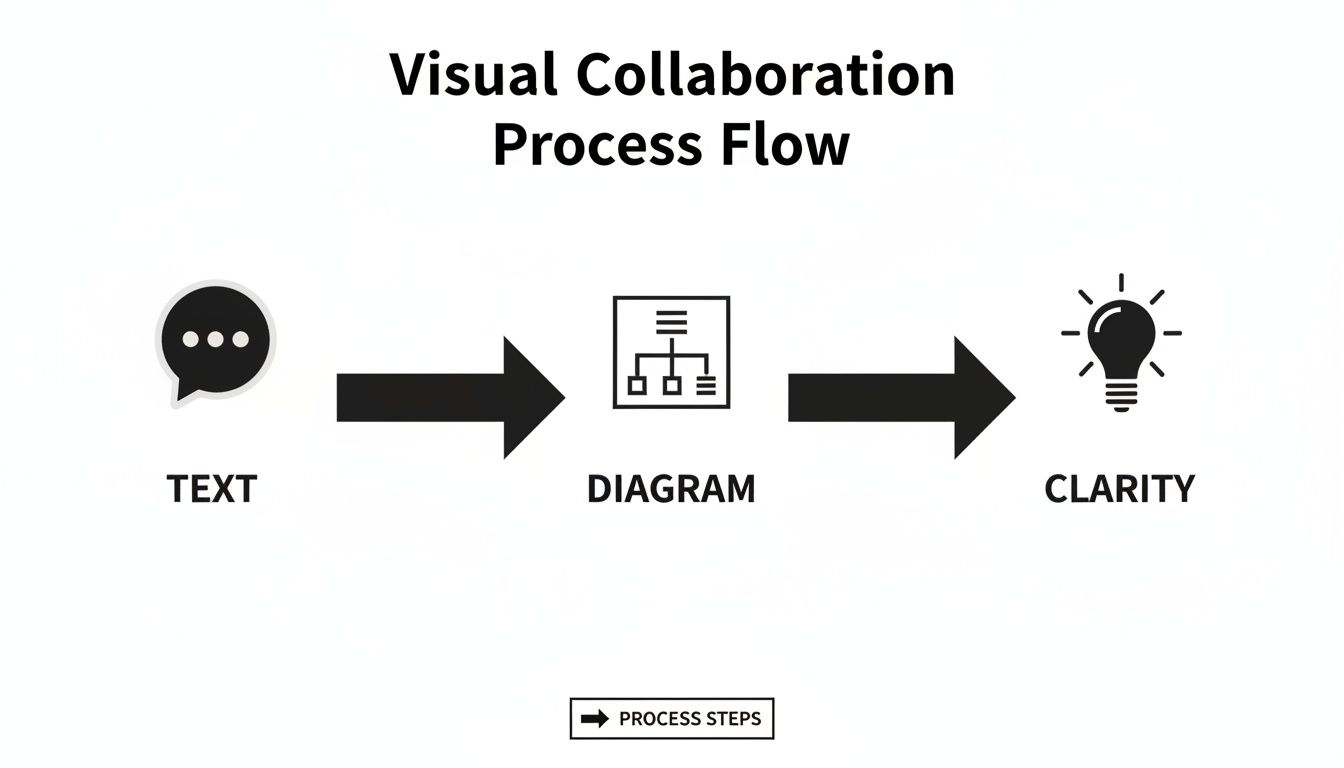
Ultimately, bringing powerful visual tools directly into your team's central communication hub is how you turn abstract talk into concrete, actionable plans.
How to Share and Collaborate on Diagrams in Slack
Alright, you've got the integration all set up. Now for the fun part: actually using it. This is where the Lucidchart app stops being a background process and starts feeling like an active member of your team, making visual collaboration as natural as typing a message.
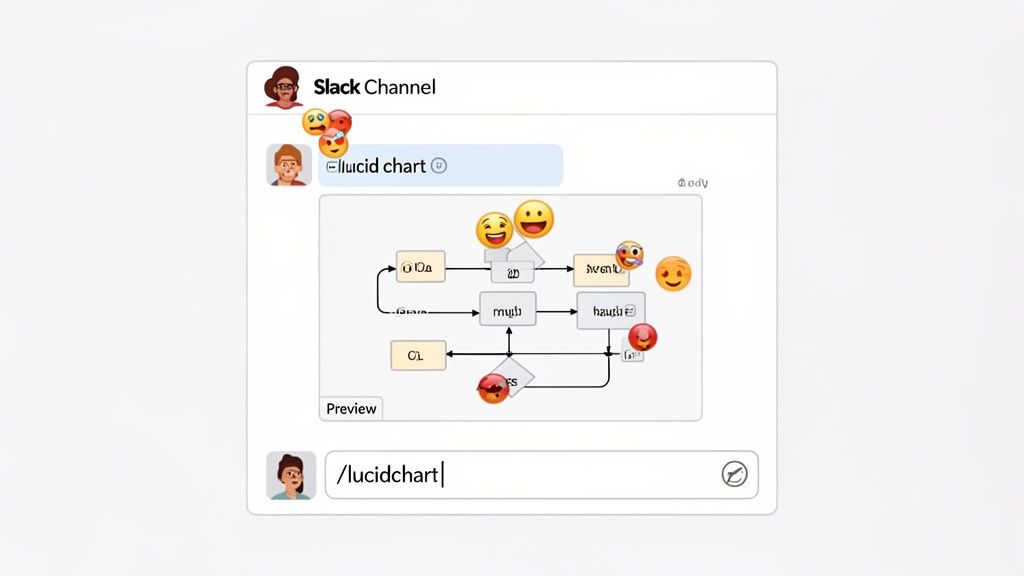
The easiest way to pull your diagrams into a conversation is to just paste a Lucidchart link into a channel or DM. Forget ugly, plain URLs. The integration instantly unfurls the link into a rich visual preview of your diagram. It’s a small detail with a massive impact, giving everyone immediate context without having to open another tab.
Think of it like this: link unfurling is the difference between describing a blueprint and actually showing it to the crew. It cuts through the noise, gets everyone on the same page instantly, and speeds up feedback and decisions.
Suddenly, a static document becomes a living, breathing part of the conversation, right where your team is already working.
Using Slash Commands for Instant Access
Need to move even faster? The /lucidchart slash command is your best friend. Typing it into the message box pops up a menu that lets you hunt down existing documents or spin up a new one from scratch. This is a lifesaver for those "aha!" moments that happen mid-conversation.
Practical Example: The marketing team is brainstorming a new campaign funnel in their Slack channel. Ideas are flying. Instead of losing momentum by switching apps, someone types /lucidchart new, selects a "Funnel" template, and shares the link back to the channel. The idea is captured visually before the inspiration fades, and the team can start collaborating on it immediately.
- /lucidchart find [keyword]: Lets you quickly search your entire Lucidchart library for a diagram with a specific keyword.
- /lucidchart new: Creates a blank diagram or lets you pick a template, all without leaving Slack.
- /lucidchart help: Gives you a quick cheat sheet of all the commands if you ever forget.
Lucidchart first rolled out this integration back in May 2022, and it was a genuine game-changer for bringing visual work into daily chats. Their own demo highlights how you get automatic notifications for comments, shares, and document requests right in Slack—a huge win for remote and distributed teams. You can watch the official Lucidchart demo video on YouTube to see it for yourself.
Fostering a Culture of Recognition
Sharing diagrams isn't just about workflows and project plans; it's a fantastic way to build team morale. When the collaboration is visual, so is the achievement. Recognizing contributions publicly is vital because it shows team members that their effort is seen and valued, which boosts motivation and encourages a positive team environment.
Picture a team lead sharing the final project roadmap in the #project-alpha channel. That diagram doesn't just show tasks and timelines; it represents weeks of hard work from multiple people. That's a moment worth celebrating.
Practical Example of Team Recognition:
- Share the Win: The manager posts the final Lucidchart roadmap, and it unfurls into a clean, professional visual for the whole channel to see.
- Give Public Praise: Right after, they add a message:
Huge props to @anna and @david for their incredible work on this roadmap! Your attention to detail made this possible. 🙌 - Link Achievement to Appreciation: This simple act connects a tangible, visual accomplishment (the diagram) directly to the people who made it happen. Research has shown that specific, visible praise is far more powerful than a generic "good job."
This small habit turns a routine status update into a moment of celebration. It boosts morale and shows the entire team that their hard work is not only noticed but truly valued.
Unlocking Advanced Features and AI Capabilities
Once you get past simply sharing diagrams, the Lucidchart Slack integration really starts to show its power. This is where your team stops just looking at visuals and starts using them to speed up understanding and make decisions, all without leaving your main communication channel. These advanced features are all about saving time and smoothing out the friction between an idea and getting it done.
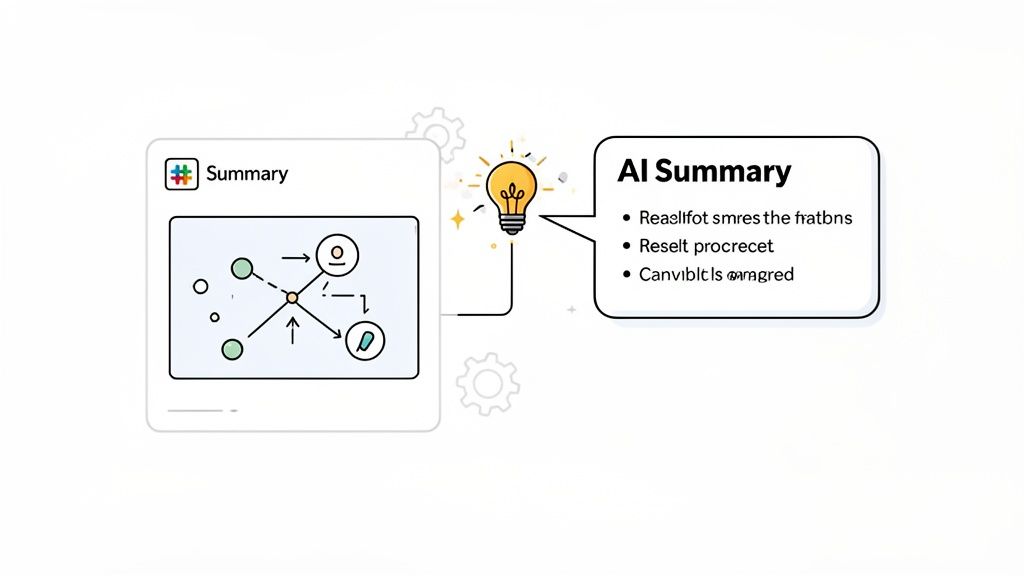
Practical Example: A complex system architecture diagram lands in a channel full of people from sales, marketing, and support. Instead of them getting lost in the technical weeds, an engineer can use Lucidchart’s AI to generate an instant, plain-language summary. They share the diagram link, and in the thread below, paste the AI summary. Now, everyone gets the gist in seconds without needing a technical deep-dive.
Harnessing Collaborative AI in Slack
The AI magic doesn't stop at summaries. Your team can actually use it to brainstorm and build out diagrams from a simple text prompt. This is a massive win for distributed teams who need to capture ideas fast without everyone having to hop on a call.
For example, imagine a marketing team planning a new campaign. They can kick off a thread in their channel, throw out some key stages, and use a simple prompt for Lucid's AI to generate a starting mind map or workflow. This gives them an immediate visual foundation to build on, turning a jumble of messages into a structured plan.
Recent updates to Lucid’s AI have been a game-changer, cutting down the time busy professionals spend on routine tasks by up to 50%. The integration lets you call up AI-powered summaries right in Slack and even use collaborative AI to flesh out mind maps from a few words—perfect for remote teams. You can read more about how Lucid's AI is enhancing collaboration on itbrief.co.uk.
Custom Notifications and Streamlined Feedback
These advanced features also make sure important feedback and action items don't get lost in the shuffle. We've all been there—a project grinds to a halt while you wait for someone to grant access to a diagram. With the Lucidchart integration, access requests and comments on a diagram can trigger instant notifications right in Slack.
You can set up these alerts to ping a specific person, a project channel, or just your personal Lucidchart app. This closes the feedback loop, making sure questions get answered and permissions are granted quickly so projects keep moving.
By setting up custom notifications, you transform passive waiting into proactive alerts. It ensures that the right people are notified at the right time, turning potential bottlenecks into smooth, efficient handoffs.
This kind of built-in intelligence is what makes the integration so valuable. It helps build a culture where visual work is easy to share, understand, and act upon. And if you're looking to automate even more of your workflows, our guide on the powerful automations possible with the Slack and Zapier integration is a great next step. In the end, features like these help your team work smarter, not harder.
Best Practices for Admins and Team Leaders
Just installing a new tool isn't enough to make it stick. For the Lucidchart Slack integration to become a go-to for your teams, you need a smart rollout plan. Both administrators and team leaders have a huge part to play in weaving visual collaboration into the fabric of your company's everyday work.
Admins, your job is to lay the groundwork. Think of it as building the foundation—it needs to be secure, reliable, and easy for everyone to build upon. This means getting the permissions right, locking down security, and making sure everyone understands why this new integration is a big deal.
For Admins Managing the Integration
As an admin, you're the one setting the stage for a successful launch. The goal is to make the tool easy to pick up and use, but with enough guardrails to keep things from getting messy.
- Set Up Smart Permission Levels: Don’t just give everyone the keys to the kingdom. Think about who needs to do what. Define clear roles—like creators, editors, and viewers—and assign them based on what each team actually does. This is a simple way to prevent someone from accidentally tweaking a critical company-wide process map.
- Build a Template Library: Want to keep your diagrams consistent? Create a set of official company templates for things everyone uses, like org charts, project roadmaps, or onboarding flows for new hires. Storing these in a central, easy-to-find spot saves a ton of time and keeps everything looking professional and on-brand.
- Announce It with a Purpose: When you introduce the integration, go beyond a simple "Hey, we have a new tool." Post in a company-wide channel and explain what’s in it for them. Try something like, "Tired of typing out long project updates? Now you can show them. Just drop a Lucidchart link into your channel to share a visual timeline everyone can see instantly."
For Team Leaders Fostering Adoption
Admins build the foundation, but team leaders are the ones who bring it to life. Your role is to lead by example and show your team how visual collaboration can make their work better and easier. You're trying to make it the new normal, not just another tool they have to learn.
A huge piece of this puzzle is recognition. When someone puts in the effort to map out a complex idea, that work—and the person behind it—deserves to be seen. Recognizing these contributions is vital because it reinforces positive behaviors and motivates the entire team. It shows that clarity and thoroughness are valued.
When you share a visual update and publicly praise the person who made it, you're doing more than just sharing information. You're showing the whole team what good communication looks like and boosting morale by celebrating their hard work.
Here’s How That Looks in Practice:
Let’s say an engineering team just spent days mapping out a brand new system architecture.
- Share the Diagram: The team lead posts the finished Lucidchart diagram in the main
#engineeringchannel. It instantly unfurls, turning a complex system into something everyone can grasp in seconds. - Give a Public Shout-Out: Right after posting the visual, the lead adds a message: "Incredible work from @carla and @liam on this architecture map. This kind of clarity is going to prevent weeks of confusion as we move forward. Seriously, thank you! 👏"
That simple, two-step process achieves so much. It highlights a best practice (visualizing complex work) and gives public credit where it's due. It encourages everyone else to do the same, helps build a culture of appreciation, and makes the Lucidchart Slack integration an essential part of how your team wins.
Frequently Asked Questions About the Lucidchart and Slack Integration
Even with the best tools, questions are bound to pop up. When you're connecting two powerhouse platforms like Lucidchart and Slack, a few common queries usually surface. Let's tackle them head-on so your team can jump in without missing a beat.
A big one we hear all the time is about sharing diagrams with people outside the company, like clients or contractors. Can you do it? Absolutely. All you have to do is create a public share link from inside Lucidchart. Just be sure to set the permission to "viewable by anyone."
When you drop that link into a Slack channel or DM, your external partner will see the same rich visual preview as everyone else. They don't need a Lucidchart account to see what you've created, which is a huge time-saver.
What About Security and Notifications?
It’s no surprise that security is top-of-mind for any team leader or admin. Both Lucidchart and Slack are built with security at their core, using standard OAuth protocols to make sure the connection is always secure. Lucidchart also meets major compliance standards like GDPR and SOC 2, and your Slack admins always have the final say on app permissions.
Another common question is about staying in the loop. How do you keep track of updates without constantly refreshing your inbox? This is where the integration really shines. It sends you real-time notifications right inside Slack.
Think of these alerts as a quick, virtual tap on the shoulder. You'll know the second someone comments on your diagram, shares a file with you, or requests access. It’s a simple way to keep projects humming along and avoid the delays that come from a buried email.
The best part is that you can tweak these notifications. This means you only get the alerts that are actually important to you, keeping the noise down and the productivity up. This is easily one of the most powerful features of the Lucidchart Slack integration for keeping collaborative work on track.
Ready to build a culture of recognition right alongside your visual collaboration? AsanteBot makes it easy to celebrate great work and foster a more connected team, directly within Slack. Start your free trial today.