
Work faster. Keep everyone in sync. Get updates without switching apps.
Table of Contents
Tired of the constant tab-switching between your team’s conversations in Slack and your actual work in Notion? The Notion Slack integration is built to solve exactly that. It connects your real-time communication hub to your central source of truth, reducing context switching and keeping documentation aligned with your discussions.
This guide will walk you through the complete setup, from initial connection to best practices and troubleshooting, helping you automate status updates, project check-ins, approvals, and task assignments. Let’s create a more efficient workflow that lets your documents and discussions finally coexist.
Table of Contents
- Prerequisites for Connecting Notion and Slack
- How to Connect Notion to Slack: Step-by-Step Instructions
- Best Practices for a Productive Notion Slack Integration
- Troubleshooting Common Integration Issues
- Alternative and Advanced Integrations
- Frequently Asked Questions
Prerequisites for Connecting Notion and Slack
Before you begin, a quick pre-flight check will ensure a smooth setup. Getting these permissions sorted out now will save you from hitting a frustrating wall later.
Here’s what you’ll need:
- Slack workspace access: You must be a member of the Slack workspace and have permission to install apps.
- Notion account access: You need access to the Notion workspace you intend to connect.
- Optional – Admin permissions: If you are setting up the integration for your entire organization, admin rights in both Slack and Notion will make the process much easier.
Short tip: If you can’t install apps in your workspace, just ask your Slack admin to approve the official Notion app. This is a common security setting in many companies.
How to Connect Notion to Slack: Step-by-Step Instructions
Ready to build the bridge? This process will connect your Notion workspace directly to your Slack channels, enabling seamless information flow.
Step 1 — Install the Notion App from Slack
First, you need to add the official Slack app to your Notion workspace. This app powers all the notifications and commands.
- Navigate to the Slack App Directory. You can find this under More > Apps in your Slack sidebar.
- Search for “Notion” and select the official app.
- Click Add to Slack and follow the prompts to Allow the required permissions.
Step 2 — Connect Your Notion Account
After installing the app, you must link it to your Notion account. Slack will typically prompt you to do this immediately after installation.
- When prompted by Slack, click Connect your Notion account.
- A new browser window will open, prompting you to log in to Notion (if you aren’t already) and authorize the connection. Select the pages you want Slack to access, then click Allow access.
If you miss the prompt, you can initiate the connection from Notion by clicking the ••• menu on any page and selecting Connect Slack channel.
Step 3 — Enable Notion Slack Notifications
Now you can configure which Notion updates appear in Slack. This is the core of the Notion Slack integration.
You will receive automatic notifications for:
- Updates and edits to connected pages.
- New comments and @-mentions on those pages.
- When you are assigned a task via a “Person” property.
You can also use the Notion slash command to find and share pages directly in Slack. Just type:
/notion
…followed by your search term. This allows you to pull up project plans or meeting notes without leaving your conversation.
Step 4 — Share Notion Pages to Specific Slack Channels
To start receiving updates, you must connect individual Notion pages to the Slack channels where you want notifications to appear.
- Open the Notion page you want to sync.
- Click the ••• icon in the top-right corner and select Connect Slack channel.
- Search for and select the target Slack channel (e.g.,
#project-updates).
Step 5 — Test the Integration
Finally, make sure everything is working as expected.
- Go to the Notion page you just connected.
- Add a comment or mention a colleague in a comment.
- Check the connected Slack channel. A notification from the Notion bot Slack should appear almost instantly, confirming the integration is active.
Best Practices for a Productive Notion Slack Integration
A successful integration is about signal, not noise. Use these best practices to ensure your Notion Slack notifications are helpful rather than distracting.
- Use dedicated channels: Create specific channels like
#notion-updatesto house automated notifications. This keeps your primary project channels clear for conversations while providing a searchable log of all document changes. - Limit noise by connecting only key pages: Avoid connecting every page. Focus on high-leverage documents like project briefs, meeting notes, and product roadmaps where changes require team-wide awareness.
- Use Notion mentions for targeted alerts: To get one person’s attention,
@mentionthem directly in a Notion comment. The integration will send them a personal notification in Slack, preventing unnecessary noise for the entire channel. - Pin critical pages in Slack: For essential, long-term documents like onboarding guides or company OKRs, pin the shared Notion page to the top of the relevant Slack channel for easy access.
Troubleshooting Common Integration Issues
Even with a perfect setup, you might encounter a hiccup. Here’s how to solve the most common problems.
- Permissions Errors: If notifications stop working, the most likely cause is a change in the Notion page’s sharing settings. Go to the page, click Share, and ensure the Slack integration still has “Can view” or “Can comment” access.
- Bot Not Appearing in Channel: The Notion bot cannot post in private channels unless invited. To fix this, go to the private Slack channel and use the invite command:
/invite @Notion - Notifications Not Working: If the bot is invited and permissions are correct, ensure the Notion page isn’t set to private. The bot can only report on pages it has explicit access to. Double-check the Share menu on the Notion page to confirm the connection is active.
For more complex issues, refer to the official Notion and Slack help documentation.
Alternative and Advanced Integrations
While the native integration is great for basics, tools like Zapier and Make unlock powerful, custom ways to automate Notion and Slack workflows. These platforms let you create “if this, then that” automations that go far beyond simple notifications.
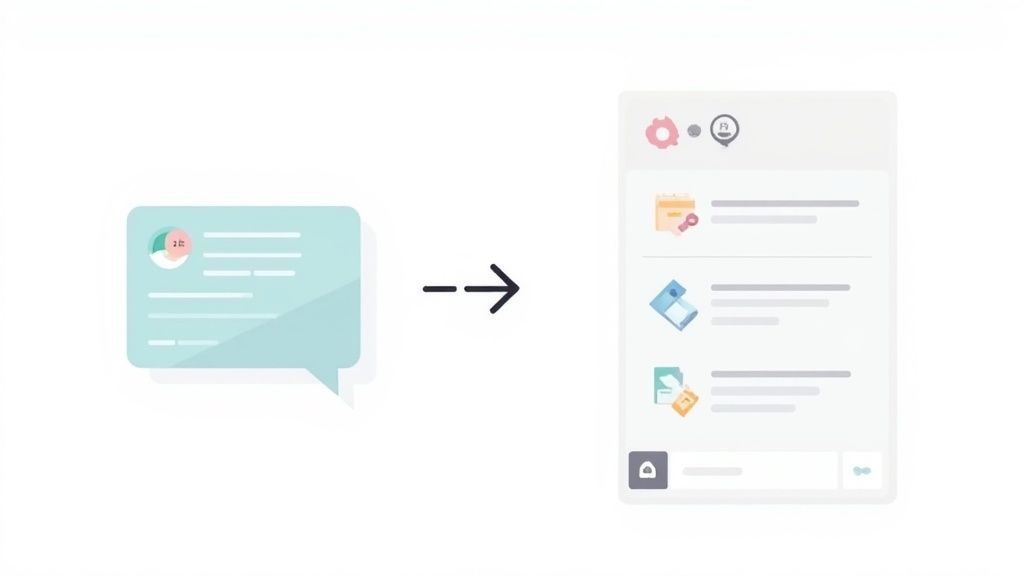
Here are a few pre-built automation templates to inspire you:
- Connect Notion tasks to Slack reminders: When a task is assigned to you in a Notion database, automatically create a personal reminder in Slack.
- Create Notion database items from Slack messages: Save a message in a specific Slack channel to automatically create a new entry in a Notion database, perfect for bug reports or feature requests.
- Automate team recognition: Create a workflow where changing a project’s status to “Complete” in Notion automatically sends a celebratory message to a
#winschannel in Slack, tagging the project lead. Recognizing contributions is vital for team morale, making success visible and ensuring hard work is consistently celebrated.
Frequently Asked Questions
Does Notion integrate with Slack?
Yes, Notion offers an official, built-in integration with Slack. It allows you to connect specific Notion pages to Slack channels to receive automatic notifications for page edits, comments, and mentions, keeping your team’s documentation and conversations in sync.
Can I get Notion task notifications in Slack?
Absolutely. When someone assigns you to a task in a Notion database (using a “Person” property) or @-mentions you on a task page, the integration will send you a direct notification in Slack. For more advanced alerts, like status changes, you can use an automation platform like Zapier or Make.
How do I disable Notion Slack notifications?
To stop notifications from a specific page, go to that page in Notion. Click the ••• menu in the top-right, find the “Connected channels” list, and click the “X” next to the Slack channel you wish to disconnect. The updates will stop immediately.
Does this integration work with Notion Enterprise?
Yes, the official Notion Slack integration is available and fully compatible with all Notion plans, including the Enterprise plan. Setup and functionality remain the same across all tiers.
Conclusion
The Notion Slack integration is more than a convenience—it’s a powerful way to keep your team aligned, reduce back-and-forth communication, and make your documentation a living part of your workflow. By setting it up once, your team’s process becomes smoother right away, freeing everyone to focus on what truly matters.
While productivity tools like this keep your projects on track, remember to celebrate the people behind the work. Tools like Asante Bot complement your workflow by weaving team recognition and appreciation directly into your daily Slack conversations.