
Top 7 Slack Jira Integrations to Boost Team Productivity (2025)
Dusan Milovanovic

Streamline collaboration, speed up issue resolution, and reduce context-switching.
Table of Contents
- Quick Comparison: Best Slack Jira Integration Apps for 2025
- 1. Jira Cloud for Slack — Best Official Option
- 2. Atlassian Assist (formerly Halp)
- 3. Zendesk + Jira Slack Workflows
- 4. Zapier & Make (Integromat)
- 5. Workato
- 6. Sentry + Slack Integration
- 7. GitHub Actions / CircleCI → Slack
- 8. Polly / Workflow Apps
- Best Practices for a Successful Slack Jira Integration
- When to Use Each Integration
- FAQ About Slack Jira Integration
- Conclusion: Automate Your Work, Not Your Culture
A powerful Slack Jira integration is no longer a luxury for modern engineering and product teams—it's essential for high-velocity workflows. Connecting these two platforms bridges the gap between real-time conversation and structured action, ensuring critical bug reports, feature requests, and support escalations never get lost in the noise of a busy channel. The key benefits are clear: faster communication, fewer missed tasks, and greater transparency across projects. This curated guide will help you choose the right tools, automate Jira workflows in Slack, and ultimately transform how your team tracks and resolves work.
Quick Comparison: Best Slack Jira Integration Apps for 2025
| Integration | Create Jira Tickets from Slack | Real-time Issue Updates | Custom Notifications | Project Mapping | Approvals / Workflows | Free Tier Available |
|---|---|---|---|---|---|---|
| ⭐ Jira Cloud for Slack (Best Overall) | ✅ | ✅ | ✅ | ✅ | ❌ | ✅ |
| Atlassian Assist (Halp) | ✅ | ✅ | ✅ | ✅ | ✅ | ✅ |
| Zendesk + Jira | ✅ | ✅ | ✅ | ✅ | ✅ | ❌ |
| Zapier / Make | ✅ | ✅ | ✅ | ✅ | ✅ | ✅ |
| Workato | ✅ | ✅ | ✅ | ✅ | ✅ | ❌ |
| Sentry + Slack | ✅ | ✅ | ✅ | ✅ | ❌ | ✅ |
| GitHub Actions / CircleCI | ✅ | ✅ | ✅ | ✅ | ✅ | ✅ |
| Polly / Workflow Apps | ✅ | ❌ | ❌ | ❌ | ✅ | ✅ |
1. Jira Cloud for Slack — Best Official Option
⭐ Best for: Most teams who need a reliable, free, and officially supported way to connect Jira Cloud to Slack.
The official Jira Cloud for Slack app, built and maintained by Atlassian, is the foundational starting point for any team. It provides the core functionality needed to connect your development workspace in Jira with your communication hub in Slack. It’s designed for simplicity and reliability, focusing on the most common and essential workflows without adding unnecessary complexity or cost.
For teams using Jira Cloud, this is the most direct and secure way to bring real-time project updates into your conversations. It allows you to transform a quick Slack message into a trackable Jira issue, get instant notifications on ticket progress, and automatically provide context when a Jira link is shared in a channel.
Key Use Cases
- Convert Messages into Tickets: Instantly turn any Slack message into a Jira issue using the message actions menu or the
/jira createslash command. This is perfect for capturing bugs or feature requests that arise during team discussions. For a detailed walkthrough, you can learn more about how to create Jira tickets from Slack. - Real-time Updates on Issues: Get customizable notifications in specific channels when an issue is created, updated, transitioned, or commented on.
- Slash Command Creation & Mapping: Use
/jira connectto link a Slack channel to a specific Jira project, filtering notifications by issue type, priority, and status to reduce noise. - Rich Issue Previews: When a Jira issue link is pasted into a Slack channel, the app automatically expands it to show key details like the issue summary, status, assignee, and priority.
Pros & Limitations
- ✔ Why pick this: It's the official, secure, and widely adopted solution that's free with your Jira subscription. It covers the essential needs for most teams.
- ✔ Downside: Lacks the advanced two-way sync or complex workflow automation found in third-party tools. It is primarily designed for notifications and light actions.
Website: Jira Cloud on Slack Marketplace & Jira Cloud for Slack (Official) on Atlassian Marketplace
2. Atlassian Assist (formerly Halp)
⭐ Best for: IT, HR, and internal support teams using Jira Service Management to manage requests inside Slack.
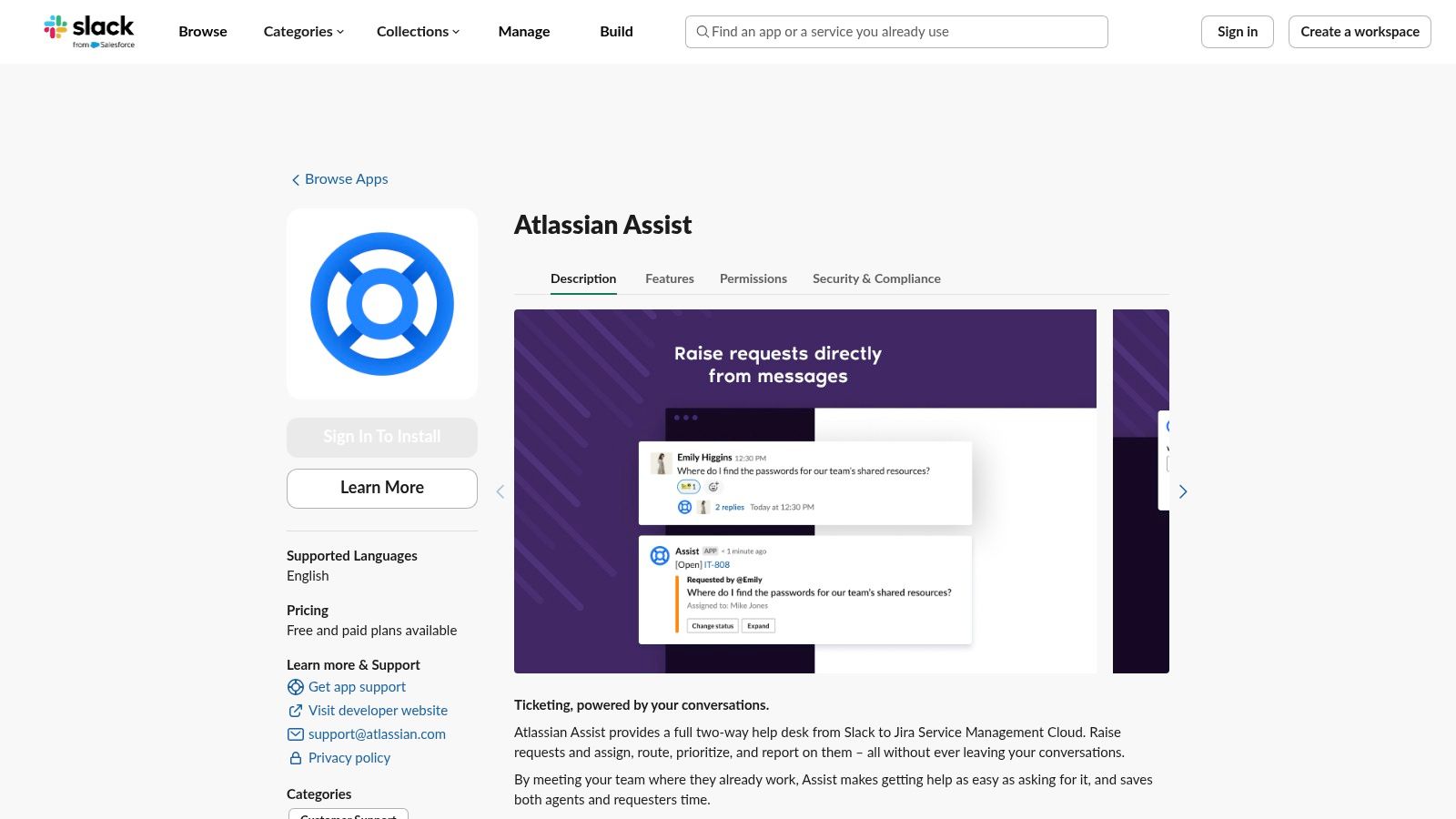
Atlassian Assist (formerly Halp) transforms Slack into a conversational help desk powered by Jira Service Management (JSM). It bridges the gap between informal Slack requests and the structured ticketing process, allowing support agents to manage and resolve issues without ever leaving their communication hub. This is the ideal lightweight ticketing solution for service-oriented teams.
Where the standard Jira Cloud app focuses on project updates, Atlassian Assist excels at creating a seamless, two-way sync between a Slack conversation and a JSM ticket. It enables employees to get help naturally through designated Slack channels while giving agents the tools to track and prioritize requests in Jira.
Key Use Cases
- Conversational Ticketing: Convert any Slack message into a formal JSM ticket using a simple emoji reaction (like 🎟️) or a message shortcut. The entire thread is captured for context.
- Two-Way Sync: All communication, including agent replies and status updates made in either Slack or JSM, are automatically synchronized.
- Works for Unlicensed Users: Employees do not need a Jira license to create or interact with tickets through Slack, which significantly lowers licensing costs.
Pros & Limitations
- ✔ Why pick this: It turns Slack channels into an efficient, user-friendly help desk and reduces context switching for support agents.
- ✔ Downside: It's tightly integrated with Jira Service Management and not designed for Jira Software projects. Advanced AI features require a paid tier.
Website: Atlassian Assist on Slack Marketplace
3. Zendesk + Jira Slack Workflows
⭐ Best for: Customer support teams that need to escalate issues from Zendesk to engineering in Jira and keep everyone updated in Slack.
For teams managing customer support, the challenge is often bridging the gap between a support ticket in Zendesk and a development task in Jira. This Slack Jira integration workflow, often powered by the Zendesk for Slack app, allows support agents to create a linked Jira issue directly from a Zendesk ticket and then monitor its progress in a dedicated Slack channel. This is ideal for support and escalation workflows.
This setup ensures that customer-facing teams have full visibility into the status of bug fixes and feature requests without having to ask developers for updates. When the Jira ticket is resolved, the support agent gets a notification in Slack, allowing them to close the loop with the customer promptly.
Key Use Cases
- Support Ticket Escalation: A support agent can create a linked Jira issue from a Zendesk ticket, automatically populating it with relevant customer details.
- Real-time Status Updates: A dedicated Slack channel (e.g.,
#support-escalations) receives automated updates whenever the linked Jira issue is updated or closed. - Cross-Functional Visibility: Keeps both support and engineering teams aligned by providing a shared view of customer-reported issues.
Pros & Limitations
- ✔ Why pick this: It creates a seamless escalation path from customer support to engineering, improving response times and transparency.
- ✔ Downside: This is a multi-tool setup that requires configuring integrations between three platforms (Zendesk, Jira, and Slack).
4. Zapier & Make (Integromat)
⭐ Best for: Non-technical users who need to build custom, multi-step automations connecting Jira and Slack with other apps.
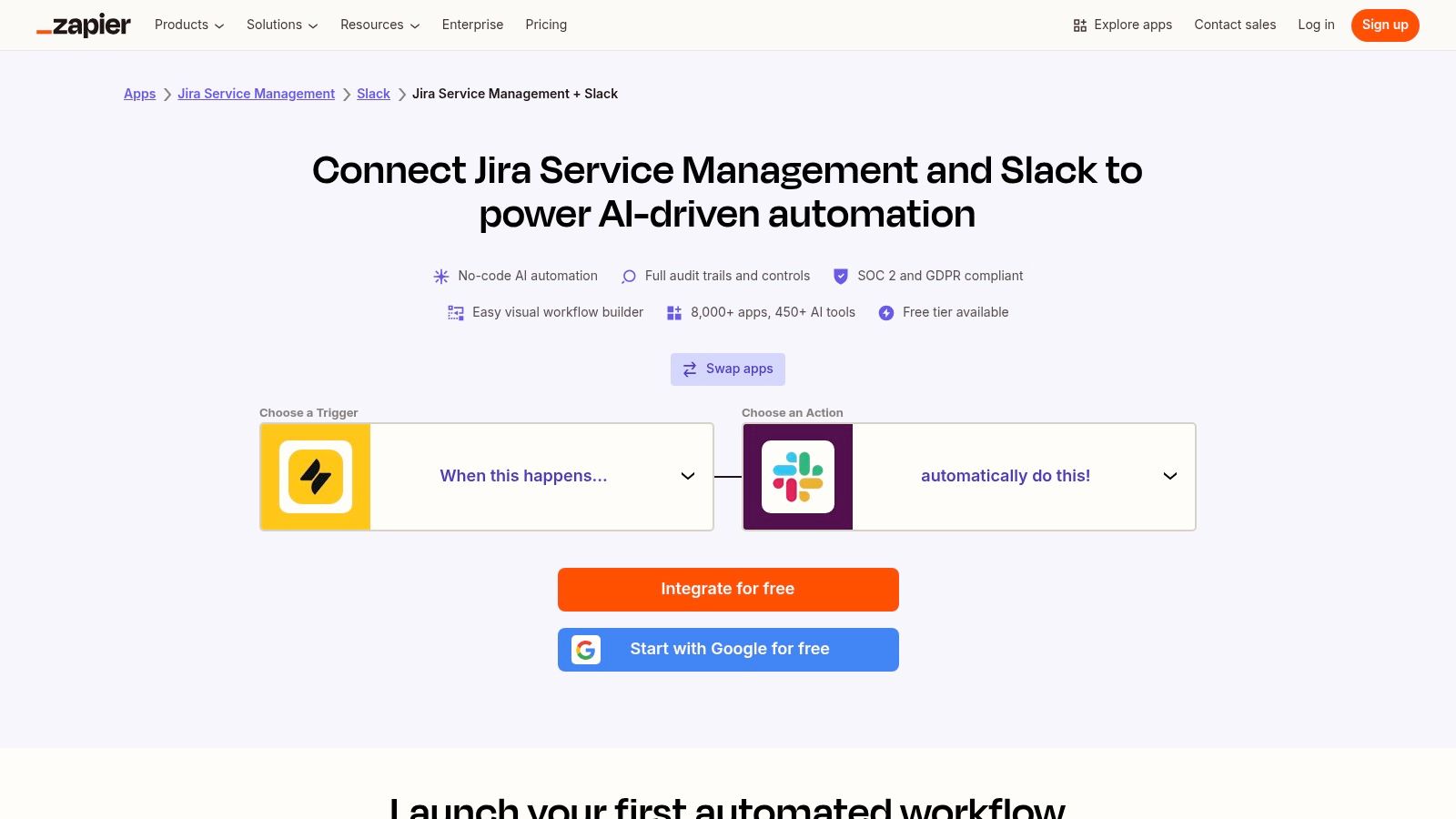
For teams that need to extend their Slack Jira integration beyond standard notifications, Zapier and Make (formerly Integromat) offer powerful no-code solutions. They act as bridges, allowing you to build custom automated workflows (called "Zaps" or "Scenarios") that trigger actions across your entire tool stack without writing a single line of code.
For instance, you could create a workflow that automatically posts a celebratory message in a #wins channel whenever a Jira issue with a specific label is moved to Done, or create a Jira issue when a specific emoji is added to a Slack message.
Key Use Cases
- Custom Trigger-Action Workflows: Build automations based on a huge library of triggers, like creating a Jira issue when a new row is added to a Google Sheet.
- Multi-App Automations: Connect your Slack and Jira workflows to other tools. For example, a new critical bug in Sentry could create a high-priority Jira ticket and send a DM to the on-call engineer in Slack.
- Large Template Galleries: Both platforms provide hundreds of pre-built templates for common use cases, allowing teams to get started in minutes.
Pros & Limitations
- ✔ Why pick this: The wizard-based, no-code setup is accessible to everyone and offers incredible flexibility to connect over 5,000 apps.
- ✔ Downside: Task-based pricing can become expensive with high-volume usage. On lower-tier plans, automations may have a slight delay.
Websites: Zapier Jira Service Management and Slack Integrations & Make – Slack and Jira Integration
5. Workato
⭐ Best for: Large enterprises needing robust, compliant, and scalable automation between Jira, Slack, and other business-critical systems.
Workato is an enterprise-grade Integration Platform as a Service (iPaaS) that offers deep, secure, and highly customizable automation. While similar to Zapier/Make, Workato is built for mission-critical workflows that require advanced logic, error handling, and strict security and compliance (like SOC 2 and HIPAA).
A team could use Workato to build a "recipe" that orchestrates a complex process: when a high-priority Jira ticket is created, Workato could post a message in Slack, create a corresponding incident in PagerDuty, and log the event in a compliance spreadsheet in Salesforce, all while handling errors and retries gracefully.
Key Use Cases
- Enterprise-Scale Automation: Connect Jira and Slack to core business systems like Salesforce, Workday, or ServiceNow with guaranteed reliability.
- Compliance and Governance: Build workflows that adhere to strict data governance and security policies required in regulated industries.
- Complex Logic: Implement multi-step workflows with conditional branching, loops, and custom error handling that simpler tools can't manage.
Pros & Limitations
- ✔ Why pick this: It offers unparalleled power, security, and reliability for business-critical automations.
- ✔ Downside: It has a steeper learning curve and a higher price point, making it overkill for small teams with simple needs.
6. Sentry + Slack Integration
⭐ Best for: Engineering teams that want to automatically link real-time application errors to Jira tickets.
For developers, a crucial part of the workflow is tracking and resolving application errors. Sentry is a popular error-monitoring tool that integrates deeply with both Slack and Jira. When Sentry detects a new error in your code, its Slack integration can instantly notify a development channel.
From that Slack notification, a developer can use Sentry's actions to create a new Jira issue or link the error to an existing one. This creates a seamless flow from error alert to trackable work item, ensuring that critical bugs are never missed and that developers have all the context they need to start debugging.
Key Use Cases
- Automated Error Alerting: Get instant notifications in a
#bugschannel when Sentry detects a new application error. - One-Click Issue Creation: Create a Jira ticket directly from the Slack alert, pre-populated with details and a link back to the Sentry error report.
- Link Errors to Existing Tickets: Associate new occurrences of an error with an existing Jira ticket to avoid duplicates.
Pros & Limitations
- ✔ Why pick this: It dramatically speeds up the process of identifying, triaging, and tracking application errors.
- ✔ Downside: This is a specialized workflow focused on error monitoring, not a general-purpose Slack Jira integration.
7. GitHub Actions / CircleCI → Slack
⭐ Best for: DevOps and engineering teams that need to map CI/CD pipeline events (builds, deployments) to Jira tickets.
For teams practicing CI/CD, connecting deployment pipelines to Slack and Jira is essential for visibility. Tools like GitHub Actions or CircleCI can be configured to send notifications to a Slack channel upon successful or failed builds.
This workflow becomes even more powerful when commits and pull requests are tagged with Jira issue keys. A deployment notification in Slack can then include a link to the Jira tickets that were part of that release. This gives product managers and other stakeholders immediate visibility into which features and fixes have been shipped, closing the loop on the development cycle.
Key Use Cases
- Deployment Notifications: Post automated messages to a
#releaseschannel when a new version of the application is deployed to staging or production. - Build Status Alerts: Get immediate notifications if a build fails, allowing the team to react quickly.
- Release Notes: Automatically include a list of Jira issues that were included in a deployment, providing clear release notes for the entire team.
Pros & Limitations
- ✔ Why pick this: It provides critical visibility into the CI/CD process and connects code deployments back to planned work in Jira.
- ✔ Downside: Requires configuration within your CI/CD tool's YAML files, which can be technical to set up.
8. Polly / Workflow Apps
⭐ Best for: Teams looking to convert unstructured Slack messages from polls or forms into structured Jira tickets.
Sometimes, a Jira ticket needs to be created from structured input rather than a random chat message. Apps like Polly allow you to run polls or surveys in Slack (e.g., "Vote on the priority of these bugs"). Workflow builder apps, native to Slack or from third parties, let you create simple forms (e.g., "Submit a new feature idea").
The results from these polls or forms can then be used to trigger the creation of a Jira issue via a tool like Zapier or a webhook. This workflow is perfect for turning team feedback or structured requests into actionable work items in Jira, ensuring the process is consistent and all necessary information is captured upfront.
Key Use Cases
- Bug Prioritization: Use a Polly poll to let the team vote on which bug to tackle next, then automatically create a high-priority Jira ticket for the winner.
- Structured Feature Requests: Create a Slack workflow form for submitting feature ideas. When submitted, the form data is used to create a new "Story" in Jira.
Pros & Limitations
- ✔ Why pick this: It helps structure the process of creating Jira tickets, ensuring consistency and capturing all required information from the start.
- ✔ Downside: This is an indirect workflow that often requires an intermediary tool (like Zapier) to connect the form app to Jira.
Best Practices for a Successful Slack Jira Integration
- Create Dedicated Triage Channels: Use specific channels like
#bugs,#jira-tickets, or#support-handoffsto centralize incoming issues and notifications. This keeps your main team channels from getting cluttered. - Reduce Notification Noise: Don't subscribe to every Jira event. In your Jira project settings, configure the Slack integration to send updates only for key events like
Issue Created,Status Changed to Done, andComment Added. - Encourage "Create Issue" over DMs: Train your team to use the "More actions" > "Create issue" feature on a message instead of sending direct messages or screenshots. This creates a public, trackable record of the request.
- Pin Key Shortcuts: In your main project channels, pin a message with helpful shortcuts for everyone to see:
/jira createand/jira connect.
When to Use Each Integration
| If Your Team is a… | The Best Slack Jira Integration is… | Why? |
|---|---|---|
| Small Dev Team | Jira Cloud for Slack (Official) | Covers all the essential needs (creation, notifications, previews) for free and without complexity. |
| Product + Engineering Orgs | Jira Cloud app + a CI/CD tool (GitHub/CircleCI) | The official app handles daily workflows, while the CI/CD integration connects deployments back to Jira tickets. |
| Large Enterprise/Regulated | Workato or a combination of the official app + custom scripts | Provides the security, compliance, and robust error handling needed for mission-critical, enterprise-wide automations. |
| Support-Focused Team | Atlassian Assist (Halp) or Zendesk + Jira workflow | Purpose-built for conversational ticketing and seamless escalation from support requests to engineering tasks. |
| Team Without Technical Admins | Zapier or Make | The no-code, user-friendly interfaces empower non-technical users to build and manage custom automations safely. |
FAQ About Slack Jira Integration
Is Jira Slack integration free?
Yes, the official Jira Cloud for Slack app made by Atlassian is free to use. It requires an active subscription to both Jira Cloud and Slack. Third-party apps like Zapier, Make, and Troopr.ai have their own pricing plans, though most offer a free tier.
Can you create Jira tickets directly from Slack?
Absolutely. The official integration and most third-party tools allow you to convert any Slack message into a Jira issue using the message actions menu (the three dots) or with a slash command like /jira create.
Does Slack work with Jira Data Center?
The official Atlassian app is only for Jira Cloud. However, several third-party tools, such as Troopr.ai and some automation platforms, offer robust integrations for Jira Data Center and Jira Server.
What permissions does the Jira Slack app require?
The app requires permissions to read messages in channels it's invited to, view user information (to map Jira users to Slack users), and add slash commands and message actions. It uses these permissions to unfurl links, send notifications, and create tickets on your behalf.
How do I restrict Jira notifications to one channel?
Use the /jira connect command within the specific channel you want notifications in. You will then be prompted to select a Jira project and can configure filters to only receive updates for specific issue types, priorities, or statuses in that channel.
Conclusion: Automate Your Work, Not Your Culture
A powerful Slack Jira integration can dramatically speed up collaboration and reduce the friction of context-switching. Start with the official Jira Cloud app to cover the fundamentals. As your team's needs grow, layer in automation tools like Zapier or specialized apps like Atlassian Assist to streamline specific workflows.
But remember, automation is only half the story. The real magic happens when these tools also enhance your team culture. Use the visibility from a Slack Jira integration to celebrate wins. When a notification for a major feature release hits the channel, it’s an opportunity for team recognition. Acknowledging hard work is crucial for morale and engagement, turning a simple automated alert into a powerful moment of connection.
Ready to take your team's synergy to the next level? A powerful Slack Jira integration automates your workflows, and AsanteBot helps you celebrate the wins that result from them. Use AsanteBot to create a culture of recognition by easily sending praise and rewards right in Slack whenever a major ticket is closed or a project milestone is hit.
About the author

Keep reading
More from the blog
 create jira ticket from slack
How to Create Jira Tickets From Slack (Step-by-Step Guide)
Stay focused. Turn conversations into action — without leaving Slack. Tired of copying and pasting bug reports, feature ideas, and action items from team chats into your project backlog?
 Asante Bot
What's New in Asante Bot: Summer 2026
Bots can now give recognition points, celebrations go out on your schedule and timezone, and birthday messages write themselves. Plus a rebuilt help center, glossary, and honest comparison library.
 Asante Bot
Unlocking Pipedream Slack Automation for Team Recognition
Connecting Pipedream and Slack is a game-changer for automating team recognition. It lets you turn manual shout-outs into consistent, triggered celebrations that land right in your team's main communication hub.