
At its core, Salesforce for Slack is all about bringing your customer data right into the place where your team already works and talks every day. Instead of toggling between your CRM and your messaging app, this integration lets you get real-time updates, look up records, and act on information without ever leaving Slack.
Table of Contents
It effectively turns Slack into a conversational CRM, making Salesforce data a natural part of your team's daily discussions. For instance, a sales manager can quickly type /salesforce Acme Corp in a channel to pull up the latest account details and share them instantly, turning a quick question into an informed decision.
Why Salesforce for Slack Improves Productivity
Picture your Slack workspace as a central hub where important CRM updates pop up automatically, rather than getting buried in an overflowing inbox. That’s the real magic of connecting Salesforce and Slack—it demolishes the walls between your data and your team's conversations, leading to faster, smarter decisions.
This creates a seamless flow of information that feels as simple as sending a direct message. For example, the moment a major deal is marked "Closed-Won," an automated alert can be sent to your #sales-wins channel. Everyone instantly sees the deal size, the account name, and other key details.
As you can see, the integration embeds a rich preview of the Salesforce record directly into the conversation. This means no more digging around for context; the entire team stays aligned and focused on what matters.
The Power of Real-Time Collaboration
This instant visibility is a game-changer for team recognition and morale. In that deal-closing scenario, a manager can immediately react with a 🎉 emoji and give the sales rep a public shout-out. This simple act reinforces great work and helps build a culture where people feel appreciated—a huge driver of engagement. The importance of team recognition cannot be overstated; it fuels motivation, encourages high performance, and reduces employee turnover by making people feel valued for their contributions. For those working with other CRMs, you can achieve a similar effect with the Hubspot Slack integration.
The results speak for themselves. Teams using the Salesforce for Slack integration have seen 29% faster deal velocity and a 40% reduction in internal email. It’s a powerful way to get sales and operations teams on the same page.
By bringing critical data into the conversational flow of work, you empower teams to act faster, celebrate wins together, and spend less time switching between tabs—ultimately driving both productivity and morale.
To take it a step further, you can explore other ways to improve agent productivity with AI-driven tools. The goal is always the same: make work more connected, intelligent, and less of a chore.
Installing and Configuring Salesforce for Slack
So, you're ready to connect your team's two most important hubs? Getting Salesforce and Slack talking to each other isn't nearly as complicated as it sounds. Think of it less like a heavy-duty IT project and more like introducing two friends who you know will get along great. A few simple steps are all it takes to bridge the gap between your CRM data and your team's daily conversations.
First things first, you’ll need to install the official Slack app right inside your Salesforce org. This creates the secure handshake between the two platforms, letting them share information safely. Once that's done, you just authorize the connection to your company's Slack workspace, and you're on your way.
This diagram paints a perfect picture of what this looks like in action. A deal alert from Salesforce instantly pings the right team in Slack, sparking a conversation that helps get the deal over the line faster.
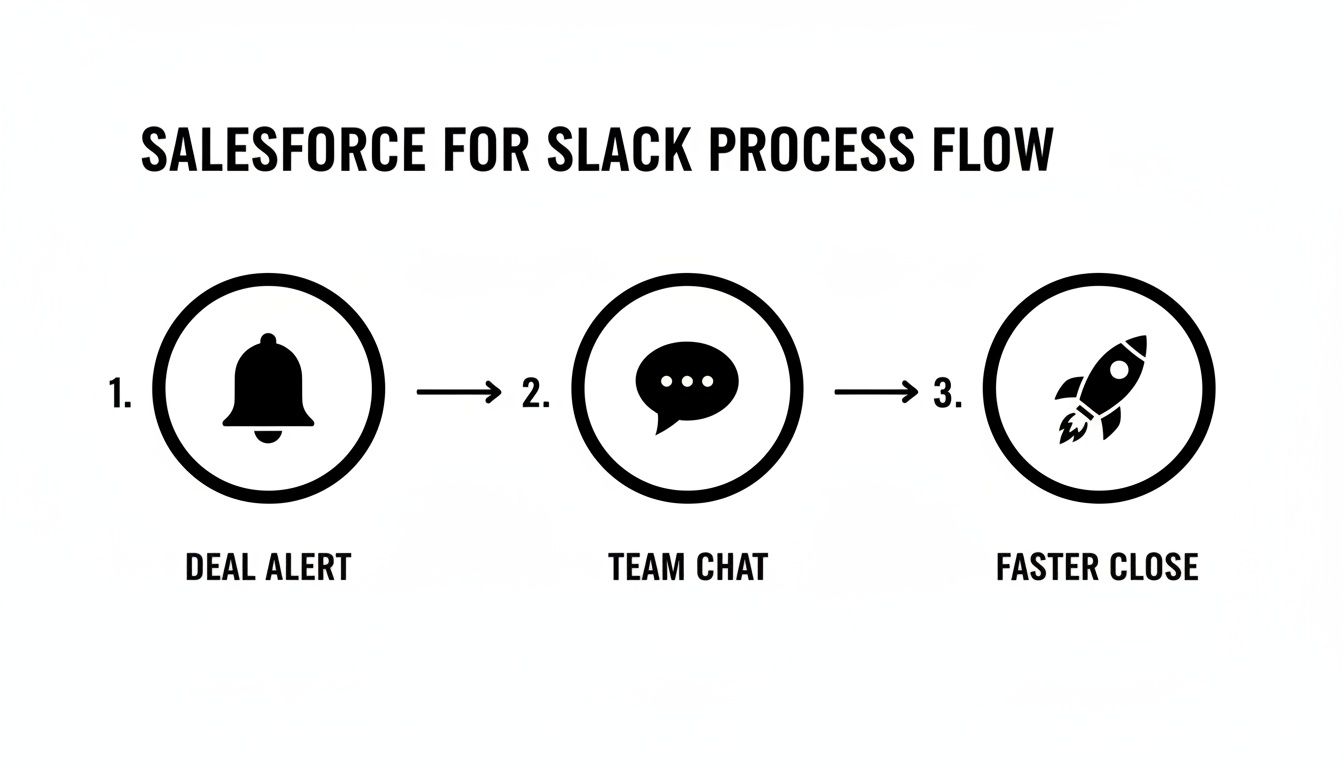
It’s all about turning a routine CRM update into a real, collaborative moment.
Initial Setup and Connection
Alright, let's get our hands dirty. The initial setup needs to be handled by a Salesforce Admin, who will grab the "Salesforce for Slack" app from the AppExchange. After that, it’s just a few clicks inside Salesforce.
- Find the Salesforce for Slack Setup Page: Head over to the Setup menu in Salesforce and simply type "Slack" in the search bar.
- Authorize the Connection: You'll be prompted to sign into your Slack workspace and give the app permission to connect. This is the step that officially links the two systems.
- Assign User Permissions: This is a step people often forget, but it's critical. You need to give your team members access. Create a new permission set specifically for Slack users and assign it to everyone who needs it—think sales reps, support agents, or HR managers. This is what allows them to actually see and use Salesforce records right from Slack.
As you dive into the setup, it helps to remember that this is just one piece of a much larger puzzle. Understanding the landscape of various Salesforce integrations can give you a better sense of what’s possible.
Configuring Notifications and Alerts
With the connection live, now comes the fun part: setting up automated alerts. This is where you decide which Salesforce events are important enough to send a notification to a Slack channel.
The real magic happens when you bring the right information to the right people at the right time. By automating alerts, you get rid of the need for someone to shout "Hey, I just closed a deal!" and make sure nothing important ever slips through the cracks.
For instance, you could set up an alert to post in the #sales-team channel every time an Opportunity is marked "Closed-Won." This is a massive win for team recognition and morale, sparking instant celebration and giving visibility to everyone's hard work. Publicly acknowledging achievements in this way is vital because it motivates the entire team, reinforces company values, and creates a positive, high-energy work environment.
Or, a support manager could set up an alert for a private #escalations channel that pings them the second a high-priority Case comes in. The team can jump on it immediately, which is a game-changer for response times and keeping the whole team in the loop.
Automating Slack Workflows With Salesforce Data
Once you’ve connected Salesforce and Slack, you're ready to tap into the real magic of this integration: automation. Think of these automated workflows as tireless digital assistants. Their only job is to watch for key events in Salesforce and instantly pass the right information to the right people in Slack. No more manual updates, no more "did you see my email?"—just seamless, real-time communication.
This is the bridge that takes your team from passively viewing data to actively acting on it. Instead of waiting for someone to remember to post an update, you can build reliable, automatic processes that handle all the routine communication. It’s a simple shift that frees up your team to focus on what matters most, like nurturing a high-value lead or solving a tricky customer problem.
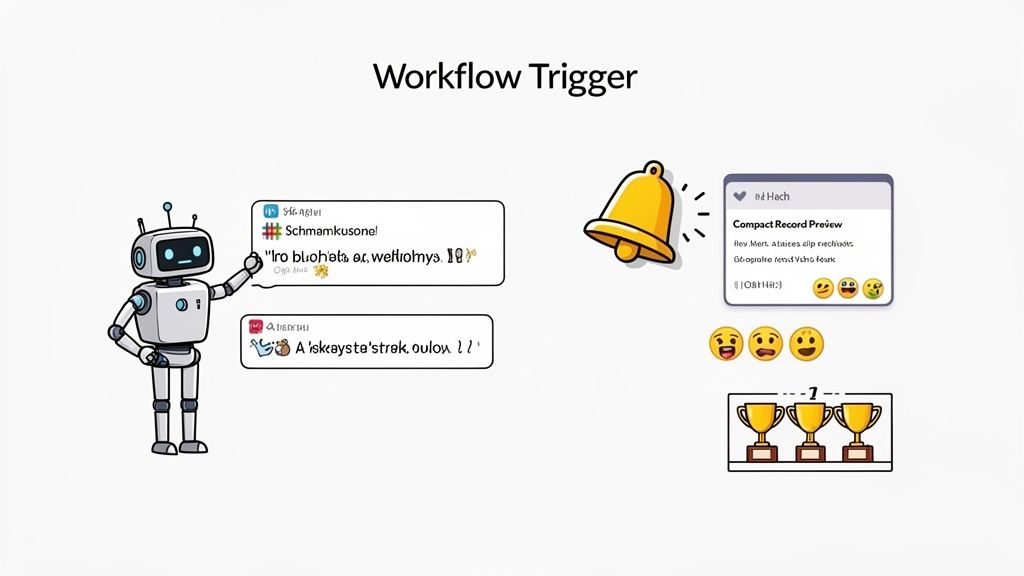
Ultimately, this isn't just about being more efficient. It's about building a more connected, transparent, and responsive company culture from the ground up.
Building Workflows That Actually Make a Difference
Let's get practical. Here are a couple of straightforward examples of how Salesforce for Slack workflows can have an immediate impact.
- High-Value Lead Alerts: Imagine a new lead comes in from a Fortune 500 company. As soon as it's created and assigned in Salesforce, a notification instantly pops up in your
#hot-leadsSlack channel. The message can @mention the assigned account executive and include a direct link to the record, so they can jump on it immediately. - Escalated Support Cases: For your customer service team, you could set up a workflow that fires whenever a support case is marked as "High Priority" or "Escalated." This can instantly ping a private
#support-escalationschannel, tagging the support manager and providing key case details. The team can swarm the issue right away, long before it becomes a bigger problem.
These simple alerts cut out the delays and make sure critical information never gets lost in the shuffle.
To give you a clearer picture of what's possible, here's a quick reference guide to a few high-impact automations you can set up.
Essential Workflow Automation Examples
| Workflow Goal | Salesforce Trigger | Slack Action | Team Benefit |
|---|---|---|---|
| Speed Up Sales Follow-Up | A new Lead is created and assigned. | Post a message in the #new-leads channel, tagging the assigned rep with a link to the record. |
Reduces lead response time and ensures no lead falls through the cracks. |
| Celebrate Team Wins | An Opportunity stage is updated to "Closed-Won." | Share a celebratory message in the #sales-wins channel with deal details and an @mention for the AE. |
Boosts morale, provides company-wide visibility into success, and fosters a positive culture. |
| Proactively Solve Issues | A Case priority is set to "High" or "Escalated." | Send an urgent alert to the #support-escalations channel, tagging the team lead. |
Enables faster response to critical customer issues, improving satisfaction and retention. |
| Streamline Contract Approvals | A Contract status changes to "Awaiting Approval." | Notify the #legal-approvals channel with a link to the contract record for review. |
Eliminates bottlenecks and speeds up the entire contract lifecycle. |
These are just starting points, but they show how a simple trigger-and-action setup can solve real business challenges.
Don't Underestimate Team Recognition Workflows
One of the most powerful, and often overlooked, uses for automation is celebrating success. Public recognition is a massive driver of employee morale and engagement, and setting up workflows makes it happen consistently and effortlessly. It's important because consistent recognition makes employees feel seen and valued, which directly ties their individual efforts to the company's success and boosts long-term motivation.
Think about an automation that triggers every time a sales opportunity is marked as "Closed-Won." A fun, celebratory message is immediately posted in your #sales-wins channel, complete with confetti emojis, the deal amount, and a shout-out to the account executive who closed it.
This small, automated act does more than just announce a win. It builds momentum, reinforces positive behaviors, and creates a culture where success is seen and celebrated by everyone. It turns a simple data update in Salesforce into a shared team victory.
This is where the ideas behind tools like AsanteBot really come to life. By using simple messages and emoji reactions, you create a lightweight but incredibly effective system for peer-to-peer appreciation. You could even build a simple leaderboard to track top performers, adding a bit of friendly competition. If you want more ideas on connecting apps to create these kinds of workflows, check out our guide on integrating Slack with Zapier.
This approach is becoming even more important now that Salesforce is positioning Slack as its primary hub for AI. Since the acquisition, tools like Agentforce are enabling specialized AI agents to access CRM data directly within Slack, which has led to a huge jump in productivity. In fact, daily AI usage among workers shot up 233% in just six months. AI users report being 81% more satisfied with their jobs and 64% more productive. It's clear that the future of work is happening right inside of Slack.
Securing Your Salesforce for Slack Integration
When you connect two powerhouses like Salesforce and Slack, you're essentially building a new, high-speed data corridor between them. And just like any real highway, you need solid guardrails and clear rules of the road to make sure everything gets where it’s going safely.
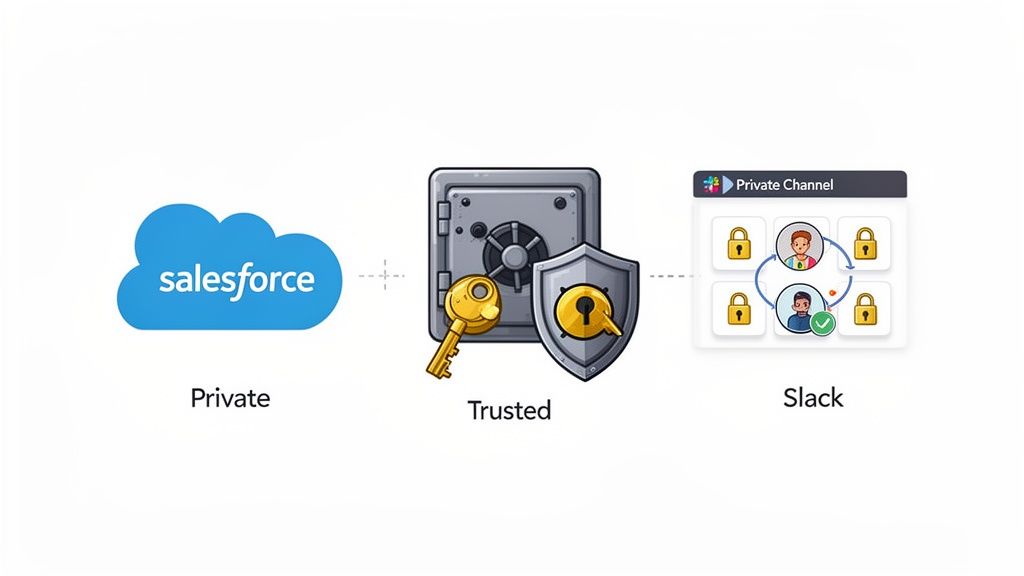
The most important thing to understand is this: your Salesforce security settings are the absolute foundation. Slack doesn’t create new permissions; it simply respects the ones you already have in place in Salesforce. This is your first and strongest line of defense.
If a sales rep only has permission to view their own opportunities in Salesforce, they’ll have the exact same limitation in Slack—even if they’re in a channel with their manager. This automatic mirroring is fantastic because it prevents accidental data leaks and keeps sensitive information locked down by default.
Implementing Channel-Level Security
While Salesforce permissions are the master key, you can get more granular by using private Slack channels. This is your go-to strategy for conversations that are too confidential for a wider audience. Think of these as secure, invite-only conference rooms for specific topics.
Here’s a practical example:
- For Sensitive Deals: Let's say you're working on a massive opportunity. You could create a private channel like
#project-titan-dealand invite only the account executive, the sales manager, and someone from legal. All discussions and Salesforce record updates shared there remain completely confidential. - For HR Cases: An HR manager can spin up a private
#hr-case-1138channel to discreetly manage an employee issue. They can pull the relevant Salesforce case records right into that conversation, ensuring only authorized HR staff can see the details.
This approach gives you precise control over who sees what, adding a crucial layer of security on top of your Salesforce settings.
The Hidden Security Benefit of Recognition
It might sound counterintuitive, but a smart security setup actually makes it easier to handle one of the most powerful uses of this integration: team recognition. This is important because a secure system allows you to celebrate wins publicly without compromising sensitive data, fostering a culture of transparency and trust.
Public channels, like #sales-wins, are perfect for broadcasting good news and celebrating closed deals. Since basic deal info (like the account name and the rep who closed it) isn't top-secret, you can automate these announcements for the whole team to rally around.
By keeping sensitive deal negotiations in private channels while celebrating the final wins in public ones, you strike a perfect balance. You create a secure, focused environment for getting work done and a transparent, positive culture for celebrating success—all without ever risking the exposure of sensitive data.
Ultimately, a secure Salesforce for Slack setup isn't about locking everything down. It's about creating the right access for the right purpose, whether you're strategizing on a deal in private or celebrating it with the entire company.
Measuring the ROI of Salesforce for Slack
So, you’ve connected Salesforce and Slack. That’s a great first step, but now for the hard part: proving it was worth it. To really show the value of this integration, you need to go beyond just saying "it feels more efficient" and dig into the actual numbers.
Think of it this way: you wouldn't upgrade your company's entire computer system without measuring the impact on speed and productivity. The same logic applies here. We need to look at both the hard data and the softer, cultural wins to see the full picture.
Key Metrics to Track
To build a solid business case, you’ll want to track a few key areas that show how work is getting done faster and smarter.
- Deal Cycle Time: This is a big one for sales. How quickly are you moving deals from the first conversation to "Closed-Won"? Shaving even a few days off this cycle by speeding up approvals and handoffs in Slack adds up fast.
- Case Resolution Speed: For your support crew, measure how long it takes to solve a customer's problem. When alerts pop up in a dedicated channel, your team can swarm an issue instantly, which can dramatically cut down resolution time.
- User Adoption: Are people actually using it? It’s crucial to see how many of your team members are pulling up Salesforce records, updating opportunities, and collaborating right from Slack.
- Email Traffic: A surprisingly simple but effective metric. If you see a steep drop in the number of internal emails chasing deal updates or asking for customer info, you know the integration is working.
By measuring these before and after you roll out the integration, you can build a straightforward dashboard that proves the direct impact Salesforce for Slack is having on your business.
Don't Forget the Qualitative Wins
Numbers are great, but they don't tell the whole story. The impact on your team’s morale and culture, especially when it comes to team recognition, is a huge piece of the puzzle. The importance of team recognition lies in its ability to build a positive feedback loop; when employees feel their work is seen and valued, they are more engaged, more collaborative, and more likely to go the extra mile.
Imagine a deal closes and an automated celebration message instantly appears in your company-wide wins channel. That’s not just an update; it's a shared moment of success that energizes everyone and reinforces what winning looks like. It’s a powerful way to keep your team engaged.
Making wins public and celebrating them automatically creates a more connected and positive culture. This "soft" benefit is just as valuable as any hard metric because a motivated team is a productive team.
The financial proof is there, too. In its last fiscal year, Slack brought in a massive $2.3 billion in revenue for Salesforce, and its enterprise retention rates are hovering above 98%. This shows just how critical these kinds of tools have become for improving both productivity and team spirit. You can find more details in this breakdown of Slack's value by SQ Magazine.
At the end of the day, the strongest ROI story combines concrete data—like a 15% reduction in your sales cycle—with the human element, like smoother collaboration between your sales and legal teams. When you present both, you'll have no trouble getting buy-in from leadership and proving that this integration isn’t just another tool, but a real catalyst for growth.
Running Into Trouble? A Guide to Common Salesforce for Slack Fixes
Even the best-laid plans can hit a snag. When your Salesforce and Slack integration starts acting up, it’s rarely a catastrophe. More often than not, it's a simple permissions issue or a setting that’s been knocked out of place. Think of it like a faulty connection in a circuit—the power is there, but a crossed wire is stopping the signal.
Most problems you'll encounter fall into a couple of predictable buckets: notifications that have gone quiet or search results that come up empty. Before you start pulling your hair out, always check the simplest things first. A quick connection refresh or a peek at user permissions clears up a surprising number of these hiccups.
Why Are My Notifications Missing?
One of the most common complaints is when those crucial, automated alerts suddenly stop hitting their Slack channels. This is almost always a permissions problem, kind of like a delivery driver who suddenly finds their keycard to the building no longer works.
Maybe the Salesforce user who originally built the alert had their profile permissions changed, or maybe someone accidentally removed the Salesforce app from a private channel. To get things flowing again, here’s what to check:
- Check the User's Permissions: Make sure the Salesforce user who authenticated the connection still has the "View All Data" permission or at least the right access to the specific records being monitored.
- Invite the App Back In: If the channel is private, the Salesforce app needs a direct invitation. Just pop into the channel and type
/invite @Salesforce. - Review the Alert Itself: Head back into Salesforce and double-check the alert's configuration. Is it still active? Are the trigger criteria still valid?
Dealing with Authentication and Connection Errors
Every once in a while, the handshake between Salesforce and Slack just needs a do-over. This often happens after a user changes their Salesforce password or if your company refreshes a sandbox environment.
It's just like when you change your home Wi-Fi password. None of your devices can connect until you re-enter the new one. The connection is temporarily broken, but once you provide the fresh credentials, everything syncs right back up.
The fastest way to solve this is to have a Salesforce Admin go to the "Slack Setup" page inside Salesforce. They’ll see an option to disconnect the workspace. All they need to do is disconnect it and then immediately reconnect. This forces a brand-new, secure handshake between the two systems and usually gets everything working again in a matter of seconds.
Got Questions? We’ve Got Answers.
When you're connecting two powerful platforms like Salesforce and Slack, a few questions are bound to pop up. Let's walk through some of the most common ones we hear from teams getting started.
How Does Salesforce for Slack Handle Our Custom Objects?
Great question, and the answer is yes—it handles them beautifully. The integration isn't just for standard objects like Opportunities or Cases; it fully supports your custom objects too.
There's a quick, one-time setup step inside the Salesforce for Slack settings. You just need to tell the integration which of your custom objects you want to bring into Slack. From there, you can create notifications, search for records, and see previews right in your channels.
Imagine your HR team has a custom "Candidate" object. You could easily set up a flow to ping the private #hiring-team channel the moment a new candidate record is created. It's a simple way to keep the hiring process zipping along without anyone having to jump back and forth between apps.
Can I Stop Sensitive Salesforce Data from Showing Up in Public Channels?
Absolutely. Security is baked right in. The integration automatically respects all of your existing Salesforce permissions, which is your first and most important line of defense. A user in Slack can only ever see the data they’re already authorized to see in Salesforce.
For an extra layer of control, it’s smart to be strategic about where you send automated alerts.
- A public
#sales-winschannel is perfect for celebrating a newly closed deal. - But for the nitty-gritty details, a private
#deal-strategy-q4channel ensures only the core team sees confidential record previews and discussions.
This approach gives you the best of both worlds: you get broad visibility for team wins while keeping sensitive conversations under wraps.
What's the Real Difference Between Free and Paid Slack Plans Here?
You can get the core Salesforce integration up and running on any Slack plan, even the free one. But a paid plan is where you really unlock its full potential. The biggest advantage is unlimited message and file history. For any team that needs to look back on past conversations or decisions tied to a Salesforce record, this is a must-have.
Paid plans also give you a lot more muscle in Slack's Workflow Builder. If your goal is to build out more complex, multi-step automations that save your team serious time, upgrading to a paid plan is the way to go.
My Connection Broke! How Do I Fix It?
Don't worry, it happens, and resetting the connection is pretty simple. If you're running into authentication problems, here’s the quick fix:
- First, have a Salesforce admin go into your Salesforce settings and revoke access for the Slack app.
- Next, just reinstall the Salesforce for Slack app and reauthorize your workspace.
- Once the connection is back up, do a quick spot-check on your channel alerts and workflows to make sure everything is firing correctly again.
At AsanteBot, we believe recognition is the key to a thriving team culture. Our tool makes it easy to celebrate wins, appreciate effort, and build stronger connections—all inside Slack. Start building a culture of appreciation today.