Connecting Sentry's powerful error monitoring with Slack is more than just a technical convenience; it's about fundamentally changing how your team handles problems. It shifts the entire workflow from reactive scrambling to proactive problem-solving by piping critical issues directly into the conversations you're already having.
Table of Contents
This isn't just about getting another notification. It's about embedding real-time error awareness right into your team's daily rhythm.
From Chasing Bugs to Solving Them Instantly
Think about the old way of doing things. A bug hunt usually starts with a vague customer ticket or a developer having to painstakingly dig through logs. It’s slow, tedious work that pulls people away from building features. They're forced to jump between their code editor, a monitoring dashboard, and their chat app—a classic case of context switching that drains productivity.
The Sentry Slack integration flips this entire dynamic on its head. Instead of your developers hunting for errors, the most important alerts find the right people, in the right place, at the right time. Your application gets a direct line to your team's central hub, which means no more manually checking yet another tool.
Create a Culture of Ownership and Quick Wins
When an error alert pops up in a dedicated Slack channel, it's instantly visible to everyone. It becomes a shared responsibility, not a hidden problem sitting in a backlog. This transparency naturally encourages developers to step up and take ownership.
Someone can quickly claim an issue with a simple emoji reaction, like 👀 to say, "I'm looking into this." Just like that, the entire team knows it's being handled.
This visibility also opens up fantastic opportunities to build morale. Once a critical bug is squashed, a team lead can give a public shout-out in a #wins channel. Team recognition is vital because it transforms a stressful incident into a positive, motivating experience. It reinforces the value of proactive problem-solving and makes team members feel appreciated, which is key to preventing burnout and maintaining high engagement.
A quick message like, "Huge kudos to @Jane for squashing that checkout bug in under 15 minutes!" turns a stressful incident into a moment of celebration. It reinforces great work and builds a collaborative, problem-solving mindset.
This immediate loop—from alert to resolution to recognition—is what keeps a team engaged and moving forward.
Finally, a Solution to Alert Fatigue
One of the biggest wins here is the ability to finally cut through the noise. Since Sentry launched its polished integration, it has helped millions of developers centralize their error tracking. A huge number of them choose Slack notifications specifically to combat alert fatigue, which they estimate has been reduced by as much as 55%.
By setting up smart, custom rules, you can ensure that only high-impact bugs trigger a notification in your #critical-alerts channel. This makes every single ping matter. To learn more, check out Sentry's own research on improving developer workflows.
This targeted approach transforms notifications from a constant distraction into a truly actionable signal, empowering your team to act decisively on what actually matters.
Getting Your Sentry and Slack Connection Set Up
Let's walk through connecting Sentry to Slack. Thankfully, the process is pretty painless and happens entirely within Sentry’s settings. You're essentially building a secure bridge between the two platforms, laying the groundwork for a much faster, more intuitive incident response workflow.
First things first, head over to your Sentry organization's settings and find the Integrations section. You'll see a whole catalog of services you can connect. Just find Slack, click it, and you'll kick off the connection process. Sentry uses a standard OAuth flow, which is a secure and common way to grant one application access to another.
Authenticating Your Workspace
During this setup, Slack will pop up and ask you to authorize the connection. You’ll need to pick the correct Slack workspace you want Sentry to post alerts to. This is a crucial step, especially if your company uses multiple Slack instances for different teams or projects.
Sentry will ask for a specific set of permissions. Don't worry, it's not a free-for-all. It only requests the minimum access needed to do its job: post messages, show issue details when you share a Sentry link, and let your team take action on alerts directly from within Slack. The entire process is built with security in mind, adhering to standards like SOC 2 and GDPR.
What This Change Actually Means for Your Workflow
Setting this up isn't just about getting more notifications. It fundamentally changes how your team sees and reacts to errors. Before, you might have a chaotic scramble through emails or dashboards. Afterward, it's a direct, streamlined flow right where your team already works.
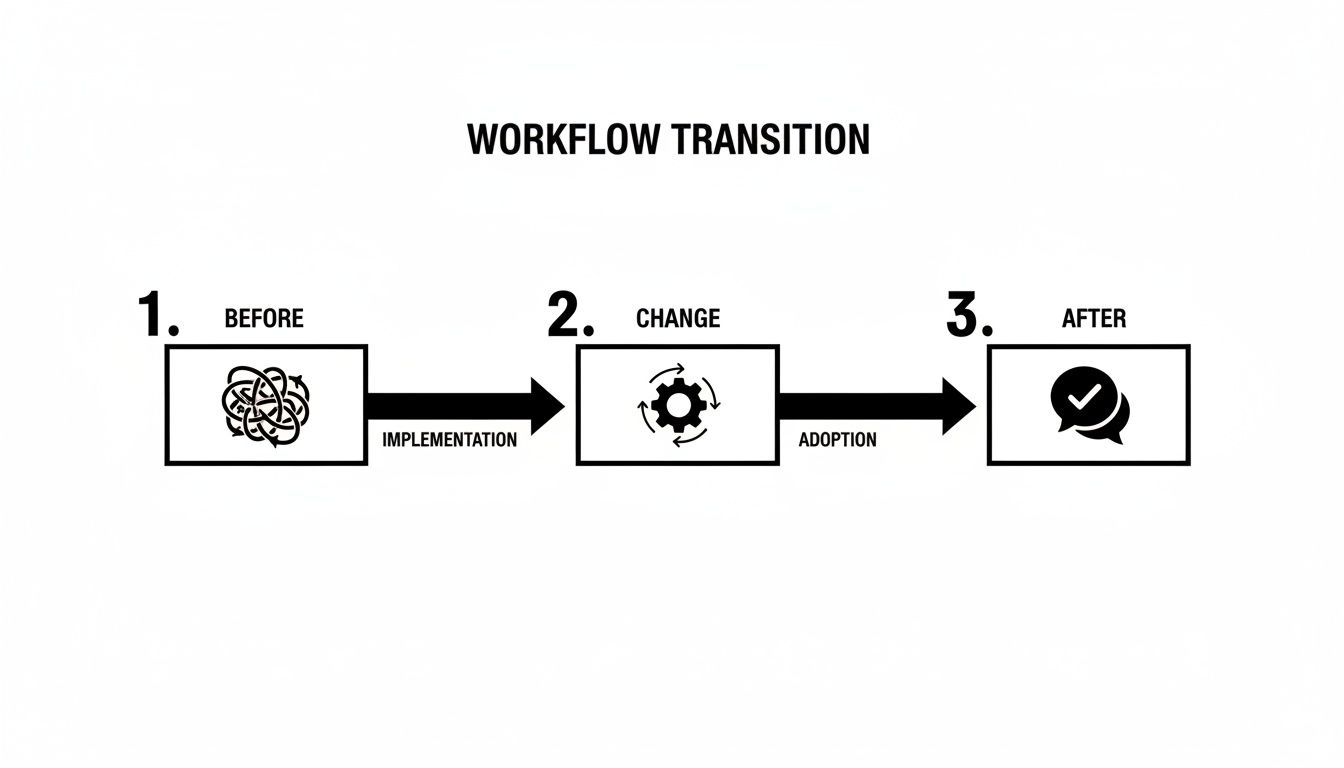
This visual really says it all. You’re moving from tangled, messy communication to a clean, direct alert system. This simplification is what cuts down your response time so dramatically.
When a Sentry alert pops up in Slack, it’s packed with the context you need—the error message, the affected project, and direct links to start debugging. This immediate information is what helps developers jump on a problem right away.
Under the hood, the Sentry Slack integration works by creating a Slack app and configuring credentials that allow Sentry to push notifications to your channels. The real magic is that developers can triage issues, assign them to the right person, or even resolve them without ever leaving their chat window. This is a game-changer, especially when you consider that a whopping 75% of production incidents happen outside of typical work hours. For a deeper dive into the nuts and bolts, Sentry’s own technical setup guide is a great resource.
Key Takeaway: The whole point of this integration is to make critical error information both accessible and actionable. By piping Sentry alerts directly into Slack, you kill the context-switching that slows everyone down, freeing up your team to focus on what matters: fixing the problem.
This isn't just about efficiency, either. It helps build a better team culture. When a developer quickly jumps on a Sentry alert and fixes it, a quick emoji reaction or a public "nice job!" in the channel turns a simple bug fix into a visible win for the team. This kind of positive reinforcement goes a long way in boosting morale and encouraging everyone to be more proactive.
Fine-Tuning Alerts to Reduce Noise
If you just pipe every Sentry error into a single Slack channel, you’re creating a recipe for alert fatigue. I’ve seen it happen time and again—what starts as a helpful notification system quickly becomes a source of constant noise that everyone learns to ignore.
The real magic of the Sentry and Slack integration isn't just getting alerts; it's about getting the right alerts to the right people at the right time. This means moving beyond a generic #sentry-alerts channel and getting surgical with your routing.
Think about segmenting your alerts into channels that mirror your team's structure. For instance, a frontend bug should go straight to the #frontend-devs channel, while a database timeout needs to hit #backend-ops. This simple change turns a chaotic firehose of data into a clean, actionable signal.
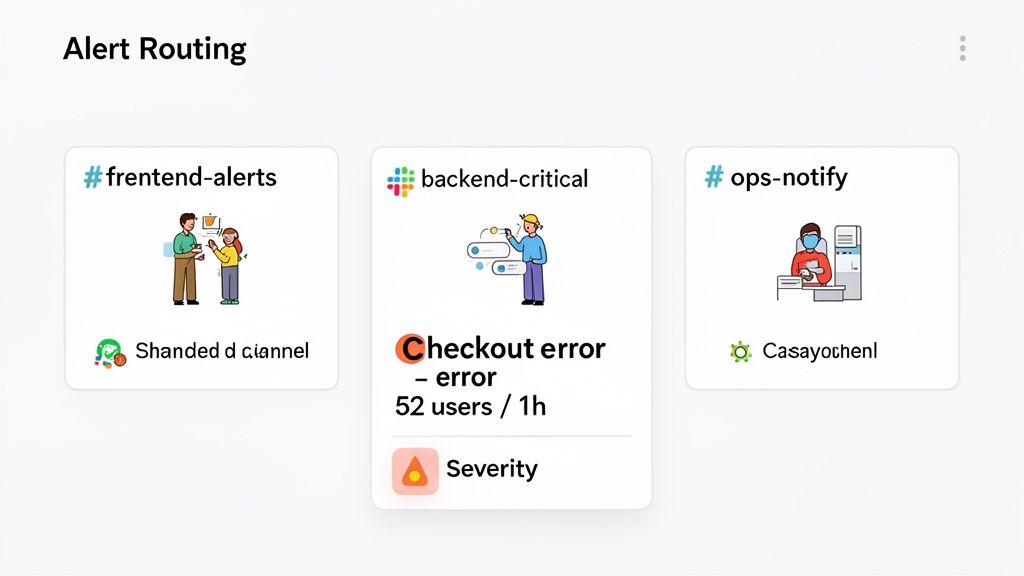
When an alert appears in a dedicated channel, the team knows it’s for them. No more guesswork or shouting across the office (or Slack) to figure out who owns the problem.
Creating Smarter Alert Rules
Sentry's alert rules are incredibly powerful if you know how to use them. You can go way beyond a simple "if error, then post to Slack" setup. The goal should be to build rules that actually reflect business impact, so your engineers are only pulled away from their work for things that truly matter.
Here are a few practical examples of routing strategies:
- By Team or Project: A classic for a reason. Errors from the
ios-appproject go to#mobile-devs. Issues from theapi-gatewayproject? They belong in#backend-team. Simple and effective. - By Severity: This is a must. You can send all
fatalerrors to a high-priority#devops-criticalchannel that the on-call team lives in, while lower-levelwarningscan accumulate in#backend-triagefor review during business hours. - By Environment: Keep your environments separate to maintain sanity. All
stagingerrors should stay in#qa-testingso they don't distract the folks focused on production stability.
This level of control is what prevents a minor warning from a test server from derailing a developer who's deep in focus on a production hotfix.
Practical Example: An E-Commerce Checkout Rule
Let’s walk through a real-world scenario. Say you run an e-commerce site. A single customer experiencing a failed payment is bad, but it might just be a typo in their credit card number. You don't need to wake up the entire engineering team for that.
But what if dozens of customers start seeing payment failures within the same hour? Now that's a five-alarm fire.
Here’s how you’d build a Sentry alert rule to catch the real emergency while ignoring the one-off issues:
- Trigger: When a new issue occurs in the
productionenvironment. - Filter: Only for issues where the error message contains
"Payment Gateway Timeout"or thetransactiontag is/checkout/confirm. - Threshold: This is the key. Fire the alert only if the issue is seen by more than 50 users in 1 hour.
- Action: Send a high-priority notification to the
#payments-criticalSlack channel.
With a rule like this, your team isn't getting pinged for every little hiccup. But the second a systemic failure starts costing you real money, the right people are instantly pulled into a dedicated channel, armed with the context they need to start debugging.
Threshold-based alerting is what elevates this integration from a simple notifier to an intelligent monitoring system that understands your business. It protects your team's focus, which is always your most valuable resource.
The table below breaks down some of the powerful conditions and actions you can mix and match to build rules like this for your own application.
Sentry Alert Rule Configuration Options
Here’s a summary of the key conditions and actions you can configure in Sentry to really fine-tune your Slack notifications.
| Condition (When to Trigger) | Action (What Happens) | Slack Channel Example |
|---|---|---|
A new issue is created in production with level: fatal. |
Send a notification to Slack immediately. | #devops-oncall |
An issue in the webapp project is seen by >100 users in 1 hour. |
Send a notification to Slack and tag @frontend-team. |
#frontend-critical |
| An issue's frequency increases by 500% in 1 day. | Send a notification to Slack for investigation. | #backend-triage |
An error is seen for the first time in a new release (release: 2.5.1). |
Send a notification to Slack for awareness. | #release-monitoring |
By combining these conditions and actions creatively, you can craft a notification strategy that gives your team a clear, contextualized signal when something truly needs their attention. This isn't just about reducing noise; it's about making your alerts meaningful again.
Building a Collaborative Triage Workflow in Slack
Once your Sentry alerts are hitting the right Slack channels, the real work begins. It’s not just about the technology—it's about creating a smooth, human-centric process that your team can actually follow. Without clear rules of engagement, even the most perfectly configured alerts will just create noise and lead to dropped balls.
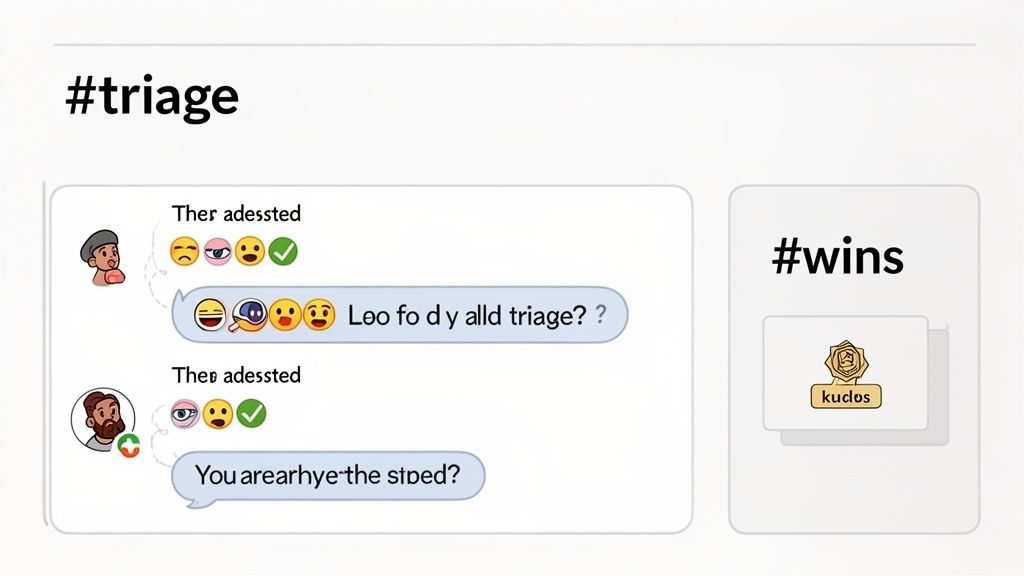
The cornerstone of a great workflow is a dedicated triage channel. You might have team-specific channels like #frontend-alerts, which is great, but a central #triage channel is your command center. This is the first stop for new, unassigned, or cross-functional issues, where the on-call engineer or a rotating triage lead can get eyes on an alert, delegate it, and make sure nothing slips through the cracks.
Adopting this kind of structured approach can genuinely change how a team operates. A 2023 survey found that 82% of integrated teams reported catching more bugs before they became major issues. For some, this translated to a 25% increase in application uptime. This isn't just about better tech; it's about giving distributed teams a clear way to work together. You can see more about how integrations improve team workflows on develop.sentry.dev.
Establishing Clear Communication Protocols
To keep the triage channel from turning into a chaotic free-for-all, you need a few simple communication ground rules. The goal is to make the status of any issue instantly obvious just by scanning the channel. Emoji reactions are your secret weapon here.
Here's a practical example of an emoji-based workflow:
- 👀 (Eyes): "I'm looking into this." This immediately signals ownership and stops two engineers from accidentally working on the same thing.
- 💬 (Speech Bubble): "Let's discuss this in the thread." This keeps the main channel uncluttered while allowing for detailed debugging conversations.
- ✅ (Check Mark): "Resolved and deployed." This is the final word, letting everyone know the issue is officially closed out.
This lightweight convention provides at-a-glance status updates that cut through the noise, making it easy for anyone to see what's happening.
Keeping Debugging Organized with Threads
Once an engineer claims an issue with the 👀 emoji, all follow-up conversations need to move into a Slack thread. This is a critical discipline. It keeps the main #triage channel clean and scannable, acting as a high-level dashboard of what's currently active.
The thread then becomes the living history for that specific incident. Team members can use it to:
- Share code snippets or log outputs
- Debate potential root causes and fixes
- Tag other engineers for their expertise
- Link to pull requests or other relevant documents
By keeping all the context tied to the original Sentry alert, you have a complete record. And for those bigger problems that need to be formally tracked, you can even create a Jira ticket directly from Slack, bridging the gap between real-time communication and project management.
The Power of Team Recognition
Don't forget to close the loop with some positive reinforcement. After a critical bug gets squashed—especially one that required a late-night fix or some clever debugging—it's the perfect time to celebrate the win. Recognizing these efforts is crucial for morale because it shows that the team's hard work and dedication are seen and valued. This is where a #wins or #kudos channel shines.
A simple message from a team lead can make a huge impact: "Huge props to @David for jumping on that API timeout Sentry flagged. Awesome work getting that resolved so quickly under pressure!" This does more than just give praise. It reinforces the value of your monitoring setup, acknowledges real effort, and helps build a resilient and positive team culture.
This final step transforms your incident response from a stressful, purely reactive chore into a positive feedback loop. It connects the alert, the collaborative fix, and team recognition, making everyone feel valued and more engaged with the entire process.
Taking Your Integration to the Next Level
So, you've got the basics down. Your Sentry alerts are hitting the right Slack channels, and the team is getting into a good rhythm with triaging new issues. Now it's time to really make this integration work for you by turning Slack into a command center for Sentry.
The real magic happens when your team can manage Sentry issues without ever leaving their Slack conversation. This keeps everyone focused and drastically cuts down on the friction of switching between tools.
The key to unlocking this power? Slash commands.
Mastering Sentry Slash Commands in Slack
Picture this: a new JavaScript error alert lands in your #frontend-errors channel. Instead of opening a new browser tab and searching for the issue in Sentry, your on-call engineer can just type a command right into Slack to get the full context or take immediate action. It's a game-changer.
Here are a few practical examples of commands your team can use:
- Claiming Ownership: See an issue you can fix? Grab it instantly with
/sentry assign [issue-id] to @username. Everyone immediately knows who's on it. - Quieting the Noise: Some bugs are just annoying, not critical. If a low-priority error is spamming a channel, you can temporarily mute it with
/sentry ignore [issue-id] for 24h. - Closing the Loop: Once your fix is live, you can mark the issue as done directly from Slack using
/sentry resolve [issue-id].
This transforms the integration from a simple notification system into an interactive part of your incident response process. To build on this, it's also worth brushing up on general effective software troubleshooting techniques to speed up the whole process.
Solving Common Integration Hiccups
Of course, no integration is perfect, and you might run into a few bumps along the road.
If your Sentry alerts suddenly go silent, the first place to look is the integration's health status in your Sentry settings. More often than not, a simple re-authentication will fix it, especially if someone recently changed your workspace's Slack permissions.
Another common snag is trying to pipe alerts from multiple Sentry organizations into a single Slack workspace. To do this without creating a mess, you need to set up a separate, distinct integration instance for each Sentry org.
My Two Cents: If an alert rule isn't firing when you think it should, nine times out of ten, the problem is in your filters. It's incredibly easy to set a condition that's too specific, like matching an exact error message when a more flexible "contains" filter would have caught it.
For those really complex, multi-step workflows—like automatically creating a post-mortem calendar event after a critical Sentry issue is resolved—you might need to bring in a third-party tool. You can automate Slack workflows with Zapier to connect Sentry to other apps and build some truly powerful automations.
Got Questions About the Sentry + Slack Hookup?
Even after a smooth setup, a few questions always pop up when you start using a new integration day-to-day. Let's walk through some of the most common ones I hear from teams just getting started.
Can I Send Alerts From Different Sentry Projects to Different Slack Channels?
Yes, you can—and you definitely should. This is where the integration really starts to shine. The trick is to set up separate alert rules inside Sentry for each project or even for specific teams.
When you build an alert rule, you can point it to any Slack channel you want. This lets you get incredibly specific with where notifications go.
Here's a practical example of a multi-channel setup:
- Errors from the
ios-appproject? Pipe those directly into your#mobile-devschannel. - Problems with the
api-gateway? Those should go straight to the#backend-triageteam. - Critical failures in the
payment-processor? You'll want those hitting a high-visibility#devops-oncallchannel that someone is always watching.
Doing this makes sure the right people see the right alerts, cutting down on the noise for everyone else.
How Does Sentry Handle Security and Data Privacy?
Sentry is built with security in mind. The integration uses OAuth for authentication, which means you’re granting specific, limited permissions that can be revoked at any time. No password sharing is involved. Sentry is also SOC 2 Type II and ISO 27001 certified, which means they meet rigorous industry standards for protecting your data.
You also have granular control over what information actually makes its way into Slack. I always recommend teams take full advantage of Sentry’s data scrubbing features. Before an event ever becomes an alert, you can configure Sentry to automatically strip out any Personally Identifiable Information (PII). This way, your error reports in Slack are useful for debugging without creating a compliance headache.
What Should I Do if My Sentry Alerts Suddenly Stop Coming Through?
First off, don't panic—it happens. If your alerts go quiet, the first place to look is the integration's health status in your Sentry settings. Just head to Integrations > Slack and see if there are any errors. Often, the integration was simply disabled or removed from the Slack workspace, and re-authorizing it will fix things right up.
If that doesn't work, it's time to check your alert rules. A recent code change might have slightly altered an error's message or fingerprint, meaning your old conditions no longer match. It's also worth peeking at Sentry's audit log, which can give you clues if a specific notification failed to send and why.
Pro Tip: I've seen this happen a dozen times: the issue is a filter that's just a little too specific. An alert rule looking for an exact error message will break the second that message changes. Try switching to a "contains" or "starts with" filter instead—it's a much more resilient approach.
Recognition is the lifeblood of a great team culture. With AsanteBot, you can build a fun, engaging, and measurable recognition habit right inside Slack. Celebrate every win, from squashing a critical bug to launching a new feature, and see how simple appreciation boosts morale and collaboration. Try it free and see the difference at https://asantebot.com.