In today’s remote and hybrid workplaces, turning a simple text-based shout-out into a genuinely memorable moment can feel like a challenge. That’s where the Adobe Express integration for Slack comes in. It’s more than just another tool—it’s a way to quickly create stunning, on-brand graphics for everything from work anniversaries to big project wins, all without ever leaving your team's main conversation hub.
Table of Contents
Transform Team Culture With Visual Recognition
Keeping a team connected and engaged is tough, especially when everyone is spread out. A quick "good job" in a busy Slack channel can easily get buried and forgotten. This is precisely why meaningful team recognition is so important. Acknowledging effort and achievements makes employees feel valued and motivated, which directly impacts morale and retention. When you add a visual element, those moments truly pop. A well-designed graphic doesn't just get noticed; it communicates appreciation in a way that plain text rarely can.
Think about it. Instead of just typing "@Jane Doe great job on the Q3 report!", a team lead can whip up a custom graphic in a minute or two. Imagine a sharp visual with your company logo, maybe a photo of Jane, and bold text calling her a "Q3 Report Rockstar." That small extra step turns a fleeting message into a lasting piece of positive reinforcement, making Jane feel genuinely seen and valued. This simple act reinforces the idea that good work is not only noticed but celebrated.
The Power of On-Brand Celebrations
This is where the Adobe Express connection with Slack really shines. It puts design power into the hands of everyone, from HR managers celebrating milestones to team leads cheering on their crew. The importance of this cannot be overstated; consistent recognition builds a culture where people are motivated to excel because they know their contributions will be acknowledged.
Here are a few practical examples of how teams are already using it:
- Work Anniversaries: Create a personalized graphic for an employee's milestone. You could use a template that includes their start date, their photo, and a fun fact about their time with the company. For instance, a graphic celebrating a 5-year anniversary might say "5 Years of Awesome!" with a picture of the employee from a team event.
- Project Wins: Design a bold, eye-catching announcement when a huge project goes live. For example, after launching a new app feature, share a graphic in the company-wide channel with the headline "Feature Launched!" and photos of the key team members who made it happen.
- Peer-to-Peer Kudos: When one colleague thanks another, you can amplify that praise with a simple but polished visual. If an engineer thanks a designer for a last-minute mockup, the designer's manager can create a "Teamwork Champion" graphic to share, turning a private thanks into public praise.
The real goal here is to move past generic praise. You're building a culture where appreciation is visible, shareable, and always on-brand, which helps reinforce your company's values and makes every celebration feel more significant.
Before you dive in, let’s quickly break down the key benefits of bringing these two platforms together. This is especially useful for HR managers, team leads, and anyone responsible for fostering a positive remote work environment.
Key Benefits of Integrating Adobe Express with Slack
| Benefit | Impact on Team Culture | Key Feature |
|---|---|---|
| Boosted Engagement | Makes recognition more visible and memorable, cutting through the noise of text-heavy channels. | Instantly shareable graphics directly in Slack. |
| Brand Consistency | Ensures all internal celebrations align with company branding, reinforcing a professional and unified culture. | Access to pre-approved brand kits and templates. |
| Increased Efficiency | Empowers non-designers to create high-quality visuals in minutes, saving time and creative resources. | Simple, intuitive design tools inside Adobe Express. |
| Stronger Connections | Personalized visuals feel more thoughtful than generic text, strengthening bonds between team members. | Ability to upload photos and customize templates. |
Ultimately, this integration streamlines your creative work right where your team is already talking. For busy marketing and HR teams, connecting Adobe Express with Slack is a game-changer for content creation and maintaining creative momentum. It allows your team to "create and collaborate on content directly in Slack," which is a huge efficiency win. You can learn more about how Adobe's integrations support modern business workflows.
And what's even better? You can pair these custom visuals with automated recognition tools to build an unstoppable culture of appreciation. While an app can handle the timing of a work anniversary reminder, the human touch of a custom graphic from Adobe Express is what makes the moment feel special.
If you're looking for other ways to bring more dynamic visuals into your workspace, you might also find our guide on using Giphy with Slack helpful.
Getting Adobe Express Hooked Up to Your Slack Workspace
Let's get these two powerhouse tools talking to each other. Connecting Adobe Express to your Slack workspace is surprisingly simple, and you definitely don't need to be a technical whiz to get it done. Whether you're in HR, leading a team, or just want to add some visual punch to your daily conversations, this process is for you.
First things first, you’ll want to head over to the Slack App Directory. Just pop "Adobe Express" into the search bar, and you'll find the official app listing. This is your command center for adding all kinds of new capabilities to Slack, and Adobe Express is a fantastic one to have in your toolkit.
Permissions, Accounts, and Making It Official
Once you find the app and click to add it, Slack will ask for some standard permissions. This is a normal part of the process—it just lets Adobe Express do its job, like posting your amazing designs into a channel or responding to slash commands.
Next, you'll be prompted to link your Adobe account. This is the key step that bridges your creative work with your team's communication hub.
- For Individuals: If you're using a personal or free Adobe Express account, you can connect it right here. This gives you direct access to all your personal projects and a huge library of free design assets.
- For Teams: This is where the magic really happens for businesses. Linking an Adobe Express for Teams account unlocks shared brand kits, team templates, custom fonts, and logos. It’s the best way to make sure every single graphic your team creates is 100% on-brand.
I've found the team account is a game-changer for consistency. It means a "Work Anniversary" graphic from one manager has the exact same professional look and feel as a "Project Milestone" announcement from another. No more off-brand colors or rogue fonts.
This simple workflow shows just how quickly you can go from a quick shout-out to a beautifully designed piece of recognition.
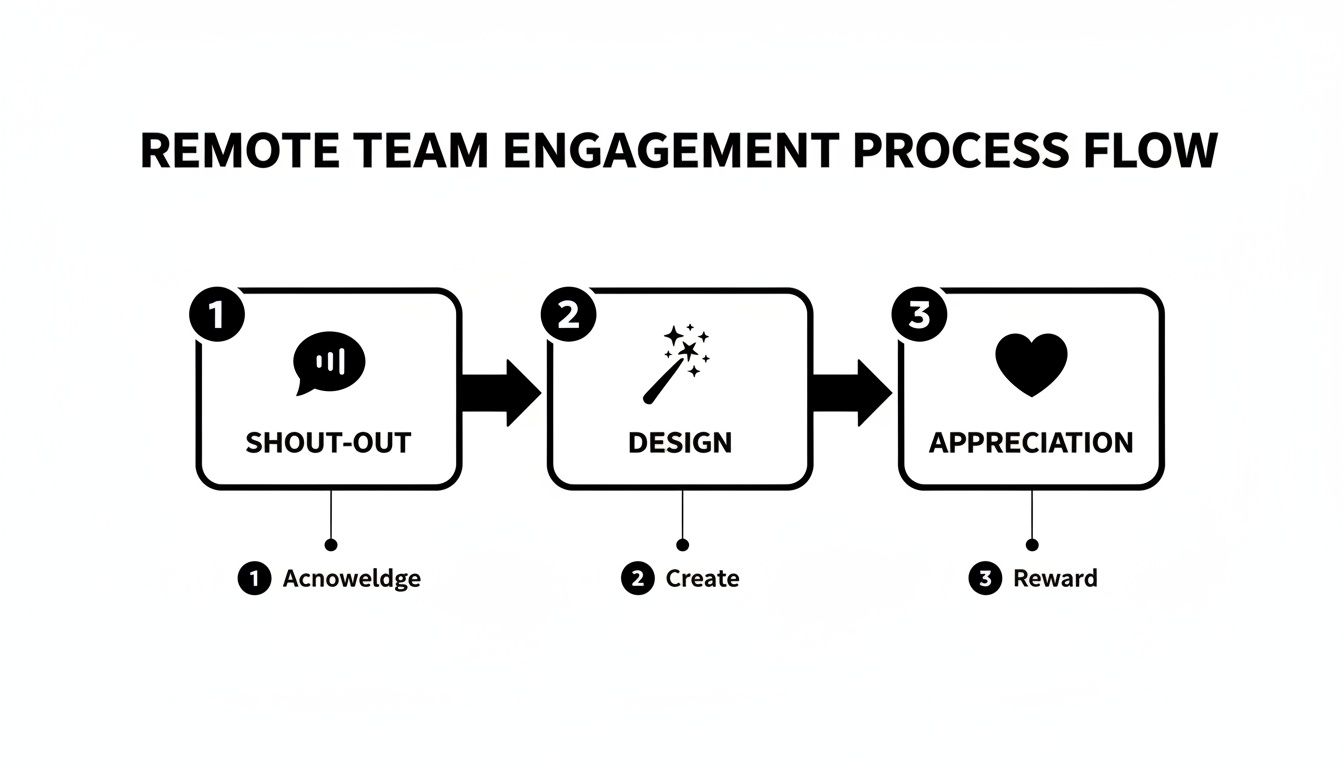
It’s all about turning a quick, text-based message into a visual moment that really lands with your team.
Your Five-Minute Sanity Check
Once you're connected, it's a good idea to run a quick test to make sure everything is working smoothly. This little checklist will give you peace of mind and shouldn't take more than a few minutes.
- Create a Sandbox: First, make a new, private channel—something like
#adobe-express-testingworks perfectly. This keeps your experiments out of busy public channels. - Try the Slash Command: In your new channel, type
/expressand press Enter. This should launch the Adobe Express editor right inside Slack. - Whip Up a Quick Design: Create something simple, like a "Welcome!" or "Great Job!" graphic. As a practical test, try creating a "Test Successful!" graphic using your company logo.
- Share It!: When your masterpiece is ready, share it directly into your test channel.
If you see your graphic pop up in the channel, you're all set! The integration is a success, and you’re ready to start sharing incredible visuals with your team.
For anyone looking to push this even further, you can explore how to connect Slack with Zapier to build some truly powerful automated workflows between your apps.
Crafting On-Brand Recognition in Seconds
Okay, so you've got Adobe Express hooked into your Slack workspace. Now for the fun part: moving beyond plain text shout-outs and creating moments of recognition that people actually remember. This is where the integration truly shines, turning a simple slash command into a mini creative studio right inside your conversations.
The only command you need to know is /express. Just type that into any channel's message box, hit enter, and the Adobe Express editor pops up. You don't have to switch apps or lose your train of thought. This seamless flow is what makes it easy to build a habit of creating great-looking visuals for any occasion.
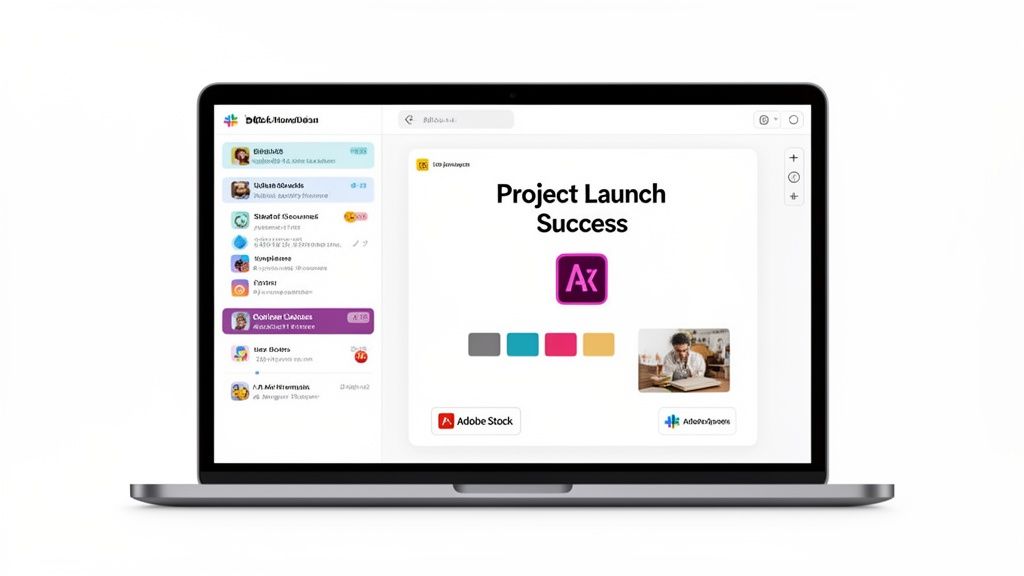
This command is your ticket to making everything from a quick kudos to a formal company announcement—and doing it in just a few clicks.
A Real-World Example: The "Project Launch" Graphic
Let's say your team just pushed a massive project live after months of hard work. A simple "Great job, team!" in the #announcements channel feels a bit flat, doesn't it? Let's build something better.
After typing /express, the editor opens. The first thing you'll want to do is find your company's official assets. If your company has an Adobe Express for Teams account, your Brand Kits will be waiting for you. This is a game-changer.
One click gives you instant access to:
- Company Logos: No more digging through your downloads folder for the right file.
- Brand Colors: Every design automatically uses your official palette.
- Custom Fonts: Your visuals will always look consistent and professional.
From there, you can start from scratch or, even better, grab a pre-made template. I always recommend that teams create a small library of go-to templates for common events. For this launch, you might have a "Project Milestone" or "Big Win" template ready to go.
Now you just customize it. Add your specific text, like "Project Phoenix is LIVE!", and @mention the key team members. To make it even more impactful, you can upload a celebratory team photo directly into the design.
It's easy to underestimate the power of recognition, but a Gallup study found that employees who do not feel adequately recognized are twice as likely to say they'll quit in the next year. A good visual makes that praise feel more concrete and memorable than a line of text ever could.
This is what it's all about—turning a routine task into a meaningful gesture that stays on-brand.
Don't Have a Photo? Use AI and Stock Images
What if you don't have the perfect picture on hand? No problem. The Slack and Adobe Express integration gives you two incredibly powerful tools.
First, you have the entire Adobe Stock library at your fingertips. You can search millions of professional, high-quality images without leaving the editor. For our project launch graphic, a quick search for "success" or "team collaboration" will give you dozens of great background options that instantly set the right mood.
Second, you can tap into the generative AI of Adobe Firefly. This is where you can get really creative. Using the "Text to Image" feature, you could try a prompt like, "abstract art representing successful teamwork in our brand colors." The AI will spit out several unique images you can use immediately. This is how you make sure even your quickest shout-outs look polished and original.
By setting up just a few core templates for things like work anniversaries, new hire welcomes, and peer-to-peer kudos, you can make powerful visual recognition an everyday habit. It’s about building a system where celebrating wins is not only easy but also looks fantastic, ensuring every achievement gets the spotlight it deserves.
Streamlining Creative Workflows and Approvals
If you want to make visual recognition a real, sustainable habit in your company, you have to get past the manual, one-off creation process. This is where the Slack Adobe Express integration really shines. It lets you build out proper systems for getting content approved and scheduled, all without ever having to leave the app you're already in all day.
Think about the old way of doing things. A marketing coordinator finishes a graphic for a company-wide announcement. They have to export the file, draft an email, attach it, send it off, and then just… wait. With this integration, they can just share the Adobe Express design directly into a private Slack channel, say #marketing-approvals. The manager gets a ping, takes a look, and hits it with a thumbs-up emoji. Boom. It’s approved and ready to go.
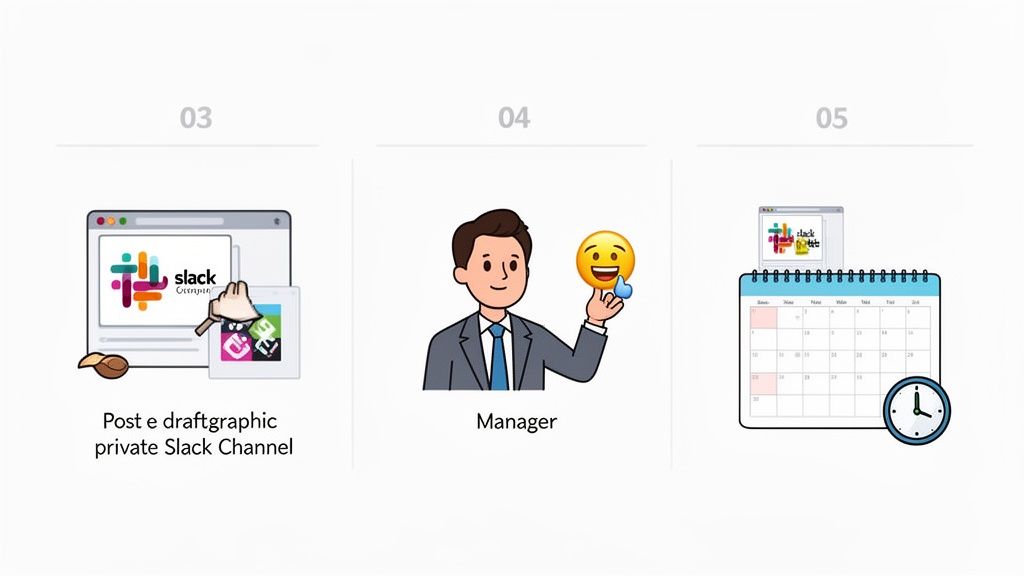
This kind of contained workflow is a game-changer. It slashes all that time spent switching between apps and keeps projects from getting stuck in limbo.
Amplifying Peer Recognition Instantly
One of my favorite ways to use this setup is for amplifying peer-to-peer shoutouts. Let's be honest, recognition shouldn't always come from the top down. When you give employees the tools to celebrate each other, you build a much stronger and more collaborative culture.
Here’s a practical, real-world example I’ve seen play out:
- An engineer posts a quick message in the
#dev-winschannel: "Huge thanks to @Sarah for staying late to squash that critical bug before the release!" - The team lead sees it and thinks, "This deserves more attention."
- Using the
/expresscommand, the lead whips up a branded "Problem Solver" or "Bug Slayer" graphic in seconds using a pre-saved company template. - They then drop that new visual into the main
#announcementschannel, making sure to @mention Sarah again.
Just like that, a small, team-specific win becomes a company-wide celebration. It’s immediate, visually engaging, and incredibly powerful. This synergy is a big reason why Adobe's recent revenue hit a staggering $5.41 billion, as integrations like this make their tools indispensable for marketing and HR teams. If you’re looking to really level up, understanding the principles of creative automation can take these workflows even further.
The Importance of Consistent Recognition
So, why does all this matter? Because consistent, visible appreciation is one of the biggest drivers of employee engagement and retention. When celebrating wins becomes a normal part of the daily workflow, it reinforces the exact behaviors you want to see more of. It makes people feel genuinely valued, not just for big milestones, but for the day-to-day contributions that keep the company moving forward. Fostering this environment is crucial for long-term success.
Building a system for approvals and amplification ensures recognition isn't just a nice-to-have. It becomes a core part of how your team communicates, collaborates, and ultimately, succeeds.
By using the Slack and Adobe Express integration to formalize these small but meaningful moments, you’re doing more than just sending messages. You're actively building a more supportive and motivated workplace where no good deed goes unnoticed.
Using Generative AI for Instant Creative Inspiration
This is where the real magic of the Slack Adobe Express integration happens. When you bring Adobe Firefly's generative AI into the mix, you're no longer just working with templates. You're creating completely unique, hyper-personalized visuals right inside your Slack conversations. It's a game-changer.
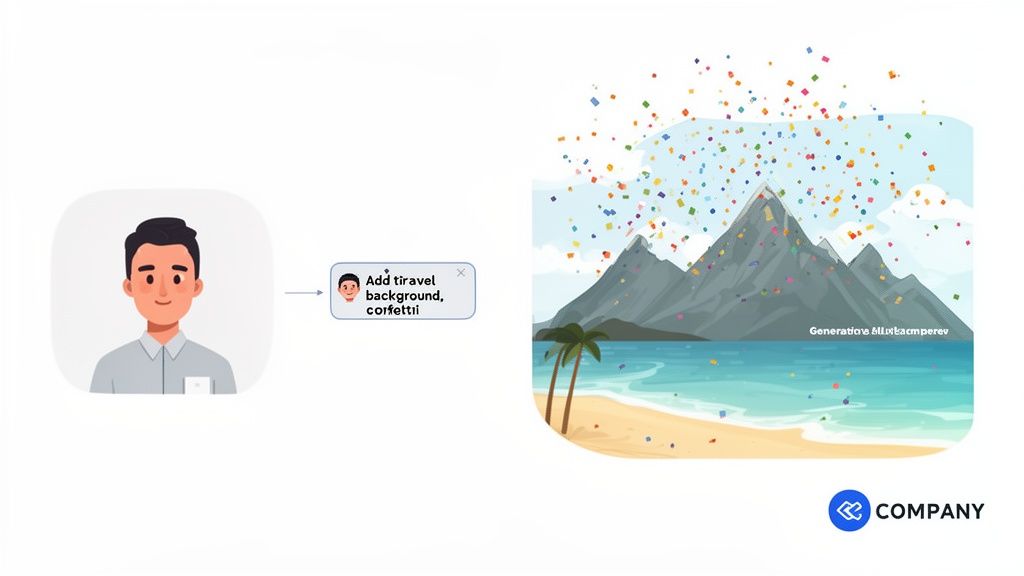
Think about it. Instead of spending time hunting for a generic background for a recognition post, you can just create one. Let's say you're celebrating an employee who loves hiking. For their work anniversary, you could type a simple text prompt like "serene mountain range at sunrise, minimalist art style" to generate a custom graphic. It makes the recognition so much more personal and memorable.
Practical AI Prompts for Team Recognition
Getting the hang of AI is really all about the prompt. The secret is to be descriptive. Don't just say "celebration"—get specific to get something great back.
Here are a few practical examples of prompts I've seen work well:
- For a Birthday: "Vibrant, cheerful background of the Swiss Alps in summer, with virtual confetti falling."
- For a Core Value Award: "Abstract geometric pattern using our company's blue and gold brand colors, representing innovation and connection."
- For a Project Launch: "A stylized rocket ship soaring through a starry sky, minimalist design, celebratory feel."
- For a Sales Win: "A graphic of a trophy made of sparkling gold coins, with a bold, exciting background."
This approach takes the mystery out of AI. It becomes a practical tool that not only saves time but also seriously boosts the quality and thoughtfulness of your team shout-outs.
Adding a Touch of Magic with Generative Fill
You can also go a step further than just creating backgrounds. Generative Fill lets you modify existing photos, which is perfect for adding a fun, unexpected element to your graphics.
I can't stress this enough: team recognition is a direct investment in your company culture. Using AI to personalize these small moments shows your team that you see them as individuals, not just another name on a list. It communicates care and thoughtfulness, which are foundational to building a strong, loyal team.
For example, grab that team photo from your last big win. Use Generative Fill to add your company logo to a plain wall in the background or even sprinkle some digital confetti over everyone. It's a quick, simple way to inject some brand personality and fun.
This integration puts some seriously powerful tech right at your fingertips. To give you some perspective, Adobe Firefly has already powered the creation of over 6.5 billion assets since it launched. That same engine is now available in Slack, making it easy for anyone on your team to create visuals that really stand out. While this integration is a prime example, the wider trend of AI powered content creation is changing how all teams work.
Common Questions About the Adobe Express Slack Integration
When you're rolling out a new tool, questions are going to pop up. Let's get ahead of the curve and tackle some of the most common things HR managers and team leads ask about connecting Adobe Express with Slack. Getting these sorted out upfront means your team can hit the ground running.
Do All Team Members Need a Paid Adobe Express Account?
It really depends on what you want them to do. Anyone in your Slack workspace can see the graphics you share, no account needed. Simple as that.
But, if you want your team to actually create or edit designs from within Slack, they'll need their own Adobe Express account. The free plan is surprisingly powerful and might be enough for some, but for business use, you’ll want more.
To get your hands on premium templates, brand kits, and the really cool AI features like Generative Fill, a Premium subscription is the way to go. For most companies, the Adobe Express for Teams plan makes the most sense. It ensures everyone is working from the same playbook with the same branded assets, which is a must for consistent recognition posts.
Can We Use Our Company's Custom Fonts and Logos?
Absolutely, and this is where the integration truly shines for businesses. Once you've set up your Brand Kits in the main Adobe Express web app, all those assets are instantly available right inside Slack.
This means your team will have one-click access to:
- Company logos (in all the right formats)
- Official brand color palettes
- Your specific, custom-licensed fonts
Honestly, this feature alone is a massive win for brand consistency. It empowers anyone on the team—not just the designers—to create perfectly on-brand visuals for announcements and shout-outs without any guesswork.
How Does This Integration Handle Security?
Great question. Security is handled on a few different fronts to keep your assets and conversations safe. The connection itself relies on Slack’s standard, secure authentication protocols, which are rock-solid. On top of that, Adobe brings its own enterprise-grade security and data protection to the table.
When you share a design in a private Slack channel, it stays private. The integration completely respects Slack’s privacy settings, so only members of that channel can see it. This is perfect for workflows where you're approving a sensitive design or lining up a surprise work anniversary post before the big reveal. Plus, both Slack and Adobe are GDPR compliant, so you can trust your data is being handled responsibly.
Ready to make recognition a measurable and fun habit in your Slack workspace? AsanteBot helps you build a vibrant culture of appreciation with customizable rewards, automated milestone celebrations, and insightful analytics. See how AsanteBot works.