
While Slack has transformed team chat, mastering its video capabilities is the key to unlocking true remote productivity. Simply hitting the 'join' button isn't enough to foster genuine connection or drive efficient collaboration. This guide moves beyond the basics to provide a comprehensive, step-by-step walkthrough of the best tools and practices for running seamless, engaging, and effective Slack video calls.
Table of Contents
We will explore everything from Slack's native Huddles to powerful third-party integrations like Zoom, Microsoft Teams, and Google Meet. Each option includes detailed instructions, screenshots, and direct links to help you configure audio/video settings, manage screen sharing, and navigate recording permissions. To truly make the most of your recorded conversations, explore various AI transcription apps that can convert your video call audio into searchable text.
Beyond the technical setup, we'll dive into practical strategies for improving remote meeting etiquette and embedding team recognition directly into your workflows. You'll learn not just how to start a call, but how to use it as a tool to troubleshoot issues, boost morale, and build a stronger, more connected culture, no matter where your team is located.
1. Slack — Huddles and Clips (native)
For teams deeply embedded in Slack, the native Huddles and Clips feature is the most frictionless option for conducting slack video calls. Huddles offer lightweight, drop-in audio and video conversations directly within a channel or direct message, eliminating the need to schedule a formal meeting or switch applications. This is ideal for quick syncs, collaborative problem-solving, or spontaneous brainstorming sessions that benefit from face-to-face interaction.
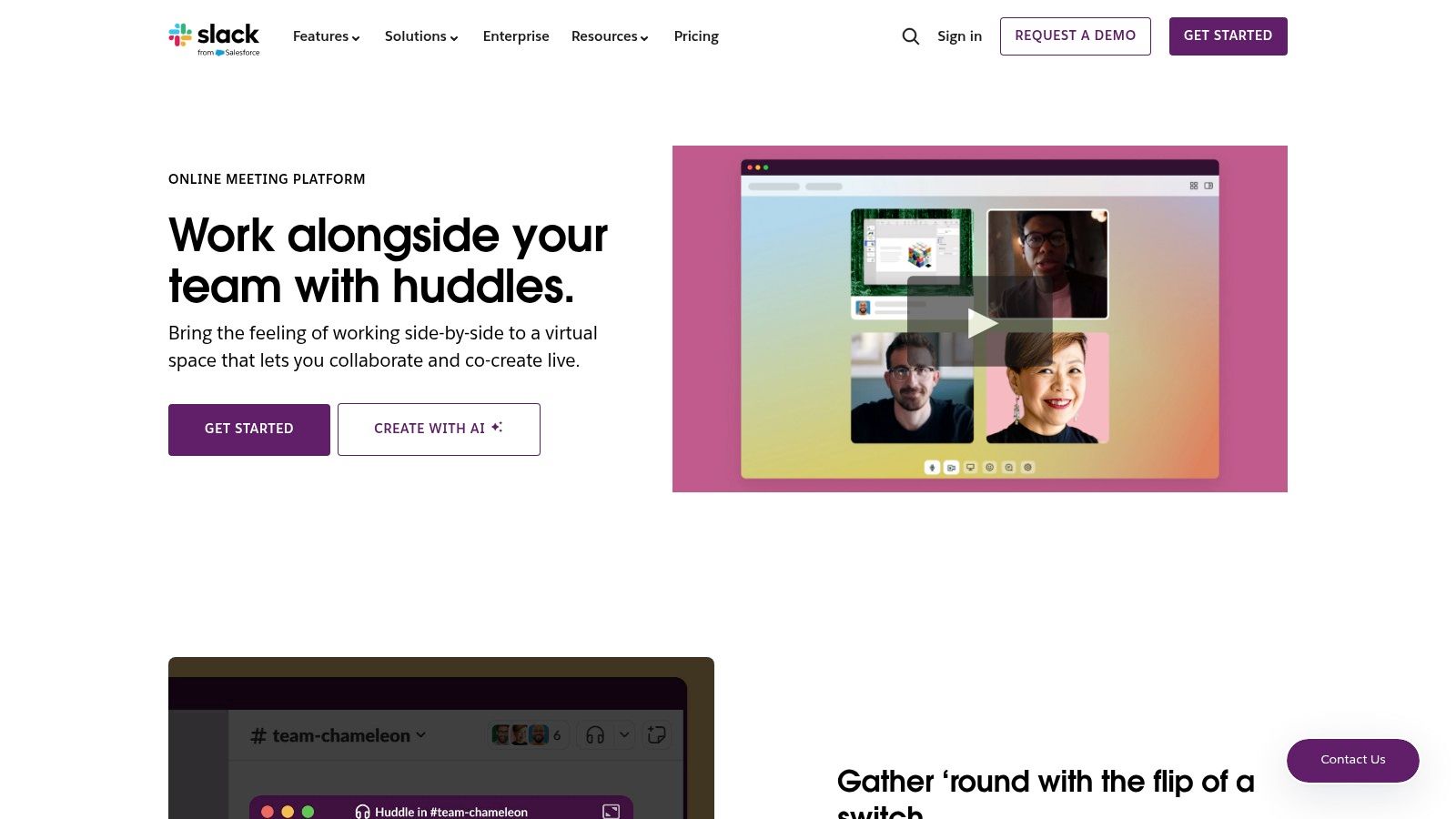
The platform’s strength lies in its seamless integration. Every huddle automatically creates a dedicated thread, capturing messages, files, and even AI-powered summaries (on paid plans) for easy reference. For asynchronous updates, Clips allow users to record and share short videos. A practical example is a manager using a Clip to give personalized recognition for a job well done. This visual praise adds a human touch that text often lacks, making the acknowledgment feel more significant and boosting team morale.
Key Features & Limitations
| Feature | Availability & Details |
|---|---|
| Participants | 1:1 on Free plan; up to 50 people on paid plans. |
| Screen Sharing | Multi-person screen sharing with drawing/annotations. |
| Collaboration | Dedicated huddle thread for notes and files. |
| Asynchronous Video | Record and share 5-minute Clips with transcripts. |
| External Access | No external guest links; all participants must be in the Slack workspace. |
Website: https://slack.com/features/huddles
2. Zoom for Slack
For organizations that need a more robust solution for formal, large-scale, or external slack video calls, the official Zoom integration is an industry standard. It brings the power of Zoom's mature video conferencing platform directly into the Slack workspace, allowing users to start, join, and manage meetings with a simple /zoom command. This is perfect for scheduled client presentations, company-wide all-hands meetings, or any situation requiring external guest access without friction.
The integration’s key strength is its familiarity and powerful feature set. Post-call, a summary and a link to the cloud recording are automatically posted back to the channel, ensuring context is preserved. For teams that value recognition, a manager can easily reference a specific moment from a recorded Zoom call when giving praise, connecting positive outcomes directly to the collaboration that happened in the meeting. This seamless workflow is a primary reason many compare Zoom, Teams, and Slack for enterprise communication.
Key Features & Limitations
| Feature | Availability & Details |
|---|---|
| Participants | Up to 1,000 participants (depends on Zoom subscription). |
| Start/Join | Use /zoom slash command to instantly start a meeting. |
| Notifications | Get meeting reminders and recording notifications in Slack. |
| External Access | Easily generate and share links for external guests to join. |
| Dependencies | Requires a separate Zoom account; advanced features need a paid Zoom license. |
Website: https://www.zoom.com/en/zoom-apps/zoom-slack-integration/
3. Microsoft Teams Calls for Slack
For organizations that use Microsoft 365 but prefer Slack for daily communication, the Microsoft Teams Calls integration bridges the gap. This app allows users to initiate slack video calls that are actually hosted in Microsoft Teams, blending the familiarity of Slack's interface with the robust video conferencing power of Teams. This is perfect for companies standardizing on Microsoft's ecosystem but wanting to maintain the chat-centric workflow their teams love in Slack.
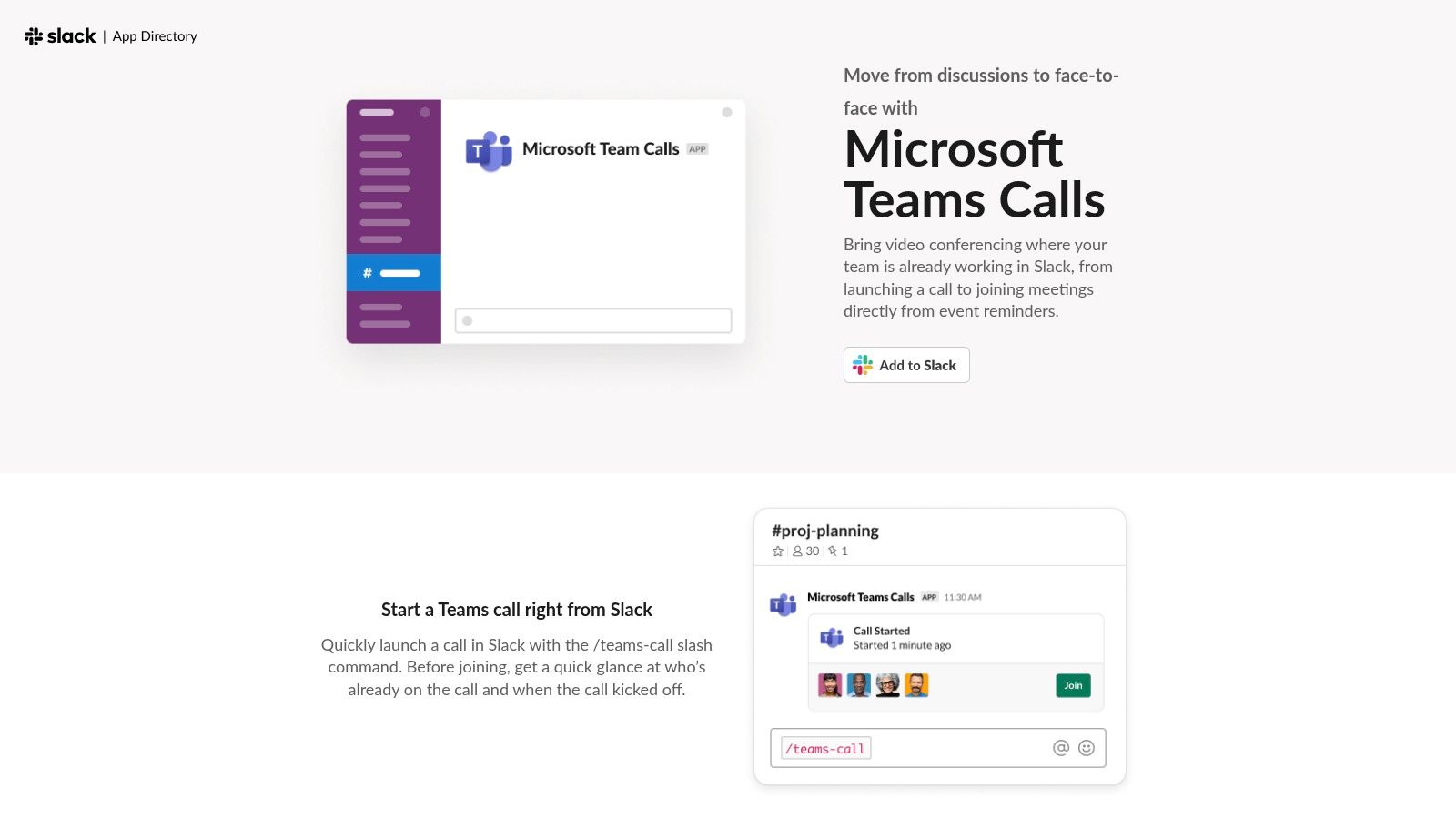
The integration’s main strength is its convenience. Users can start a Teams meeting instantly using the /teams-calls command or even set Teams as the default calling provider for a channel's phone icon. A practical example is a project manager launching a Teams call from a project channel to discuss a critical update, ensuring everyone, including stakeholders who primarily use Teams, can join seamlessly. After the call, the manager can post a public thank-you in the Slack channel, recognizing the team's quick response and collaborative problem-solving, which reinforces a positive and agile culture.
Key Features & Limitations
| Feature | Availability & Details |
|---|---|
| Quick Launch | Start Teams meetings from any channel or DM with the /teams-calls command. |
| Default Provider | Set Microsoft Teams as the default calling app for any Slack conversation. |
| Calendar Integration | Join Teams meetings directly from Outlook or Google Calendar notifications in Slack. |
| Account Support | Requires a Microsoft 365 work or school account. Personal accounts are not supported. |
| Admin Setup | Requires admin authorization; some Microsoft cloud deployments may be unsupported. |
Website: https://slack.com/app-pages/teams-calls
4. Webex Meetings for Slack (Cisco)
For organizations standardized on Cisco's ecosystem, the Webex Meetings integration offers a robust and secure way to manage slack video calls. This app brings the enterprise-grade features of Webex directly into the Slack interface, allowing users to start instant meetings with /webex or schedule future ones with /webexschedule. It’s particularly suited for regulated industries or large companies needing advanced security, compliance, and administrative controls over their video communications.
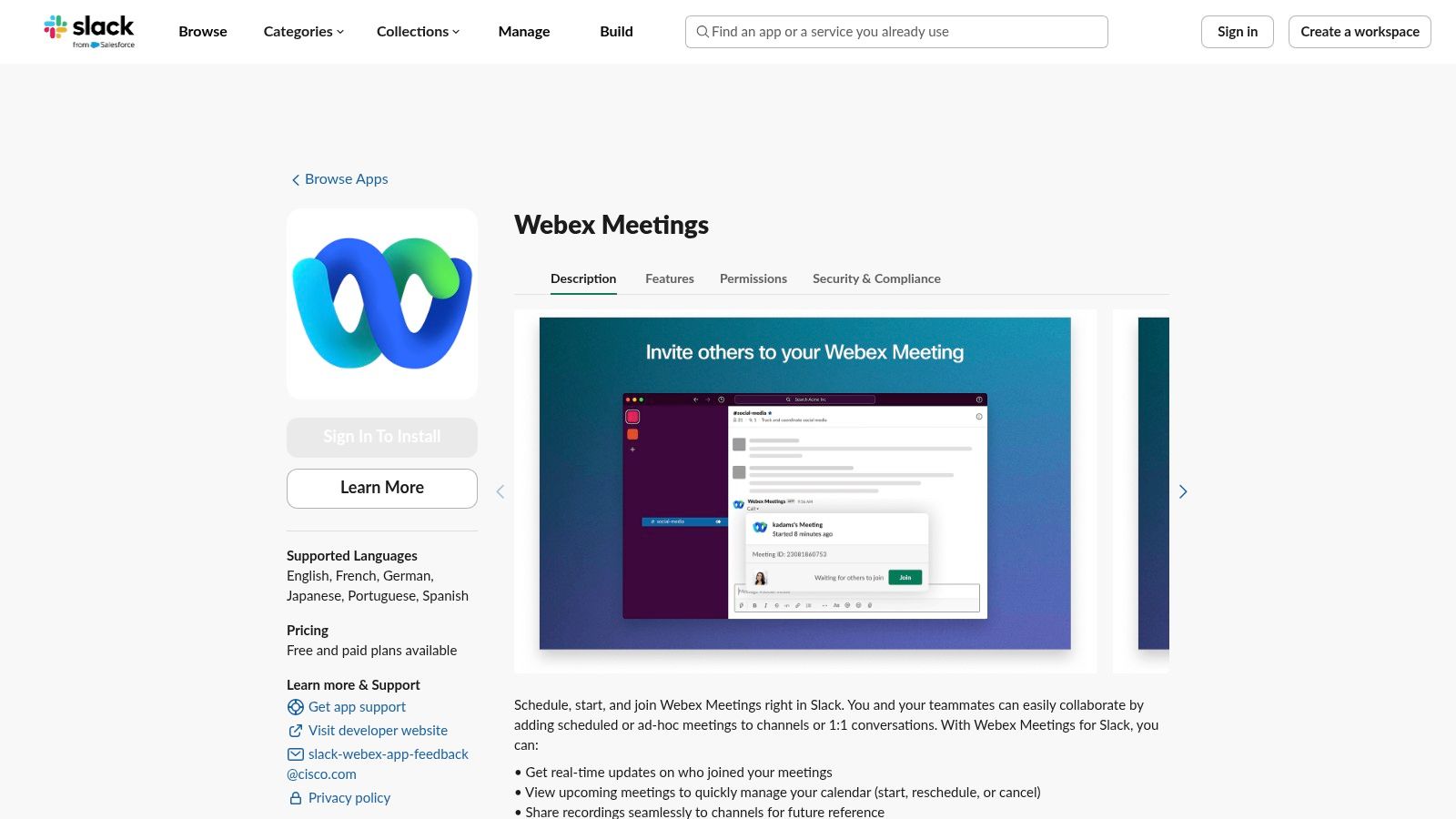
The integration excels at bridging workflows between the two platforms. After a call, a link to the recording can be automatically posted back into the relevant Slack channel, making it easy for team members to catch up. For example, after a successful project launch call, the lead can share the recording and add a comment tagging team members to recognize their specific contributions. This creates a permanent, visible record of achievement tied directly to the project's key moments, making recognition more impactful.
Key Features & Limitations
| Feature | Availability & Details |
|---|---|
| Meeting Commands | Start instant meetings with /webex or use /webexschedule for future calls. |
| Admin Controls | Supports org-level installation for Enterprise Grid, offering centralized management. |
| Recording Access | Automatically posts meeting recording links and summaries back into Slack channels. |
| Scheduling | Full scheduling and instant meeting capabilities are available from within Slack. |
| Setup Complexity | Requires Webex admin enablement and user email addresses to match across both platforms. |
Website: https://slack.com/marketplace/A5P5FDK33-cisco-webex-meetings
5. RingCentral Video for Slack
For companies that have standardized their communications stack on RingCentral, this integration is a powerful bridge to enable high-quality slack video calls. It allows users to launch a full-featured RingCentral Video meeting directly from any Slack channel or direct message using a simple slash command (/ringcentral meet) or by clicking the native call icon. This is perfect for organizations that need more robust video conferencing features, like advanced security or PSTN dial-in options, without forcing users to leave the Slack interface to initiate a call.
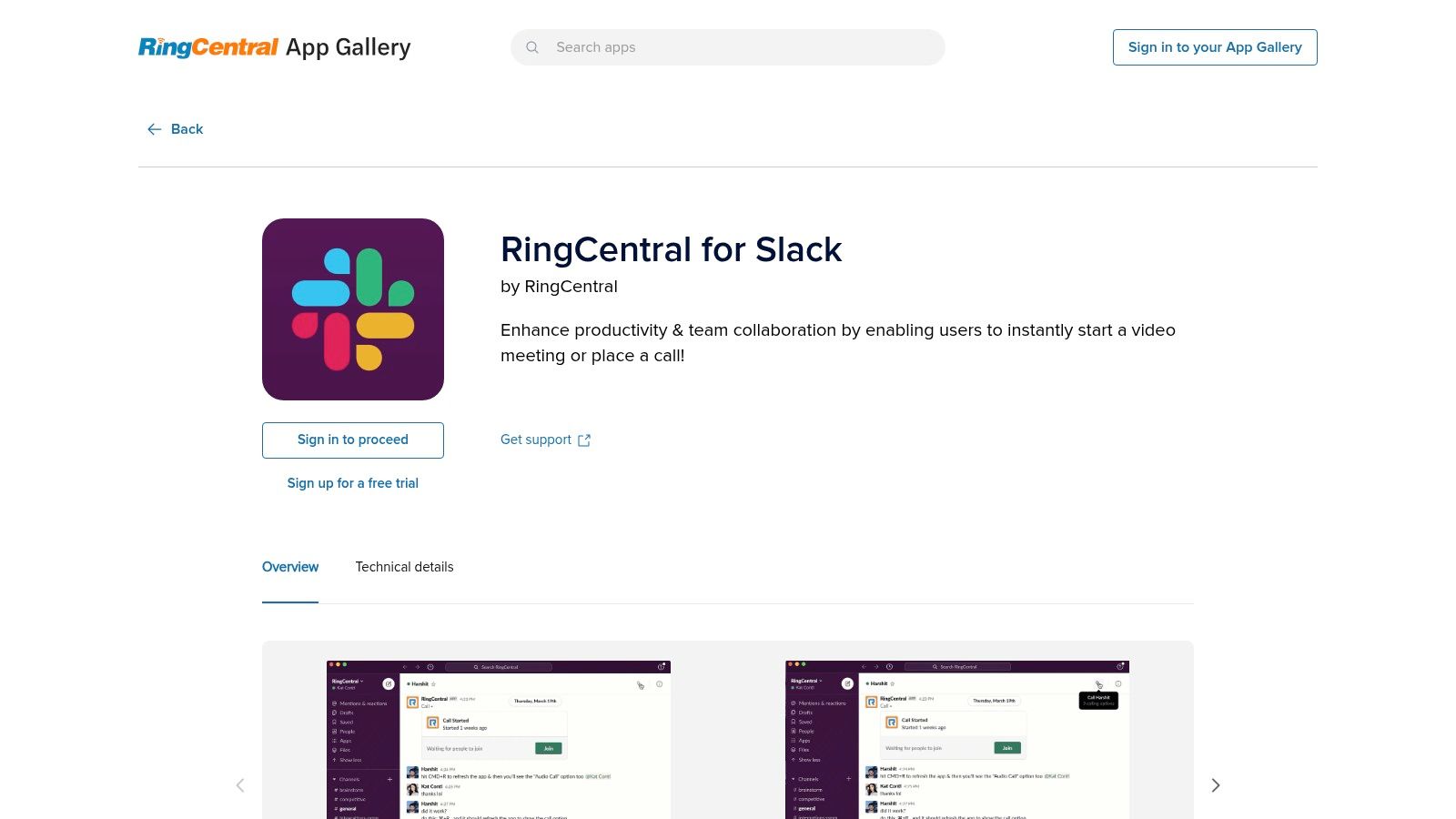
The primary advantage is unifying communication tools. A team can transition from a quick Slack chat to a formal, recorded RingCentral meeting in seconds, ensuring all stakeholders, even those outside of Slack, can join. For instance, a support team lead can instantly start a RingCentral meeting from a Slack channel to troubleshoot a critical issue with an external client who can dial in via phone. Recognizing successful resolutions publicly in the same channel afterwards is crucial for team morale, as it highlights individual competence and reinforces a customer-centric mindset.
Key Features & Limitations
| Feature | Availability & Details |
|---|---|
| Meeting Launch | Initiate meetings via the Slack call icon or /ringcentral meet command. |
| Account Required | All users must have a RingCentral Video or RingCentral Office account. |
| Notifications | Meeting summaries and recording links are posted back to the Slack channel. |
| Participants | Capacity depends on the user's RingCentral plan (up to 200). |
| PSTN Integration | Leverages RingCentral's robust phone and dial-in capabilities. |
| Governance | Requires managing user accounts and settings in a separate platform. |
Website: https://www.ringcentral.com/apps/slack
6. Dialpad + Slack (Dialpad Meetings and Calling)
For organizations where voice communication and slack video calls frequently overlap, such as in sales or support, the Dialpad integration is a powerful bridge. It allows teams to launch full-featured Dialpad video meetings or place VoIP calls directly from any Slack channel or DM using simple slash commands. This is particularly useful for escalating a text-based support conversation into a live video call to troubleshoot a complex customer issue more effectively.
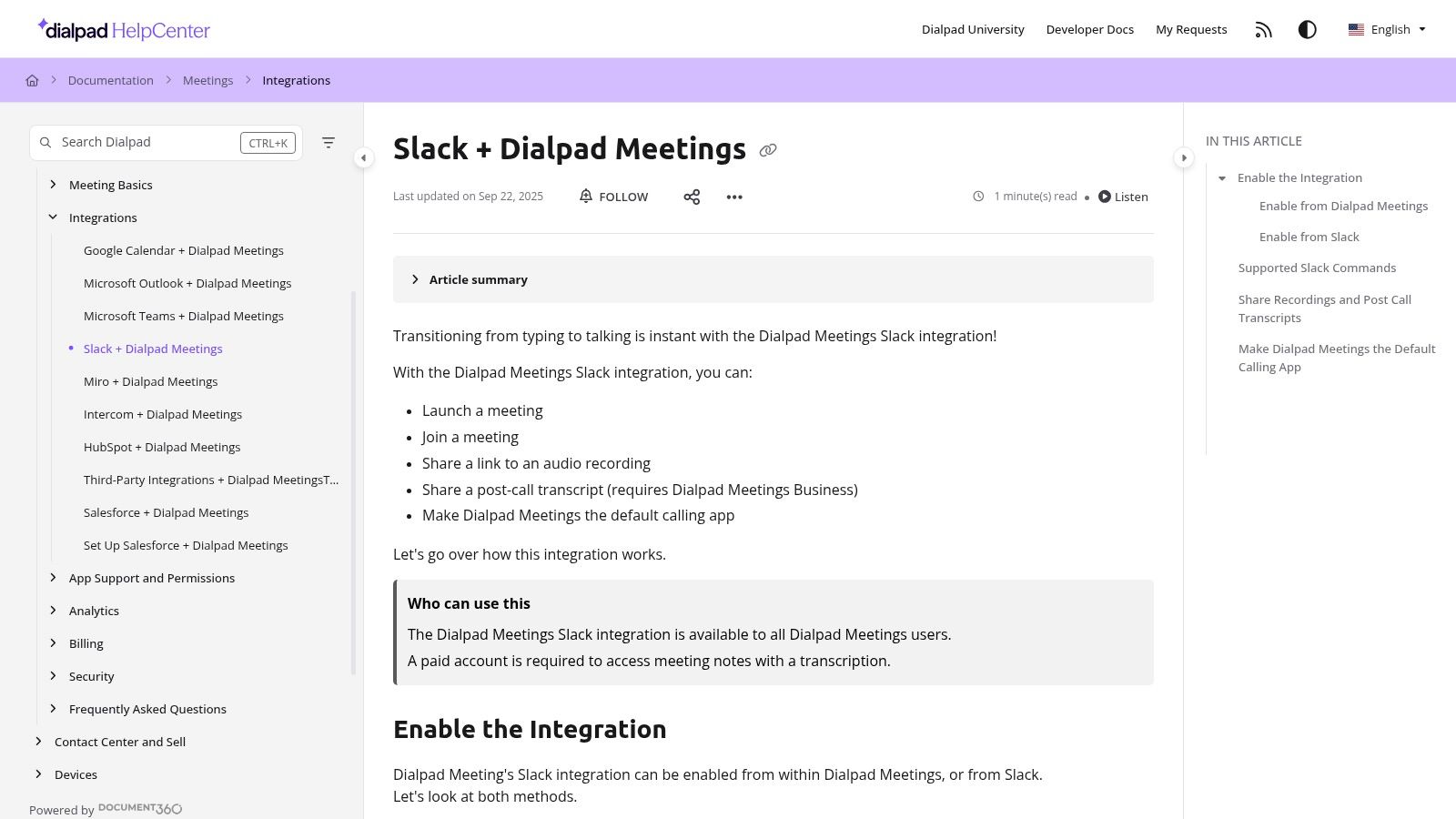
Dialpad's key differentiator is its advanced AI capabilities, which can automatically transcribe meetings and generate post-call summaries. These recordings and transcripts can be automatically posted back into the relevant Slack channel, creating a searchable record of the conversation. For example, a sales manager can quickly review the transcript of a successful discovery call in Slack to recognize a team member's excellent performance, sharing specific highlights without having to watch the entire recording. This makes praise timely, specific, and highly effective.
Key Features & Limitations
| Feature | Availability & Details |
|---|---|
| Meeting Launch | Start Dialpad video meetings or audio calls from Slack. |
| Post-Call Automation | Automatically posts meeting recordings and transcripts to Slack. |
| Call Notifications | Get alerts for missed calls and voicemails directly in a channel. |
| AI Features | AI-powered transcription and summaries require paid Dialpad plans. |
| Setup | Requires admin configuration to set Dialpad as the default calling app. |
Website: https://help.dialpad.com/docs/slack-dialpad-meetings
7. GoTo Meeting for Slack
For organizations already invested in the GoTo ecosystem, the GoTo Meeting integration offers a reliable and straightforward way to manage slack video calls. Instead of migrating to a new platform, teams can launch their familiar GoTo meetings directly from any Slack channel or direct message using simple slash commands like /goto. This eliminates context switching and streamlines the process of starting scheduled or ad-hoc video conversations.
The integration’s main advantage is its simplicity and familiarity for existing users. A practical example is a manager initiating a call with /goto start, which instantly posts a join link in the channel. After the call, a link to the cloud recording can be automatically shared back. A great practice is for the manager to follow up with a message in the thread recognizing key contributors from the call, ensuring their efforts are visible to the entire team and fostering a culture of appreciation.
Key Features & Limitations
| Feature | Availability & Details |
|---|---|
| Slash Commands | Use /goto and /goto start to initiate and manage meetings. |
| Default Provider | Admins can set GoTo Meeting as the default call provider for Slack. |
| Meeting Access | Meeting links and join buttons are posted directly into Slack channels. |
| Recording Sync | Links to cloud recordings are automatically shared in the relevant channel. |
| Admin Setup | Requires coordination between GoTo and Slack workspace administrators for initial setup. |
Website: https://support.goto.com/meeting/help/integrate-gotomeeting-with-slack-g2m010093
8. Whereby for Slack
Whereby’s Slack integration brings simple, browser-based video meetings directly into your workspace. It excels at creating ad-hoc slack video calls that include external guests, as no downloads or logins are required for participants to join. Using the /whereby command, anyone can instantly launch a personal or team video room, making it a go-to for impromptu sales demos, candidate interviews, or quick client check-ins that need to happen without friction.
The platform’s core strength is its minimalist, user-friendly interface. This simplicity reduces IT overhead and ensures even non-technical guests can join a call in seconds. For instance, a project manager can initiate a Whereby room from a Slack channel to quickly bring in a freelance contractor for a visual review. This ease of access maintains project momentum. Following a successful review, giving public kudos in the channel for the contractor's work is a powerful way to build strong external relationships and encourage continued high performance.
Key Features & Limitations
| Feature | Availability & Details |
|---|---|
| Quick Launch | Use the /whereby slash command to create and share a room link. |
| Guest Access | Completely browser-based; guests join via a link with no downloads. |
| Room Types | Supports both personal rooms for individuals and shared team rooms. |
| Core Functionality | Includes screen sharing, chat, and emoji reactions. |
| Enterprise Controls | Lacks advanced admin and telephony features found in larger platforms. |
Website: https://whereby.com/blog/whereby-slack-integration/
9. Google Meet from Slack — Meet for Slack (independent developer)
For teams standardized on Google Workspace but living in Slack, this third-party integration offers a highly efficient way to manage slack video calls. Meet for Slack bridges the gap by letting users instantly generate a Google Meet link directly within any channel or DM using a simple /meet slash command. This eliminates the tedious process of opening Google Calendar, creating an event, and pasting the link back into Slack, saving valuable time and reducing context switching.
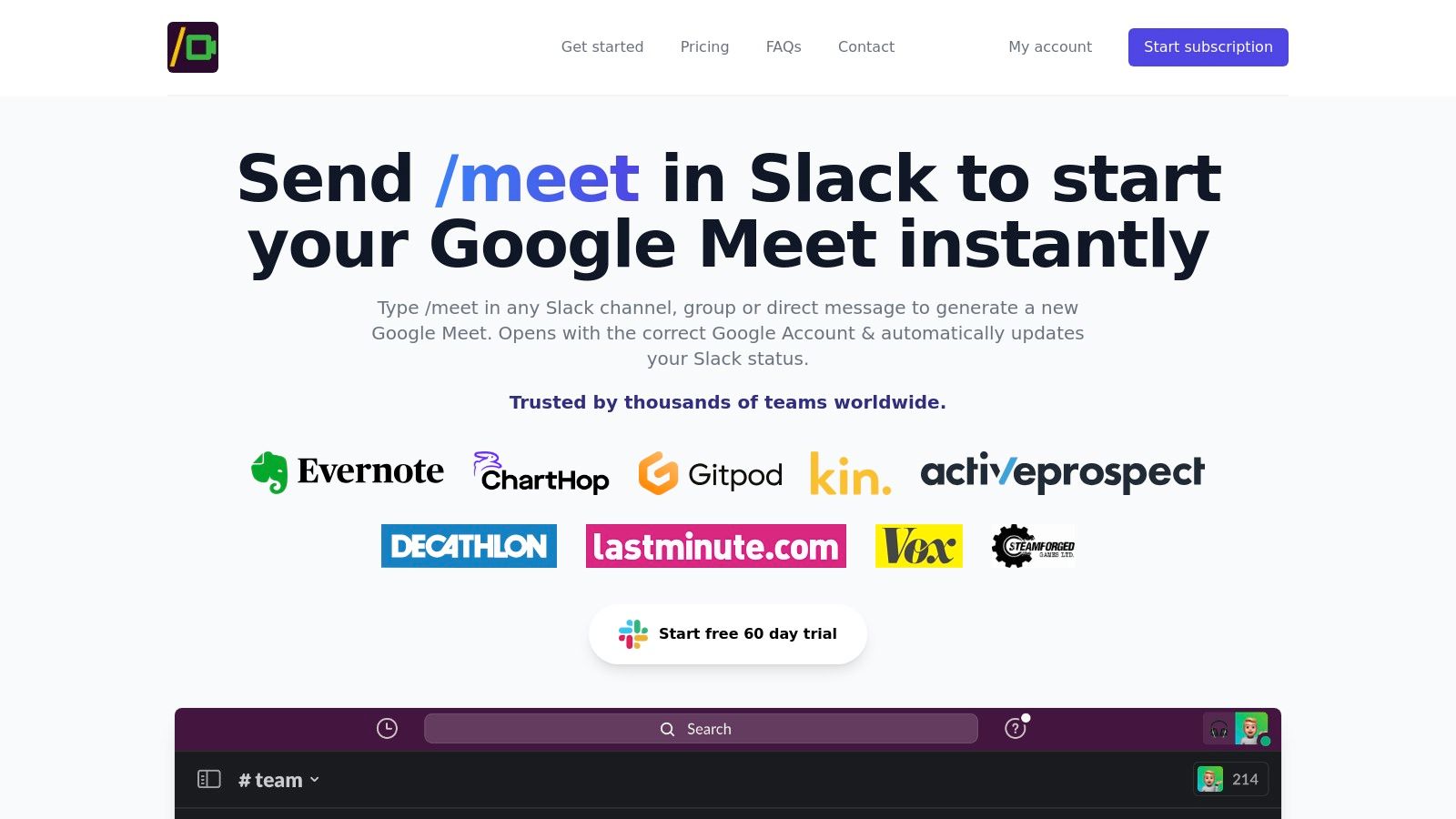
The app’s primary strength is its low-friction workflow. It can automatically create calendar invites for everyone in the channel, ensuring the meeting appears on their schedule. For instance, a manager can type /meet to start an impromptu performance review call, handling logistics seamlessly. It's important to remember that recognition isn't just for public praise; a private video call initiated this way is a perfect opportunity for detailed, one-on-one feedback and acknowledging personal growth, which is a vital part of employee motivation.
Key Features & Limitations
| Feature | Availability & Details |
|---|---|
| Quick Start | Use /meet to instantly generate and share a Google Meet link. |
| Calendar Integration | Automatically creates and sends Google Calendar invites to channel members. |
| Status Automation | Optionally updates your Slack status when you join a meeting. |
| Account Management | Designed to prevent issues with joining from the wrong Google account. |
| Security Note | As a third-party app, administrators should review permissions and security policies. |
Website: https://meetslack.com/
10. Instant Meet — Google Meet from Slack (third-party)
For teams that prefer Google Meet but operate within Slack, Instant Meet provides a crucial bridge for initiating slack video calls without context switching. The app allows users to create a Google Meet session directly from any channel or direct message using a simple /meet slash command. This action automatically generates a meeting link and can invite everyone in the channel, streamlining the process of getting a team together for standups, ad-hoc discussions, or project syncs.
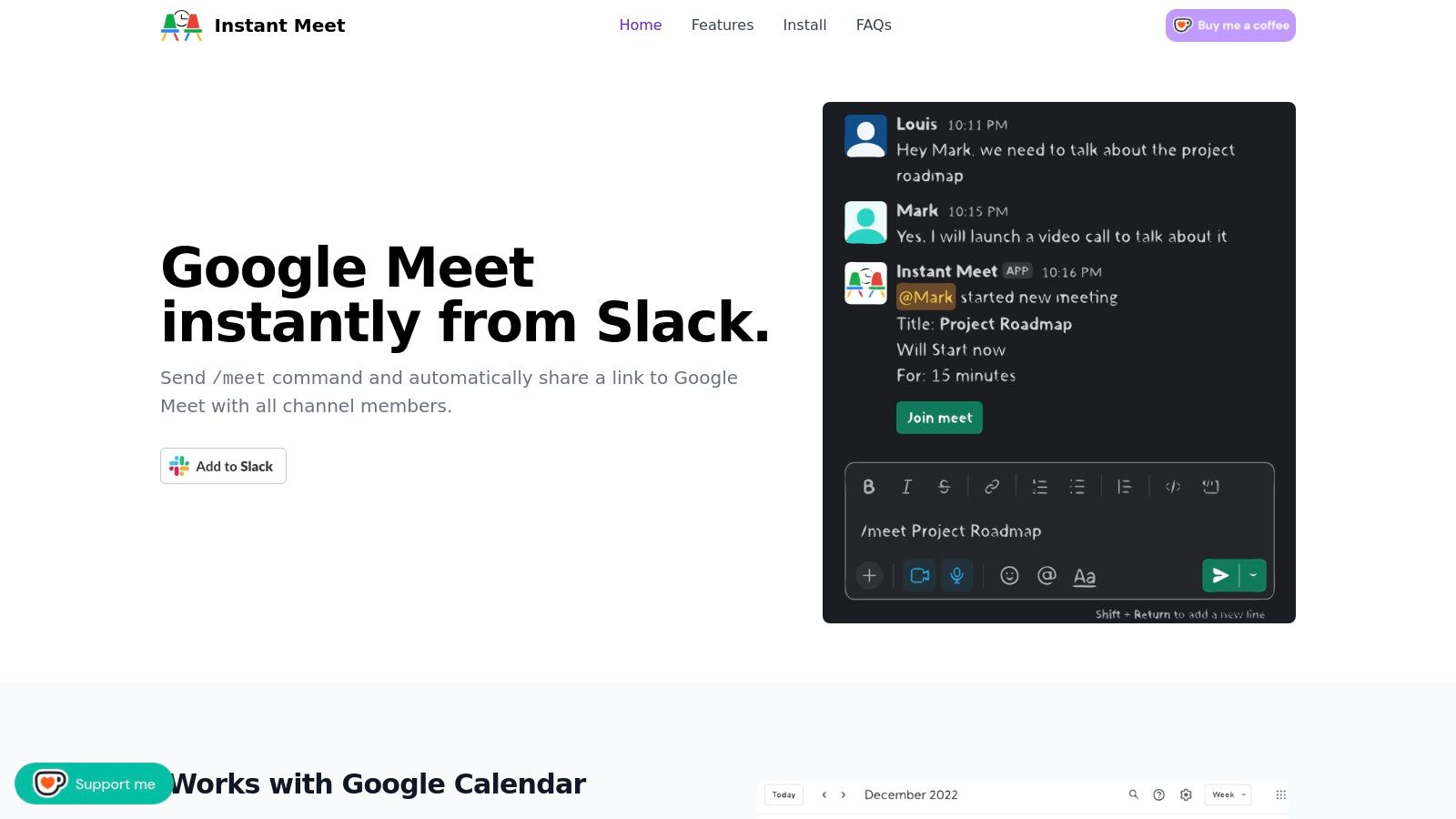
What makes Instant Meet stand out is its deep integration with Google Calendar. When a meeting is created, the app automatically generates a calendar event and sends Slack notifications when the call begins. For a practical example, a team lead can type /meet Project Phoenix Kickoff to not only create a video link but also set the agenda simultaneously. Starting a kickoff call with a minute of recognition for the hard work that led up to it sets a positive tone and motivates the team for the tasks ahead, making the meeting more effective from the start.
Key Features & Limitations
| Feature | Availability & Details |
|---|---|
| Slash Command | Use /meet [topic] in any channel, DM, or private channel. |
| Google Calendar Sync | Automatically creates a calendar event for every meeting. |
| Notifications | Sends an @here notification in the channel when a meeting starts. |
| Installation | Requires a third-party app installation and security scope approval. |
| Pricing | Pricing details can vary; check the official website for current rates. |
Website: https://slackmeet.com/
11. Loom for Slack (async video)
For teams aiming to reduce meeting fatigue, Loom’s Slack integration offers a powerful asynchronous alternative to live slack video calls. Instead of scheduling a real-time meeting for a demo or status update, users can record their screen and voice directly through Slack using a simple /loom command. This approach respects different time zones and work schedules, allowing team members to consume information at their convenience.
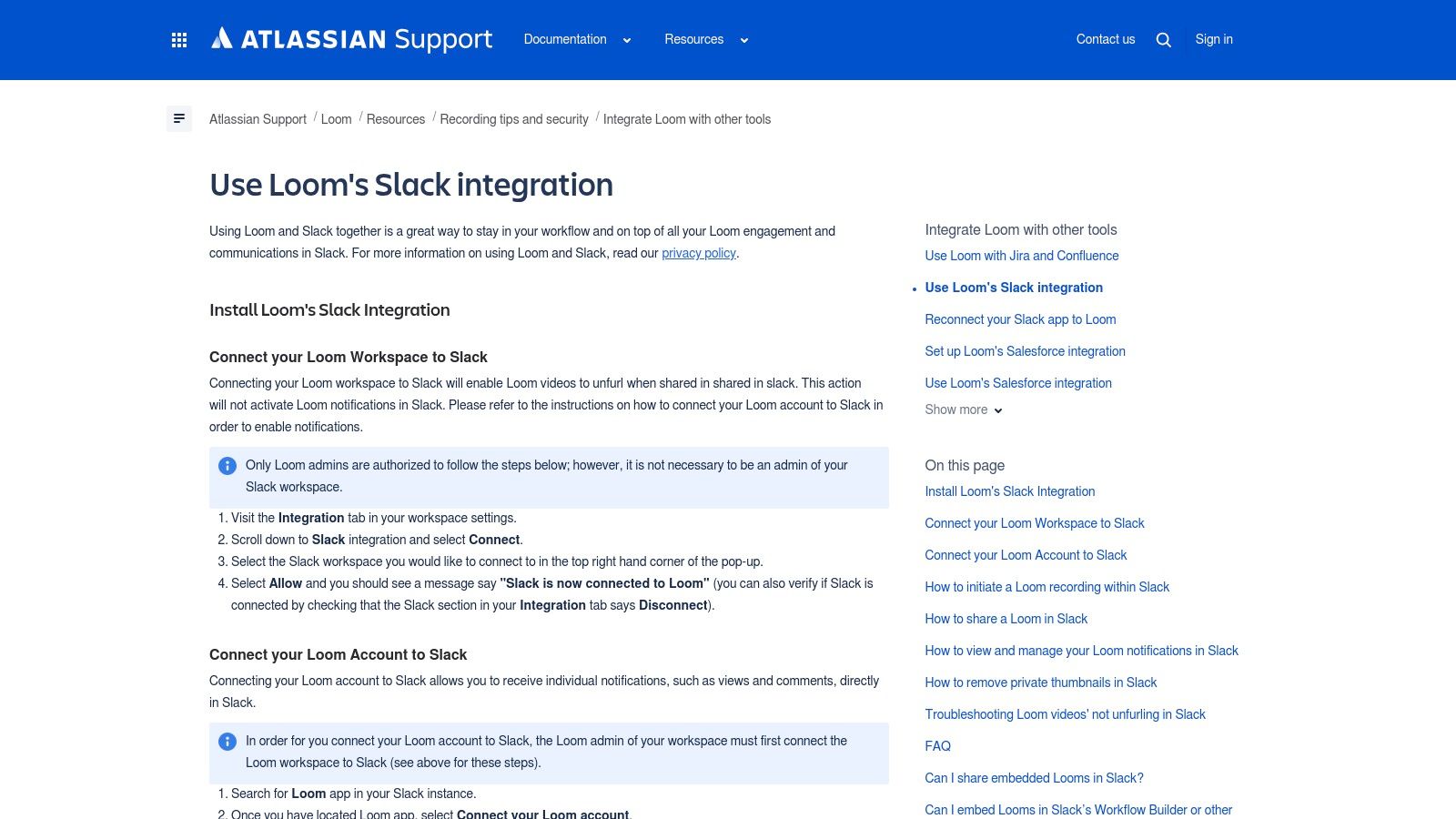
The integration shines by embedding rich video previews directly into channels, complete with notifications for views and comments. A practical use case involves a designer sharing a quick walkthrough of a new UI mockup. Instead of a formal call, they record a Loom, and stakeholders leave time-stamped comments. Another powerful example is a CEO recording a weekly update Loom, personally shouting out teams or individuals for their achievements. This asynchronous, yet personal, form of recognition is highly scalable and makes employees feel valued.
Key Features & Limitations
| Feature | Availability & Details |
|---|---|
| Slack Commands | Use /loom or /record to initiate recordings from Slack. |
| Notifications | Get instant Slack notifications for views, comments, and reactions on your videos. |
| Workflow Builder | Automate video workflows, like sending a welcome Loom to new channel members. |
| Rich Previews | Links automatically unfurl into playable video previews within Slack channels. |
| Mobile Support | The integration does not support initiating recordings from the Slack mobile app. |
Website: https://support.loom.com/hc/en-us/articles/360002231278-How-to-use-Loom-s-Slack-integration
12. Vonage Video for Slack (TokBox)
For teams needing to build custom video experiences directly into their workflows, the Vonage Video app provides a developer-centric approach to launching slack video calls. Unlike turnkey solutions, Vonage offers a programmable video stack (formerly TokBox) that allows IT and product teams to create bespoke video rooms with specific functionalities. This is ideal for companies embedding video into their own products or internal platforms, using Slack as the trigger point.
The primary advantage is its flexibility. A team could build a custom video support room that automatically pulls customer data when a session is initiated from a dedicated Slack channel. For instance, a support agent could use a simple slash command /vonage in a client's channel to start a video call. After a particularly tough support call is resolved, the team lead can review the session and post a recognition message in a team channel, highlighting the agent's skill and patience. This builds expertise and reinforces service excellence.
Key Features & Limitations
| Feature | Availability & Details |
|---|---|
| Participants | Varies based on Vonage plan and custom implementation. |
| Screen Sharing | Available; features depend on the custom video application built. |
| Collaboration | Highly customizable; can be programmed to include whiteboarding, file sharing, etc. |
| Customization | Full control over the video UI, branding, and features via the Vonage Video API. |
| Implementation | Requires developer or IT resources; not an out-of-the-box solution for non-technical teams. |
Website: https://slack.com/marketplace/ADFKL91HQ-vonage-video
Slack Video Calls: Top 12 Comparison
| Platform | Core features | UX & quality (★) | Value & pricing (💰) | Target audience (👥) | Unique selling point (✨/🏆) |
|---|---|---|---|---|---|
| Slack — Huddles and Clips (native) | In‑Slack huddles, screen share, huddle threads, short Clips | ★★★★ Fast native UX, low friction | 💰 Free + Slack paid tiers | 👥 All Slack teams, quick internal syncs | ✨ Zero setup; tight Slack governance |
| Zoom for Slack | Start/join Zoom, recordings back to Slack, scales to 1,000 | ★★★★★ Reliable for large/external meetings | 💰 Paid Zoom licenses for advanced features | 👥 Large orgs, webinars, external guests | 🏆 Mature webinar & recording ecosystem |
| Microsoft Teams Calls for Slack | Launch Teams calls, set default provider, calendar join | ★★★★ Works with M365 meeting workflows | 💰 Included with Microsoft 365 (paid) | 👥 Microsoft 365 organizations using Slack | ✨ Bridges Slack chat with Teams meetings |
| Webex Meetings for Slack (Cisco) | /webex scheduling, join buttons, recordings, org installs | ★★★★ Enterprise-grade security & controls | 💰 Paid / Enterprise plans | 👥 Regulated orgs & Webex-standardized teams | 🏆 Strong compliance & PSTN options |
| RingCentral Video for Slack | Slash commands, call icon, RingCentral Office integration | ★★★★ Fast meeting spin-up, reliable PSTN | 💰 Paid RingCentral plans | 👥 Telephony-first organizations | ✨ Single vendor for phone + video |
| Dialpad + Slack | Start/join meetings, recordings/transcripts, call alerts | ★★★★ Good voice+video convergence | 💰 Paid tiers for AI/transcripts | 👥 Support, sales, contact-center teams | ✨ AI transcriptions & voicemail routing |
| GoTo Meeting for Slack | /goto commands, set default provider, recordings links | ★★★ Straightforward cross-platform joins | 💰 Paid GoTo plans | 👥 Existing GoTo users | ✨ Simple setup for GoTo customers |
| Whereby for Slack | /whereby, browser-based rooms, screen sharing, guest links | ★★★ Fast guest joins; no downloads | 💰 Freemium → paid plans | 👥 Ad-hoc external meetings & social standups | ✨ Browser-first, no-install rooms |
| Google Meet from Slack — Meet for Slack (independent) | /meet to create Meet links, auto-invite, calendar sync | ★★★★ Instant link generation, low friction | 💰 Free / third‑party (check scopes) | 👥 Google Workspace users in Slack | ✨ One-step Meet links + auto-invite |
| Instant Meet — Google Meet (third-party) | /meet in channels/DMs, auto calendar events, titles | ★★★★ Low friction for standups & syncs | 💰 Varies (third‑party pricing) | 👥 Teams needing fast Meet + Calendar sync | ✨ Auto calendar events & Slack notifications |
| Loom for Slack (async video) | /loom recordings, rich unfurls, view/comment notifications | ★★★★★ Best for async updates & training | 💰 Freemium → paid for advanced features | 👥 Teams reducing meetings; async-first workflows | 🏆 Async-first: reduces meeting load |
| Vonage Video for Slack (TokBox) | Launch programmable Vonage sessions, screen sharing | ★★★ Flexible but developer-driven | 💰 Paid / developer pricing | 👥 Product & IT teams building custom video | ✨ Programmable video + telephony integration |
Moving from Calls to Connections: Your Next Steps
Navigating the landscape of Slack video calls reveals a powerful truth: the right tool is only the starting point. Throughout this guide, we've explored a comprehensive suite of options, from the spontaneous simplicity of native Slack Huddles and Clips to the structured, feature-rich environments offered by integrations like Zoom, Microsoft Teams, and Google Meet. Each solution presents a unique set of capabilities tailored to different team workflows, project scales, and company cultures.
Your decision should be guided by your team's specific communication needs. A fast-moving startup might thrive on the immediacy of Huddles, while a larger, distributed enterprise may require the robust administrative controls and breakout rooms of a tool like Webex or RingCentral. The key is to evaluate not just the features, but how they align with your daily operational rhythm.
From Implementation to Impact
Once you’ve chosen your primary tool for Slack video calls, the real work begins. The most significant impact comes not from the technology itself, but from the human-centric practices you build around it.
- Establish Clear Etiquette: Create and share simple guidelines for meeting conduct. This includes best practices for muting microphones, using video backgrounds, and signaling when you wish to speak to ensure calls are efficient and respectful.
- Prioritize Accessibility and Inclusivity: Make your video communications accessible to everyone. For recorded meetings or asynchronous video messages created with tools like Loom, taking the time to add captions to videos ensures that team members who are hard of hearing, non-native speakers, or simply in a noisy environment can fully participate.
- Integrate a Culture of Recognition: This is the most crucial step in transforming standard calls into powerful culture-building moments. Technology should facilitate connection, and recognition is the currency of connection. A simple act of appreciation can turn a routine call into a memorable, motivating experience.
For example, at the end of a challenging project debrief, a team lead can use an integration like AsanteBot directly within the channel to publicly thank an engineer for their late-night work. This not only rewards the individual but also reinforces the values of dedication and teamwork for everyone present. By intentionally creating these moments, you ensure your Slack video calls are not just about transmitting information, but about strengthening the very fabric of your team.
Ultimately, mastering Slack video calls is about closing the distance between screens. It's about pairing a carefully selected tool with intentional, repeatable practices that foster clarity, engagement, and a genuine sense of community. By focusing on how you connect, not just how you call, you can build a more resilient, motivated, and collaborative remote team.
Ready to infuse every call with a dose of appreciation? See how AsanteBot makes it easy to celebrate wins and recognize great work directly within your Slack conversations, turning routine meetings into moments that matter. Start building a stronger team culture today with AsanteBot.