
Tired of bouncing between Slack for chats and Webex for video calls? That constant app-switching isn't just annoying—it’s a real drag on your team's focus and momentum. Integrating your Webex meeting with Slack is the simplest way to fix this, creating a single, seamless hub for all your team communication.
Table of Contents
Why Your Workflow Needs the Webex Slack Integration
In today’s remote and hybrid world, our digital tools are the office. When that office is split, with conversations in one app and meetings in another, critical context gets lost in the shuffle. Team members waste valuable time digging for meeting links, juggling schedules, and piecing together post-call updates. It feels like a small thing, but it adds up to a major productivity killer.
The real enemy here is context switching. Every time you have to drop a Slack conversation to hunt down a Webex link or schedule a follow-up, your concentration shatters. Bringing these two platforms together keeps the entire communication cycle—from the first message to the final action item—all in one place.
This connection pays off immediately in a few key ways:
- Less Hassle: Kick off or jump into a Webex meeting right from a Slack channel. No more fumbling with another app.
- Everything in One Spot: Meeting alerts, recordings, and even summaries get posted back to the relevant Slack channel, so everyone stays in the loop.
- Keep Projects Moving: When a quick chat needs to become a face-to-face decision, you can pivot instantly from async text to a live video call, preventing delays.
Creating a Cohesive Digital Workspace
It's no secret that both Slack and Webex are powerhouses. The global collaboration software market has ballooned to $27.1 billion, with Cisco (Webex) commanding an 11% share of video conferencing while Slack dominates team chat. This integration simply combines the best of both: Slack’s fast-paced chat and file-sharing with Webex's enterprise-grade video meetings.
At the end of the day, a well-connected toolset is about more than just saving a few clicks; it helps build a stronger team culture. When communication is easy, collaboration just happens. For instance, when someone nails a presentation on Webex, their manager can give them a shout-out in the Slack channel right away. That kind of instant, visible recognition is gold. It shows the team that their hard work is seen and valued, which is a massive motivator. To get the most out of this setup, it's smart to keep up with platform updates and look for ways of improving your Webex workflow.
By connecting these tools, you're not just adding a feature; you're designing a more intentional and productive workflow that supports your team's success. This is especially true when you pair it with other powerful integrations. You might be interested in: our guide on connecting Slack with Google Calendar to further streamline your scheduling.
https://asantebot.com/blog/slack-google-calendar/
Connecting Webex to Your Slack Workspace
Getting Webex and Slack to talk to each other is the first real step toward cutting out the friction in your daily workflow. The setup itself is pretty straightforward, whether you're an admin rolling it out for the whole company or just one person trying to make your own life easier. But there are a few nuances to get right for a truly seamless experience.
Your first stop is the Slack App Directory, which is basically the app store for your workspace. Just search for "Webex," and you'll find the official app from Cisco. This little app is the bridge that connects your team's ongoing chats with their live video calls.
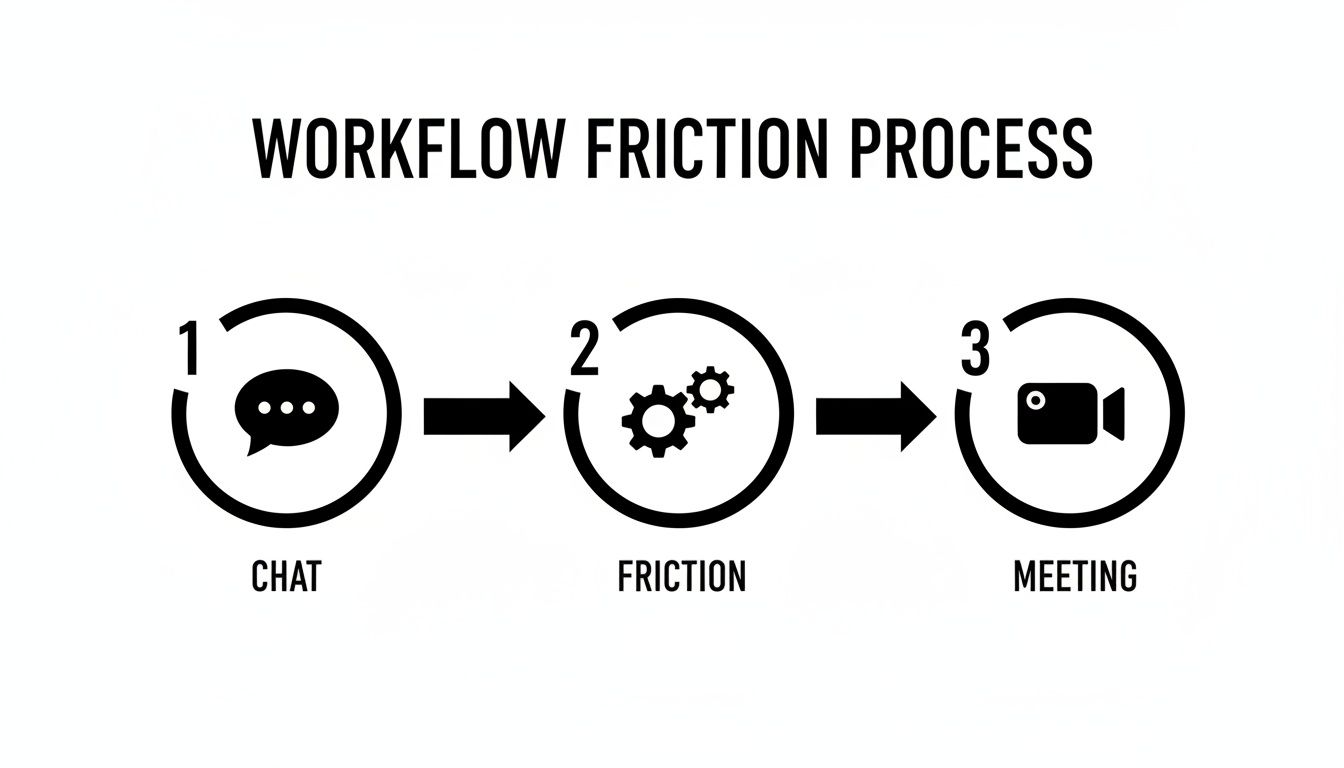
This workflow is really the heart of the matter. You're getting rid of that awkward pause where a great conversation has to stop, someone has to open a new app, create a meeting, and paste a link back. Instead, you create a direct path from discussion to decision, keeping your team’s momentum going strong.
The Initial Setup for Users and Admins
Once you’ve found the Cisco Webex Meetings app in the directory, you’re just a few clicks away from getting it installed. Individual users can add it for themselves, but if you're an admin, I'd strongly recommend installing it for the entire workspace. Doing it this way saves you from fielding dozens of individual app requests and makes sure everyone is working with the same tools from day one.
Pro Tip for Team Leads: If you manage a team, pre-approving the Webex app is a smart move. It sends a clear message that this is a core tool for how your team collaborates. It helps build good communication habits right from the start.
After the app is installed, every person on your team will need to connect their own Webex account to Slack. This is a one-time step that authorizes the app to work on their behalf. They’ll be prompted to:
- Sign In: Log into their existing Webex account.
- Authorize Permissions: Give the app permission to do things like post messages or create meetings for them in Slack.
- Set a Default Site: This is key. They need to choose their default Webex site URL, like
yourcompany.webex.com. This ensures every meeting they create is tied to your organization’s account, not a personal one.
This quick authorization is what makes the whole system work, allowing anyone to fire up a meeting without ever leaving their Slack channel.
Fostering a Culture of Recognition
With the technical setup out of the way, you can start using this connected workflow to build a better team culture. One of the best—and easiest—ways to do this is by celebrating wins and contributions right after a call happens. Public recognition is incredibly important because it validates an individual's effort and inspires the rest of the team.
Think about it: your engineering team just wrapped up a fantastic Webex demo for a major new feature. Instead of letting that moment fade away, the project manager can jump right into the team's Slack channel and give public props.
Real-World Example: Team Recognition in Action
- The Moment: A team member, Sarah, just absolutely nailed a client presentation over a Webex call.
- The Follow-Up: Her manager immediately posts in the
#project-alphachannel: "Huge shout-out to Sarah for that incredible presentation! The client was blown away by the new designs." - The Impact: Now, the rest of the team can see it. They can jump in with a fire emoji, add their own praise, and make that recognition feel so much more meaningful and permanent than a quick "good job" in a private chat.
This simple act of public acknowledgment is a direct result of having a connected workflow. It shows people their work is seen and valued, which is crucial for morale, especially when your team is remote.
Using Webex Commands and Shortcuts in Slack
Once you’ve connected Webex to your Slack workspace, the real magic begins. This is where you graduate from basic setup to genuine, in-the-moment productivity, managing your entire meeting workflow without ever leaving your Slack channels. The key? Simple slash commands that cut out the constant app-switching that kills focus and slows your team down.
Instead of interrupting a good conversation to open another tab, find your calendar, and create a meeting, you just type a short command. That's it. This small change has a massive impact on keeping momentum, especially when a quick text chat needs to become a face-to-face decision right now.
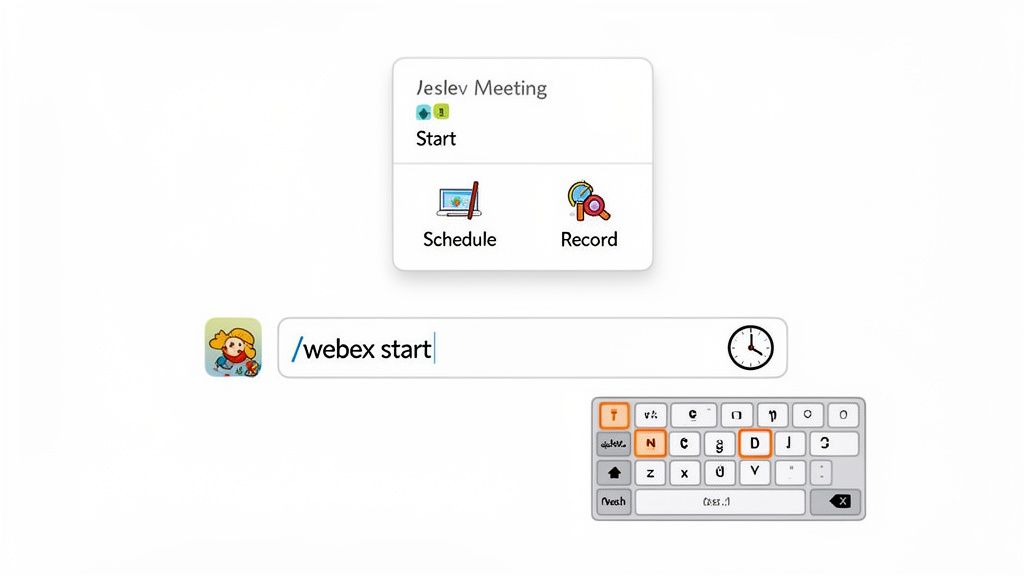
Launching Meetings Instantly with Slash Commands
The one command you'll use more than any other is /webex. It's your go-to for spinning up an instant meeting right inside your current Slack conversation, whether you're in a team channel or a private DM.
Practical Example: A Quick Engineering Huddle
Imagine your developers are trying to squash a critical bug in the #dev-team channel. The text-based back-and-forth is getting messy. Rather than trying to find a time that works for everyone, the team lead just types /webex and hits enter. A meeting link pops up instantly in the channel, and the whole team can jump on a call with a single click to share screens and solve the problem.
This is a game-changer for staying agile. It turns Slack from just a messaging app into a dynamic command center for your entire Webex meeting Slack workflow.
Another incredibly handy command is /webex meetings. This gives you a quick snapshot of your upcoming schedule without you having to open your calendar. It's perfect for a quick self-check before you suggest a meeting time to a colleague.
This kind of synergy shows how modern collaboration tools are evolving. A Capterra comparison points out that while Slack is brilliant for asynchronous chat, Webex gets high praise for its powerful meeting features. The integration simply gives you the best of both worlds.
Essential Webex Slash Commands for Slack
To help you hit the ground running, I've put together a quick-reference table of the most valuable Webex slash commands. Think of this as your cheat sheet for saving time and clicks every single day.
| Slash Command | Action | Example Use Case |
|---|---|---|
/webex |
Starts an instant meeting in the current channel or DM. | Your design team needs to quickly review a new mockup. Type /webex in the #design-reviews channel for an immediate video call. |
/webex [topic] |
Starts an instant meeting with a designated topic. | Launching a call about the Q4 budget? Use /webex Q4 Budget Planning to give everyone context before they join. |
/webex meetings |
Displays a list of your upcoming Webex meetings. | When a colleague asks if you're free at 3 PM, use /webex meetings in your personal Slackbot chat to check your calendar instantly. |
/webex record |
Shares a link to your most recent meeting recording. | After finishing a client training session, use this command in the client’s Slack Connect channel to share the recording for their reference. |
Getting these commands into your daily muscle memory is the goal. When starting a Webex call feels as natural as sending a Slack message, you know you've created a truly fluid communication environment.
Fostering Recognition Through Immediate Action
This tight integration also opens up fantastic opportunities for team recognition. When you can give praise right away, its impact is so much stronger. The importance of this cannot be overstated; timely recognition reinforces positive behaviors and makes employees feel truly valued.
Scenario: Celebrating a Successful Webinar
After wrapping up a great webinar on Webex, the event coordinator can immediately use /webex record in the #marketing-team channel to share the recording. Right after that link posts, a manager can jump in with public praise: "Amazing job on the webinar, Alex! We had over 500 attendees and the feedback is fantastic."
This simple, in-the-moment act connects a specific achievement (the webinar) with public acknowledgment, making it feel earned and highly visible. It helps build a culture where great work gets noticed and celebrated, which does wonders for morale. While we're focused on Webex here, it's worth noting that similar workflows exist for other platforms; you can learn more from our guide on how to start a Zoom meeting in Slack.
Building Culture with In-Channel Team Recognition
A connected tech stack is a great start, but it's the genuinely connected team that really makes a business hum. When you integrate your Webex meeting with Slack, you're not just linking two apps; you're building a digital bridge for your team culture to walk across. This is especially vital for fostering appreciation and keeping morale high when everyone is spread out. Recognition is important because it motivates employees, improves retention, and creates a positive feedback loop that elevates the entire team's performance.
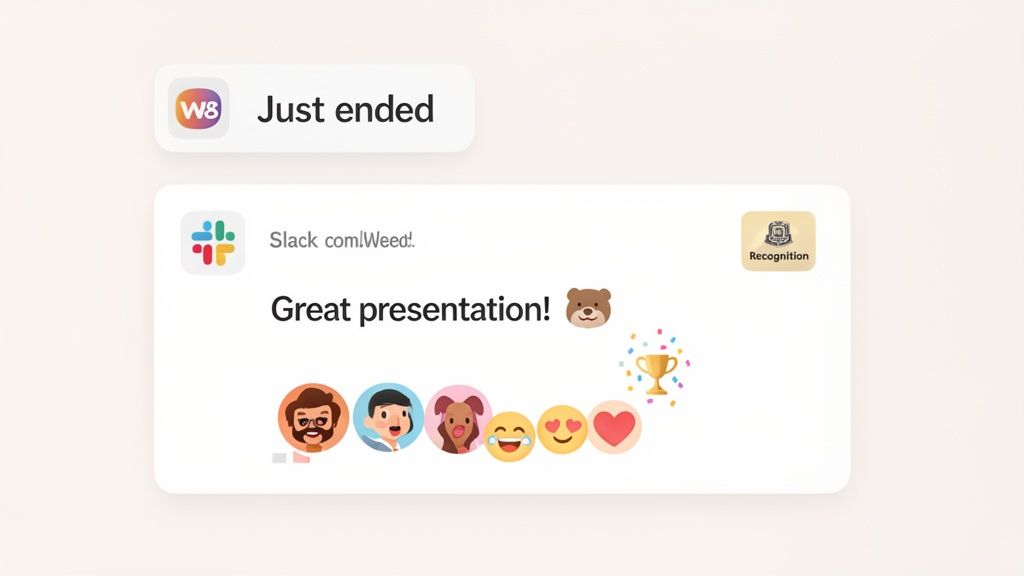
Praise that lands moments after the accomplishment just feels more authentic and meaningful. The natural flow from a Webex call straight back into a Slack channel makes that immediate feedback loop a reality. This isn't just about a quick "good job"—it's about weaving recognition into the visible, daily fabric of your team's routine.
Turning Praise into a Lasting Record
Picture this: your project lead absolutely nails a client demo on Webex. Instead of that positive energy just fizzling out when the call ends, your setup allows for an immediate, public celebration right where the team works.
Practical Example: Amplifying a Project Win
- The Moment: A team member wraps up a fantastic project walkthrough on a Webex call.
- Immediate Action: The manager drops a message in the
#project-deltaSlack channel: "Incredible work on that demo! The client was blown away by the new features." - Team Amplification: Instantly, everyone on the project sees the praise. They can jump in with emojis and their own congratulations, turning a simple compliment into a shared team victory.
This one simple act transforms a fleeting comment into a visible, lasting record of someone's contribution. It’s a clear signal to team members that their hard work doesn't go unnoticed—it's valued by their peers and leaders alike. This is a massive driver of engagement and a powerful antidote to the isolation that can creep into remote work.
A Gallup study revealed that employees often remember public recognition most. When you make praise a public, in-channel event, you kickstart a powerful positive feedback loop that motivates the whole team.
Integrating Recognition Tools for Greater Impact
Want to take this a step further? You can bring a dedicated recognition tool like AsanteBot right into the same Slack channels where your Webex notifications live. This adds a bit of structure and fun to your appreciation efforts.
Now, when a manager posts praise, the team can do more than just react with an emoji. They can give recognition points or send a virtual high-five through the app. It gamifies the process a little and gives everyone a tangible way to participate.
This approach really pays off by doing a few key things:
- It centralizes recognition. All the kudos, whether for a big presentation or for helping a teammate out of a jam, lives in one place.
- It encourages peer-to-peer support. It empowers everyone to give props, not just managers.
- It gives you data on collaboration. Over time, you can start to see who the real connectors and helpers on your team are.
By combining your Webex meeting Slack workflow with a dedicated appreciation app, you move beyond just connecting tools. You're actively designing a digital workspace where people feel seen, valued, and genuinely motivated to do their best work together.
How to Fix Common Integration Problems
Even the most reliable tech hits a snag now and then. When your Webex and Slack workflow gets interrupted, it can feel like a major roadblock. The good news? Most of the common issues are surprisingly simple to fix on your own, without having to wait around for IT.
The problem I see most often is an authorization error. You'll know it when you see it—you type a slash command like /webex and get an error message back. This usually just means the secure connection between your Slack and Webex accounts has timed out or a permission was updated. It’s like a digital key that needs to be refreshed periodically.
Getting this sorted out is usually painless. Just find the Webex app in your Slack sidebar, click on its name, and you should see an option to sign in or re-authorize. That simple click forces a new handshake between the two platforms and, in my experience, solves the problem 90% of the time.
Resolving Missing Buttons and Links
What if the Webex button just isn't showing up in a channel, or your meeting links refuse to post? This is another frequent complaint, and it almost always comes down to one of two things: mismatched user info or app permissions inside Slack.
First, double-check that the email address you use for Slack is exactly the same one tied to your Webex account. Even a tiny variation, like [email protected] versus [email protected], is enough to break the connection.
If your emails are a perfect match, the next stop is app permissions. Here’s a quick checklist:
- Is the app actually in the channel? Especially in private channels, you often have to add apps manually. Just type
/addin the message box and select Webex Meetings from the list. - Are permissions restricted? It's possible a workspace admin has limited the Webex app to only certain channels. A quick message to your Slack admin can confirm if it's approved for the channel you're trying to use it in.
Getting these little snags fixed fast is more important than it seems. Seamless tool integration is the backbone of a great team culture. Imagine a manager wanting to give immediate, public praise right after a fantastic Webex call—a broken integration can completely deflate that spontaneous moment of recognition.
Empowering Your Team Through Self-Service Troubleshooting
When you get down to it, helping your team understand their tools is a huge win. User comparisons often show that while Webex is a powerhouse for secure meetings, Slack shines because of its integrations and easy file sharing. With videoconferencing now used by 66% of professionals worldwide, the bridge between these tools is vital for hybrid work.
For anyone in HR or leadership, this is a golden opportunity. A smoothly running Webex and Slack integration is the foundation for the kind of workflows that boost engagement and recognition—both of which are critical for productivity. You can dive deeper into these trends by checking out more collaboration software statistics.
By encouraging your team to try these simple fixes first, you're not just solving a tech problem. You're building self-sufficiency and keeping the momentum going, ensuring technology is an enabler for collaboration and celebrating team wins, not a frustrating hurdle.
Got Questions? We've Got Answers
We get a lot of the same questions about making Webex and Slack play nicely together. Here are some quick, no-fluff answers to the things people ask most often.
Can I Use My Personal Room for Meetings I Start in Slack?
Yes, and it's a great way to handle quick, unscheduled chats. When you first set up the Webex Meetings app in Slack, you can choose your Personal Room as the default for any meeting you kick off with the /webex command.
This is perfect for those "Hey, can you hop on a quick call?" moments. Instead of fumbling for a new link, you and your teammate can jump right into your consistent, easy-to-remember room. For more formal, scheduled meetings where you might want a unique link, you can always choose that option instead.
How Do Meeting Recordings Get Shared Back to Slack?
This is one of the integration's best features—it's completely automatic.
When you record a Webex meeting that you started from a Slack channel or DM, a link to that recording pops right back into the same conversation as soon as it's processed. No more downloading a file and re-uploading it or hunting down the link in your email.
This is a huge win for keeping teams aligned. Anyone who missed the live session can catch up instantly, and all your project-related communications—chats, files, and now meeting recordings—stay in one organized, searchable place.
Pro Tip: This automatic sharing is fantastic for team visibility. A great project demo or client presentation gets shared with the whole team, making it easy for others to learn from it or offer praise long after the call has ended.
What Kind of Permissions Does the Webex App Need in Slack?
The Webex app needs a few standard permissions to do its job. It has to be able to post messages (like meeting links and recording notifications), create the /webex slash command, and see user email addresses to correctly map Slack users to their Webex accounts.
Think of it this way: for the app to schedule a meeting on your behalf and invite the right people, it needs the green light to perform those actions within your workspace. Don't worry, this is typical for this kind of app, and a Slack admin will need to approve these permissions during the initial setup.
Can Guests in a Slack Connect Channel Join Our Webex Meetings?
They sure can. This is where the integration really shines for collaborating with outside partners.
When you start a Webex meeting from a Slack Connect channel, the join link is posted right there for everyone to see—including your clients, vendors, or agency partners. They just click the link and join, no different from your internal team members.
It completely removes the friction of coordinating calls over email. A weekly sync with your design agency can be launched directly from your shared channel, keeping the workflow smooth and contained.
Ready to build a culture of appreciation right where your team collaborates? AsanteBot makes it easy to celebrate wins, encourage peer-to-peer praise, and track your team's morale—all inside Slack. Start fostering a more connected and motivated team in minutes. Get AsanteBot for free today.