Stay aligned and never miss a meeting — without leaving Slack. The constant shuffle between your Outlook calendar and Slack is a major drain on focus. The Slack Outlook Calendar integration solves this by bringing your entire schedule directly into your team’s communication hub, saving time and eliminating distractions.
Table of Contents
For hybrid and remote teams, this connection is a game-changer. It improves your daily flow by automating small but critical tasks. Imagine your Slack status updating automatically when a meeting starts, getting one-click join buttons for Teams or Zoom calls, and receiving smart reminders right where you’re already working. This guide will walk you through the complete setup, key features, and best practices to master your schedule from within Slack.
Prerequisites Checklist
Before you begin, let’s ensure you have everything you need for a smooth setup.
- A Slack account with permissions to install apps.
- An active Microsoft 365 or Outlook account.
- Access to your corporate calendar if you're syncing your work schedule.
Note: Many organizations require admin approval to install new apps. If you encounter a permissions block during setup, check with your IT department.
Step-by-Step Setup: Connect Outlook Calendar to Slack
Getting your calendar and chat app in sync takes just a few minutes. Follow these simple steps to get started.
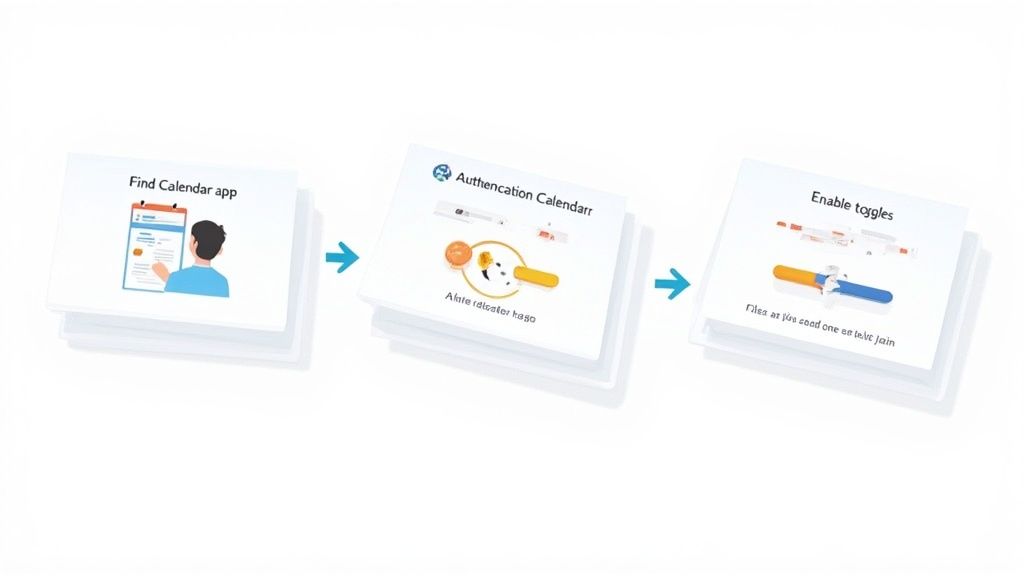
Step 1 — Install the Outlook Calendar App in Slack
First, you need to add the official Outlook Calendar app to your Slack workspace.
- Open your Slack app and navigate to Apps in the sidebar.
- Search for “Outlook Calendar” and select it from the results.
- Click the Add to Slack button.
- You'll be redirected to a new page. Review the permissions the app requires and click Allow to proceed.
Step 2 — Connect Your Microsoft Account
With the app installed, it’s time to link your calendar. Slack will prompt you to connect your Microsoft account.
- Click Connect an account and sign in with your Outlook or Microsoft 365 credentials.
- Approve the OAuth permission request, which allows the app to view your calendar and update your Slack status.
- Once authenticated, you’ll be returned to Slack. The Outlook Calendar app will now appear in your sidebar, confirming the connection is live.
Step 3 — Enable Smart Meeting Features
Now for the best part: automation. Go to the Home tab of the Outlook Calendar app in Slack to configure its time-saving features.
- Auto-status updates: Toggle this on to automatically set your Slack status to "In a meeting" when a calendar event begins.
- Meeting reminders: Customize when you receive alerts before an event starts.
- One-click meeting join buttons: Ensure this is enabled so your reminders include direct Join buttons for Microsoft Teams, Zoom, and Google Meet links.
How to Use Outlook Calendar in Slack
You’re all set up! Here’s how to use the integration to manage your schedule without ever leaving Slack.
See Today’s Schedule
Need to check your availability? Type the following command in any channel or DM to get a private overview of your day:
/ocal today
Update RSVPs Within Slack
When a new meeting invite arrives, the Outlook Calendar app will send you a notification with interactive buttons. You can click Yes, No, or Maybe directly in Slack to respond instantly.
Join Meetings From Notifications
Your Slack meeting reminders for Outlook will pop up right before an event starts. If the event includes a meeting link (like Teams or Zoom), you'll see a convenient Join button. No more hunting for links in your inbox.
Create Events From Slack
Turn a conversation into a scheduled meeting in seconds. Use this slash command to create an event directly from Slack:
/ocal create 3pm "Marketing Sync"
The app will open a dialog where you can add invitees and other details, then send the invitation to everyone’s Outlook calendar.
Best Practices for Team Success
- Create a dedicated channel: Use a channel like
#team-scheduleto post shared calendar events and team-wide reminders. - Respect focus time: The automated status updates help everyone see who is busy at a glance. Encourage team members to check statuses before sending DMs.
- Pin helpful commands: Add a list of common
/ocalcommands to a channel’s description for easy access. - Use smart notifications: Configure reminders to only trigger for events where your status is "Busy" to reduce notification noise.
- Recognize your team: Add team birthdays and anniversaries to a shared calendar. When the automated reminder posts in a public channel, it's a perfect prompt for everyone to celebrate together. This simple act builds connection and makes team members feel valued.

Troubleshooting + Common Fixes
Even the best integrations hit snags. Here are quick fixes for common issues.
- Missing bot access: If the app doesn't respond in a private channel, it needs to be invited. Type
/invite @Outlook Calendarin the channel. - Wrong time zone: If reminders are off, check your Slack preferences. Go to Preferences > Language & region and ensure your time zone is correct.
- Account disconnection after password reset: If you change your Microsoft password, you'll need to re-authenticate. Go to the app's Home tab and click the Reconnect button.
- Meeting buttons not appearing: The Join button only appears if a valid Teams, Zoom, or Google Meet link is included in the calendar event's description or location field.

Frequently Asked Questions (FAQ)
Can Slack sync my status with Outlook Calendar?
Absolutely. The Slack status Outlook sync is one of the integration's most powerful features. Once enabled in the app's settings, it will automatically update your Slack status to "In a meeting" when an event begins and clear it when the event ends.
Does the Slack Outlook integration support Teams meetings?
Yes, it works seamlessly. When you receive a reminder for an event with a Microsoft Teams link, the Slack notification will include a Join button that launches you directly into the call.
What if I have multiple calendars?
The app supports multiple calendars. In the Outlook Calendar app’s Home tab within Slack, go to Settings to connect additional calendars, such as a shared team calendar.
Is the Slack Outlook Calendar app free?
Yes, the app itself is free to install from the Slack App Directory. However, it requires a paid Slack plan and a Microsoft 365 calendar Slack subscription to function.
Can admins restrict calendar sync?
Yes. If you cannot install the app, it is likely because your Slack workspace administrator has restricted app installations for security reasons. Contact your IT department to request approval.
How to connect Slack to Outlook Calendar?
You can connect Slack to Outlook Calendar by installing the Outlook Calendar app from the Slack App Directory, then signing in with your Microsoft account to authorize the connection.
Conclusion
The Slack Outlook Calendar integration does more than just sync two apps—it streamlines your workflow, reduces distractions, and keeps your team aligned. By bringing your schedule into your primary communication tool, you eliminate the need for constant tab-switching and ensure you never miss an important meeting. This simple connection is a foundational step toward a more focused and productive workday.
For teams using other calendar services, check out our guide on connecting Slack to Google Calendar. If you are exploring other platforms, this roundup of top Slack alternatives to supercharge your team is a great resource. You can also explore Microsoft Power Platform for more advanced workflow automation.
This integration is a key part of how modern teams are powering connected workflows to stay ahead.
Ready to build a stronger, more connected team culture right within Slack? AsanteBot makes it easy to celebrate wins, recognize contributions, and automate milestone shout-outs. Start fostering a culture of appreciation in just two minutes. Get AsanteBot for free today.