
Your CRM data lives in HubSpot, but your teams live in Slack. When these two essential platforms don't communicate, you create an information gap that slows down sales cycles, delays customer support, and leaves teams disconnected from real-time business events. That’s the core problem that a HubSpot Slack integration solves, and it's why so many businesses are searching for a solution.
Table of Contents
This integration isn't just a technical convenience; it's a strategic move to bridge the gap between your system of record (HubSpot) and your system of engagement (Slack). By connecting them, you can:
- Achieve faster sales response times: Notify reps the instant a high-intent lead submits a form.
- Create better visibility across teams: Share deal wins and ticket escalations in public channels so everyone stays informed.
- Prevent missed leads and updates: Move critical alerts out of crowded email inboxes and into the real-time chat environment where work actually happens. A simple "Closed Won" notification in a public channel is a powerful tool for team recognition and morale.
This guide will walk you through the entire process, covering the native integration, advanced webhook setups, and even how to use Google Sheets as a bridge between HubSpot and Slack.

What Is HubSpot?
HubSpot is a comprehensive platform designed to help companies attract, engage, and delight customers. While it started in marketing automation, it has evolved into an all-in-one solution that often serves as a company's central system of record for all customer-facing activities.
Its core use cases include:
- CRM: Managing contacts, companies, deals, and all associated interactions.
- Marketing Automation: Nurturing leads with automated email campaigns, tracking website behavior, and scoring leads based on engagement.
- Sales Pipelines: Visualizing and managing the entire sales process, from initial contact to a closed deal.
- Customer Support: Tracking service tickets, managing customer communications, and building a knowledge base.
Because it centralizes so much critical information—from a lead's first website visit to their most recent support ticket—HubSpot becomes the single source of truth for the entire customer journey.
Why Slack Is the Ideal Companion to HubSpot
Slack has transformed how teams communicate, shifting conversations from siloed email threads to open, real-time channels. It's the digital headquarters where collaboration, decision-making, and company culture happen.
It serves as the perfect real-time collaboration layer for a data-rich system like HubSpot. Instead of reps having to constantly check the CRM for updates, the updates come to them. CRM notifications are far more effective in chat than in email because they appear in the context of ongoing team conversations, prompting immediate action and discussion. For instance, a "New MQL" alert in a sales channel allows the team to coordinate a response in seconds, right in the thread.
Is There a Native HubSpot Slack Integration?
Yes, HubSpot offers an official, native integration with Slack that you can find directly in the HubSpot Marketplace. It’s designed to be a straightforward, no-code solution for pushing automated notifications from your CRM into designated Slack channels.
This out-of-the-box tool excels at sending timely alerts for key business events.
What it supports:
- Deal updates: Automatically announce when a deal moves to a new stage in the pipeline.
- Lead notifications: Ping a channel the moment a new lead is assigned to a sales rep.
- Ticket alerts: Notify the support team about new or escalated customer service tickets.
- Workflow notifications: As a workflow action, you can send a custom Slack message based on almost any trigger in HubSpot, like a contact reaching a certain lead score. A practical example is sending a celebratory message to a
#winschannel whenever a deal is marked "Closed Won," which is a simple but powerful way to foster team recognition.
Limitations:
The native integration is fantastic for speed and simplicity, but it has its trade-offs.
- Limited customization: You have minimal control over the format and content of the notifications.
- Notification-focused (not data-heavy): It's primarily a one-way push of information from HubSpot to Slack. It doesn't support complex data syncs or actions initiated from Slack.
- Less flexible for complex workflows: If you need to route alerts based on granular criteria (e.g., deal size, territory) or include custom object data, you’ll quickly hit its limits.
How to Connect HubSpot to Slack (Step-by-Step)
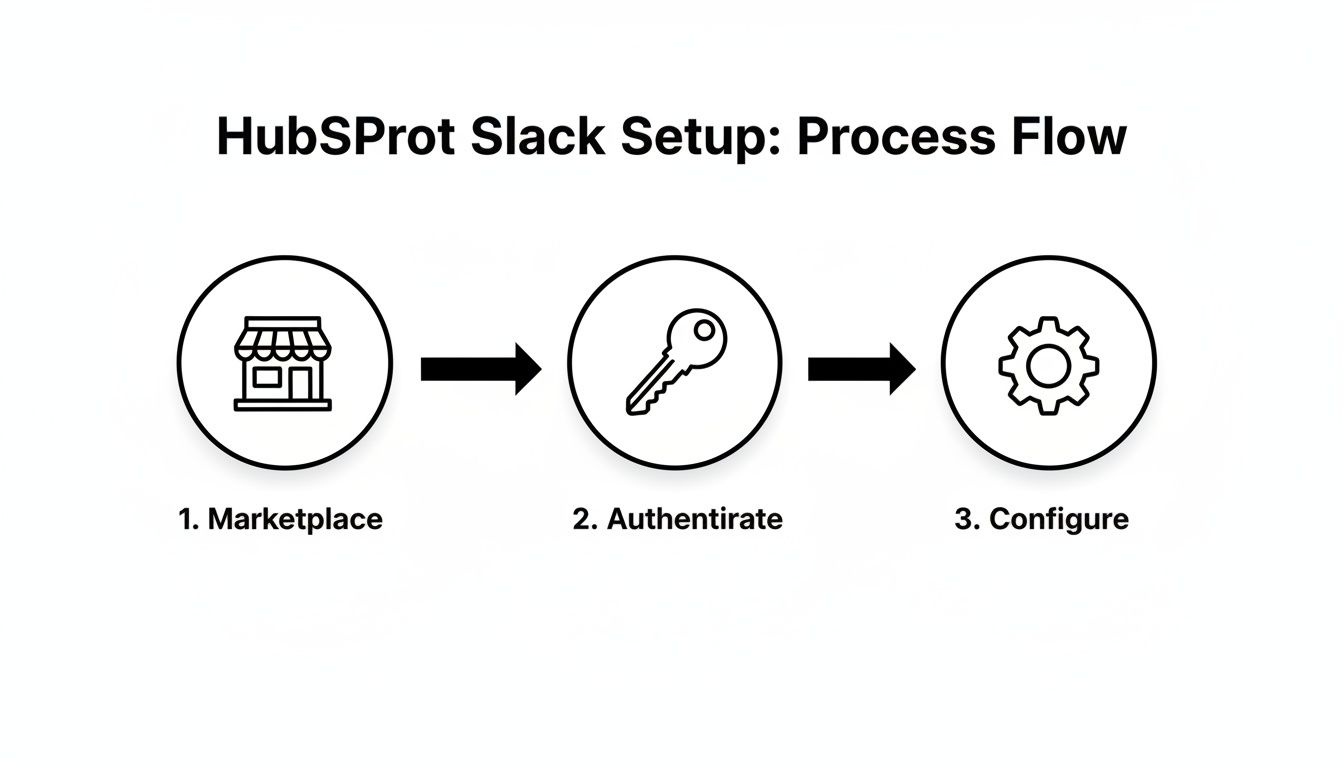
Setting up the native HubSpot Slack integration is a quick, user-friendly process that you can complete in minutes.
- Install the Slack Integration: Navigate to the HubSpot Marketplace, search for "Slack," and click "Install app" on the official integration page.
- Authenticate Your Slack Workspace: You will be prompted to grant HubSpot permission to access your Slack workspace. This is a secure, standard process that allows HubSpot to post messages on your behalf.
- Configure Your Notifications: Once connected, you can choose which HubSpot events trigger Slack notifications. This is where you define the
whatand thewhere:- Channels: Select the specific Slack channels where notifications should be sent (e.g.,
#new-leads,#deal-updates). - Notification Types: Choose from a list of predefined notifications like "New Contact Assigned" or "Deal Won."
- Event Triggers: Within HubSpot Workflows, you can add a "Send Slack notification" action to create alerts based on custom triggers. For example, you could notify an account manager when one of their contacts visits the pricing page.
- Channels: Select the specific Slack channels where notifications should be sent (e.g.,
Common setup mistakes to avoid:
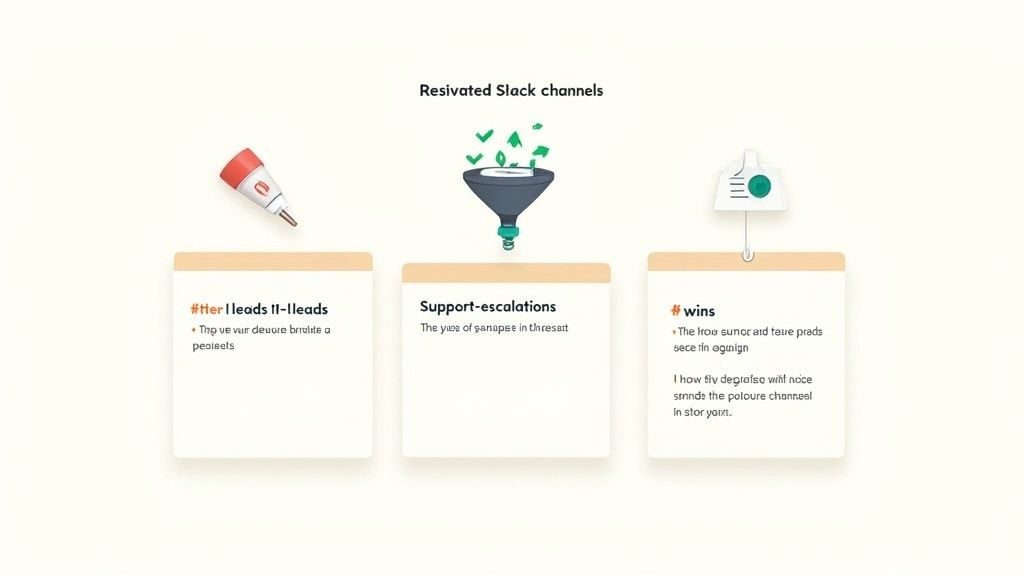
The biggest mistake is sending too many notifications to a single, generic channel. This creates "alert fatigue," causing team members to ignore important updates. Instead, create dedicated channels for specific purposes (#hot-leads, #support-escalations) to ensure messages are relevant and actionable. For example, instead of a general #sales channel, create #enterprise-deals and #smb-deals to route notifications to the right teams.
HubSpot Slack Webhook Integrations
When the native integration isn’t flexible enough, webhooks provide a powerful way to send highly customized, data-rich notifications from HubSpot to Slack.
What Are HubSpot Slack Webhooks?
In simple terms, a webhook is an automated message sent from one app to another when a specific event occurs. In this context, HubSpot can send a webhook to a unique Slack URL whenever a workflow is triggered. Teams use webhooks for Slack notifications when they need more control over the message content, formatting, and routing logic than the native integration allows.
How HubSpot Slack Webhook Integrations Work
The process is straightforward: an event in HubSpot triggers a workflow, which then sends a webhook containing specific data (the "payload") to a designated Slack channel.
Typical events that trigger webhooks include:
- New deal created: Send key details like deal value, primary contact, and region.
- Deal stage changed: Announce progress, especially for key stages like "Proposal Sent" or "Negotiation."
- Lead assigned: Notify a rep with the lead's name, company, and source.
- Form submitted: Alert the team when a high-intent form (e.g., "Request a Demo") is completed.
The payload is simply the data you want to include in your Slack message, formatted in a way Slack can understand. You can hand-pick HubSpot properties (like deal_name, amount, deal_owner) to craft a perfectly informative alert.
Use Cases for Webhook-Based Slack Alerts
- Sales pipeline monitoring: Send an alert to a
#revopschannel when a deal over $50k moves to the final stage, including a link to the HubSpot record. - High-intent lead alerts: When a lead from a Fortune 500 company fills out a form, trigger a high-priority alert in an
#enterprise-leadschannel, tagging the assigned AE. - Custom formatting and routing per channel: Send concise deal win notifications to a company-wide
#winschannel and more detailed financial summaries to a private#financechannel. This kind of public celebration is a great way to boost team recognition. - Multi-team notifications: When a deal closes, notify the sales rep for celebration, the onboarding team to kick off their process, and the account manager to prepare for the handoff, all from a single workflow.
How to Connect Google Sheets, HubSpot, and Slack
For lightweight reporting, manual data enrichment, or cross-team visibility, using Google Sheets as an intermediary is a surprisingly powerful strategy. This approach is particularly useful for teams looking for solutions on how to connect google sheets hubspot slack.
Why Use Google Sheets Between HubSpot and Slack?
- Lightweight reporting: Easily create daily or weekly summaries for stakeholders who don't need full HubSpot access.
- Manual or automated enrichment: Allow teams to add notes or update data in a familiar spreadsheet interface before syncing it back to the CRM.
- Cross-team visibility: Create a single source of truth for a specific campaign or sales blitz that is accessible to everyone.
- Ad-hoc data analysis: Quickly export data to run calculations or create charts without building a custom report in HubSpot.
Common Google Sheets → HubSpot → Slack Flow
A typical workflow involves HubSpot syncing data to a Google Sheet, and then using that sheet update to trigger a notification in Slack.
Popular use cases:
- Daily deal summaries: A workflow exports all deals created in the last 24 hours to a sheet. An automation tool then reads the new rows and posts a formatted summary to a
#daily-sales-reportchannel each morning. - Lead lists for review: Export a list of new leads for a BDR team to review and qualify within a Google Sheet.
- Revenue tracking: Keep a running log of closed-won deals in a sheet to power a simple, real-time revenue dashboard.
Tools & Methods (High-Level)
- HubSpot Workflows + Sheets: Use native HubSpot actions to add rows to Google Sheets.
- Automation platforms: Tools like Zapier or Make can watch for new rows in Google Sheets and then trigger formatted messages in Slack.
- Custom scripts or webhooks (advanced teams): For more complex data manipulation, use Google Apps Script to process data in the sheet before sending it to Slack.
Best Practices for HubSpot Slack Integrations
A successful integration delivers signal, not noise. Follow these best practices to ensure your setup empowers your team rather than overwhelming them.
- Avoid notification overload: Be selective about what triggers an alert. Not every field update deserves a Slack message. Focus on high-impact events.
- Use dedicated channels per team or pipeline: Create specific channels like
#new-leads-us,#support-tier1, and#closed-won-dealsto deliver relevant information to the right audience. The#closed-won-dealschannel is a fantastic, low-effort way to build a culture of team recognition. - Keep HubSpot as the system of record: All critical customer data should live in HubSpot. Use Slack for awareness, speed, and collaboration, not as a database.
- Review workflows quarterly: Your business processes will change. Revisit your integration every few months to prune noisy alerts, add new ones, and ensure the setup still aligns with your team's needs.
Security & Permissions Considerations
When connecting powerful systems like HubSpot and Slack, it's crucial to manage access and data flow responsibly.
- Who should manage the integration: Designate a specific admin (often in RevOps or IT) to own the integration setup and maintenance to prevent unauthorized changes.
- Role-based access in HubSpot and Slack: Ensure that the permissions of the user account connecting the integration align with your data access policies.
- What data should not be pushed to Slack: Avoid sending sensitive personal information (PII) or confidential financial data into public Slack channels. Use private channels for sensitive alerts.
- Compliance basics (GDPR, customer data): Be mindful of data privacy regulations. Treat any customer data pushed to Slack with the same level of care as data within your CRM.
Real-World Use Cases
The true value of this integration comes to life when applied to specific team workflows.
- Sales teams closing deals faster: A rep receives an instant Slack alert when a prospect opens their proposal, allowing them to follow up at the perfect moment of high engagement. A practical example is IMPACT, which saw a 39% reduction in its deal closure time after implementing such workflows. You can read the full story of their impressive sales performance boost on HubSpot.com.
- Marketing teams reacting to hot leads: A notification hits the
#mql-alertschannel the moment a contact's lead score surpasses 100, enabling a BDR to engage them while they are still active on the website. - Support teams tracking ticket escalations: A high-priority ticket from a VIP customer automatically triggers an alert in a
#support-red-alertchannel, swarming the right experts for a rapid resolution. - RevOps teams monitoring pipelines in real time: A daily digest of newly created deals and at-risk opportunities is posted in the
#revops-dashboardchannel, providing leadership with a constant pulse on pipeline health.
FAQ: HubSpot Slack Integration (SEO Section)
Does HubSpot have a native Slack integration?
Yes, HubSpot offers a native, no-code integration available in its marketplace. It allows you to send automated notifications for deals, leads, tickets, and custom workflow triggers directly to your Slack channels.
Can HubSpot send Slack messages via webhooks?
Yes, using HubSpot's workflow tool (available on Professional and Enterprise plans), you can trigger webhooks to send highly customized and data-rich messages to Slack. This method offers greater control over the content and formatting of your alerts.
How do I connect Google Sheets, HubSpot, and Slack?
You can connect them by using HubSpot workflows to sync or export data to a Google Sheets. Then, use an automation platform like Zapier or Make to monitor the sheet for new rows and trigger a formatted notification in Slack.
Is coding required?
No, coding is not required for the native HubSpot Slack integration. For advanced webhook-based notifications, some technical knowledge is needed to structure the message payload (the data sent to Slack), but you don't need to be a developer to get started.
Final Thoughts: Turning CRM Data Into Action
HubSpot is where your customer intelligence is stored; Slack is where your team takes action. The HubSpot Slack integration is the bridge that turns static data into real-time, collaborative work.
The best integrations focus on three principles:
- Speed: Delivering information the moment it matters most.
- Relevance: Ensuring the right people get the right alerts.
- Signal over noise: Filtering out unimportant updates to highlight what's truly actionable.
By thoughtfully connecting these two platforms, you empower your teams to be more responsive, aligned, and effective, ultimately driving better business outcomes.
Ready to make recognition a core part of your team's culture? AsanteBot integrates seamlessly into Slack, turning appreciation into a visible, engaging habit that strengthens your team right where they work. Start your free trial today and see the difference.