
Getting team feedback in Slack can be as simple as typing /polly followed by your question right into a channel. It’s a clean, simple command that cuts through the clutter of email threads and frees up your calendar from unnecessary meetings, giving you instant, actionable insights where your team is already working.
Table of Contents
Introduction: What Polly Does Inside Slack
Ever wished you could make a team decision in minutes instead of meetings? That's exactly what Polly was built for. It’s a powerful Slack app designed to capture immediate feedback and keep work flowing. Teams use Polly to make fast decisions, gather asynchronous feedback, and reduce time spent in meetings.
This guide will show you how to master Polly from start to finish. You'll learn how to:
- Install Polly in your Slack workspace
- Create your first poll with a simple command
- Customize settings for better feedback
- View and share results with your team
- Troubleshoot common issues
This breakdown shows the core benefits Polly brings to any team's workflow.

As you can see, Polly helps teams get fast feedback, rely less on meetings, and embrace asynchronous work—three pillars of any highly effective modern team. For more ideas on boosting your team’s output, check out these expert tips for improving workplace efficiency.
What Is Polly for Slack?
Polly is a Slack app that allows teams to run polls and build automated engagement workflows. It replaces informal questions and messy emoji-voting with structured, actionable data. Instead of trying to count thumbs-up reactions or decipher vague messages, Polly gives you clear results for async participation.
It's better than informal methods when you need a clear, recorded decision. While a quick 👍 is fine for simple agreements, Polly is essential when you need to track participation, allow anonymous feedback, or get a definitive answer on topics like project priorities or team event scheduling.
By replacing unstructured chatter with clear, actionable polls, teams eliminate ambiguity. This direct approach not only saves time but also ensures every team member has a voice, which is fundamental for building an inclusive and engaged culture. A strong culture of recognition and feedback is key to team success.
Install Polly in Slack
Before you can start polling your team and making smarter decisions, you first need to get Polly added to your Slack workspace. Don't worry, it’s a quick and painless process that usually takes just a couple of minutes.
Where to get it
First things first, you need to find Polly in the Slack App Directory. Think of this as the app store for your Slack workspace.
- Head over to the Slack App Directory.
- In the search bar, just type in "Polly."
- Once you find it, click the big "Add to Slack" button.
This will kick off the installation and take you to a screen to review permissions.
Permissions: what a workspace admin may need to approve
Like any app you add to Slack, Polly needs certain permissions to do its job. It needs to be able to post messages (your polls) in channels and see basic user info so it knows who is voting.
A quick heads-up: In most companies, a Slack workspace administrator has to approve new app installations. If that’s not you, Slack will let you send a request to your admin. It's a good idea to add a quick note explaining how you plan to use Polly—it can help get things approved faster.
Once you or your admin gives the green light, Polly is officially installed.
Add Polly to a channel
Now that Polly is part of your workspace, you just have to invite it into the channels where you want to run polls. Polly can't just show up uninvited, so this step is crucial.
It’s super easy. Just go into the channel you want to use and type this command:
/invite @polly
Hit enter, and Slack will confirm that Polly has joined the channel. That's it! You're all set to create your first poll.
How to Create a Poll in Slack Using Polly
Alright, you've got Polly installed and added to a channel. Now for the fun part: actually creating your first poll. The quickest way to jump right in is by using the /polly slash command. Think of it as your direct line to getting instant feedback from your team, right inside any Slack channel or DM.
4.1 Create a poll with the /polly command
The core workflow is simple: type /polly followed by your question and answer options in any channel or direct message. This syntax tells Polly what to ask and what choices to present.
For example, to decide on a team lunch spot, you could type:/polly "Where should we order lunch from today?" "Pizza Place" "Taco Truck" "Salad Bar"
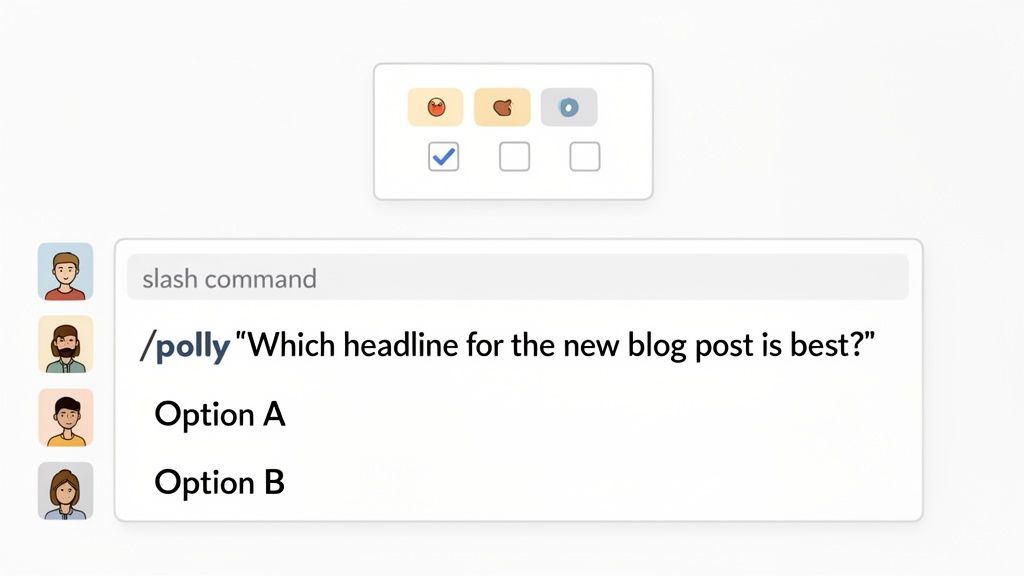
After you type the command and hit Enter, Polly shows you a preview. You can double-check everything looks right before you send it to the channel.
4.2 Three ways to create a Polly
While the slash command is a fan favorite for its speed, Polly offers other ways to create polls:
- Directly in Slack (primary): The
/pollycommand is the fastest way for on-the-fly questions. - Using Message Shortcuts: You can turn any existing Slack message into a poll. Click the three-dot menu on a message and select "Create a poll with Polly."
- From the Polly App Home: For more complex polls, templates, or recurring surveys, go to the Polly app in your Slack sidebar. This opens a full interface with advanced settings.
Remember, Polly handles the how, but the what is up to you. Asking a well-framed question is crucial for getting useful results. For some great tips on question design, check out this guide on how to create a poll effectively. And if you're just looking for the basics on all your options, we also have a guide on how to make a poll in Slack. This flexibility means you can start simple and gradually explore more powerful features as you get comfortable.
Customize Your Polly Settings (The Features Teams Actually Need)
Asking the right question is only half the battle. Customizing your poll settings is what separates a good poll from a great one. This is where you can encourage honest responses and get the exact type of feedback you need.
Anonymous responses
One of the most powerful tools is the anonymous poll. It’s perfect for sensitive topics where people might be hesitant to share their true feelings. Anonymity creates psychological safety, giving your team a space to be candid. Use it when checking on team morale or asking for feedback on a new, potentially controversial initiative.
Hide results until voting ends
To reduce bandwagon voting, where people follow the crowd, you can hide results until the poll closes. This ensures everyone gives their genuine opinion, unswayed by what their colleagues are choosing. It's the perfect setting for making objective decisions, like prioritizing project tasks.
Multi-vote vs single-vote
Polly lets you control how people vote.
- Single-vote: Best for a clear-cut decision, like "Choose our next team event."
- Multi-vote: Great for gauging interest or scheduling, allowing people to select all options that apply, like "Which of these dates work for you?"
Let people add options
Turn this feature on to transform your poll into a brainstorming session. It’s ideal for sourcing ideas directly from the team, such as asking, "What topics should we cover in the next all-hands meeting?" This encourages participation and recognizes the value of everyone's ideas.
Notes on plan limits
Just a heads-up: some of these advanced features might depend on your specific Polly plan, so it's always a good idea to double-check what's available to you.
Schedule Polly Polls (Recurring Check-ins, Pulse Surveys, Standups)
The secret to keeping a team aligned isn't more meetings—it's building smart, async routines. This is where Polly's scheduling feature shines. It lets you create recurring check-ins that can save you hours every week.
Why scheduling matters
Scheduling matters for building async routines. Instead of chasing people down for updates, you can build a reliable feedback loop that keeps everyone on the same page without constant interruptions. When you create a poll, you can choose to run it now, schedule it for later, or set it to recur.
How scheduling works inside Polly
As you build a poll, you’ll see options to either send it immediately or schedule it for a specific date and time. This is your gateway to creating recurring polls that post automatically—daily, weekly, or monthly.
Examples:
- Weekly team pulse: Every Friday, an anonymous poll could ask,
/polly "On a scale of 1-5, how was your workload this week?"This is a quick way to check on morale and spot burnout. - Friday retro prompts: Automate a poll to gather feedback for your retrospective:
/polly "What's one thing we should start doing next month?" "Stop doing?" "Continue doing?" - Daily async standup (lightweight): A poll every morning at 9 AM asking,
/polly "What are your top priorities today?"gives everyone a clear view of the team's focus. For more ideas, check out our guide on effective check-in meeting questions.
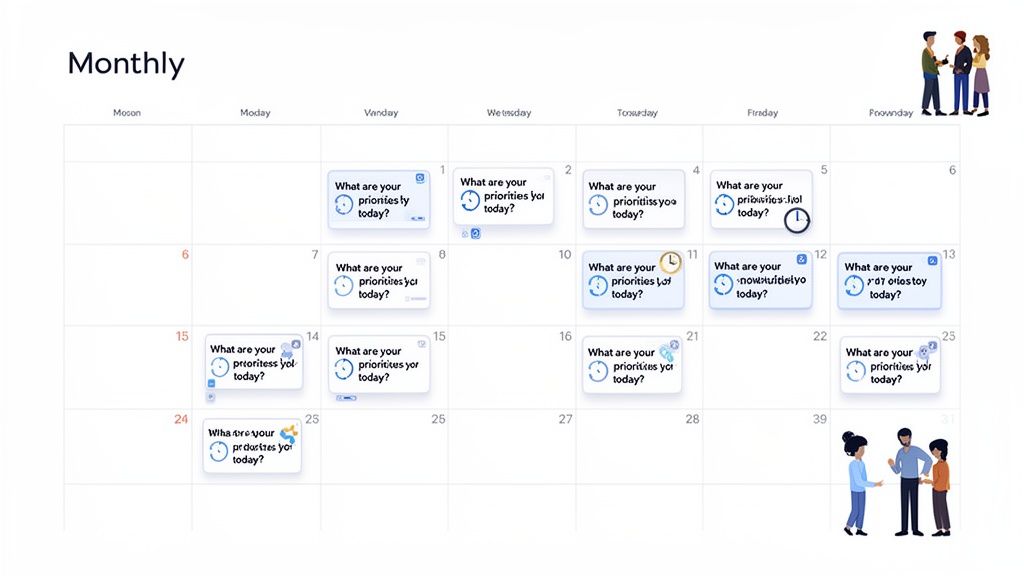
By putting these essential check-ins on autopilot, you’re doing more than just saving time. You're fostering a culture of transparency and proactive communication. Team members feel heard because their input is consistently requested, and leaders get a steady stream of valuable insights. Regularly asking for and acting on feedback is a powerful form of team recognition.
View Results, Share Results, and Close Polls
Gathering feedback is just the start. The real magic happens when you turn votes into visible action. Polly puts all the essential controls right where you need them, appearing as buttons below your poll. Results appear directly in Slack, in the context of the conversation.
Common actions you’ll want:
- See results: Click this to see a real-time breakdown of responses.
- Share/repost: Easily share the final results in another channel to broadcast a decision.
- Close a poll: Manually stop new votes when you have enough data.
- Remind non-responders: Send a gentle, private nudge to anyone who hasn’t voted to boost your response rate.
- Help commands: If you ever forget a command, just type
/polly helpfor a quick refresher.
Closing the loop is probably the most important part of this whole process. When you share the final results and explain what decision was made—and why—you’re showing your team that their input truly matters. That single act is how you build a culture of trust and open feedback.
Best Practices for Higher Response Rates
A poll is only as good as the responses it gets. Here are a few practical strategies to make sure your polls get seen and answered.
- Keep polls short: A single, direct question is best. The less cognitive load, the higher the response rate.
- Use anonymous mode for sensitive topics: For feedback on team morale or new management ideas, anonymity is key to getting honest answers.
- Post in the right channel + time it well: Post in the team's primary channel during peak work hours (like 10 AM or 2 PM) for maximum visibility.
- Close the loop: After the poll ends, share a summary of the results and explain what you're going to do about it. When people see that their vote led to a decision, they feel heard and recognized. This builds a flywheel of feedback and makes them more likely to participate next time.
As many user reviews point out, this seamless process saves teams roughly 40% of the time they'd normally sink into collecting feedback. If you want to learn more, you can find some great insights into how Polly enhances team workflows on matterapp.com.
Troubleshooting: Polly Not Working in Slack
Even the best tools can have hiccups. Here are solutions to common issues.
- /polly command not found: This usually means the app isn't installed in your workspace or hasn't been authorized for your user account. Check with your Slack admin.
- Polly can’t post in a channel: Polly needs to be invited into a channel before it can post. Type
/invite @pollyin the channel to fix this. It might also be a permissions issue. - People can’t vote: This can happen if the poll is posted in a private channel that some users don't have access to. Double-check channel access and your poll's audience settings.
- Status/notifications too noisy: You can adjust where poll results are posted and the frequency of reminders in the poll's advanced settings to reduce noise.
FAQ (SEO Section)
How do I create a Polly poll in Slack?
The fastest way is with the slash command. In any channel, type /polly "Your question?" "Option 1" "Option 2" and hit enter. Polly will then show you a preview before sending.
Can Polly polls be anonymous?
Yes. When creating a poll, you can select the "anonymous" option. This hides voter identities and is perfect for gathering candid feedback on sensitive topics.
Can I schedule recurring Polly polls?
Absolutely. Polly allows you to schedule polls to run daily, weekly, or monthly. This is great for automating routines like async standups, weekly pulse checks, or retro prompts.
Can I use Polly in DMs?
Yes, Polly works perfectly in direct messages and private channels. For private channels, you first need to invite Polly by typing /invite @polly.
Recognition is the fuel for great teamwork. AsanteBot makes it easy to build a culture of appreciation right inside Slack, with emoji-based recognition, customizable rewards, and automated celebrations that keep your team connected. Get started for free in two minutes.