
The Jira Cloud and Slack integration is more than just a technical connection; it bridges the gap between where your team talks and where they track their work. Think of it as a direct line from your communication hub to your project management powerhouse, allowing you to get instant Jira updates, create tickets, and manage tasks without ever leaving your Slack channels.
Table of Contents
Why Connecting Jira and Slack Is a Game-Changer
Let's be honest, the biggest silent killer of productivity is context-switching. It's that constant shuffle between apps that drains focus and kills momentum. Every time a developer has to leave a conversation in Slack, find the right tab, and update a Jira ticket, a little bit of that creative flow is lost.
This isn't just a minor annoyance; it adds up. A great example of this came from one of the earliest tools in this space, Slack Integration+. It was built to solve this exact pain point, which was estimated to cost development teams a staggering 2 hours per developer per week. For a large company, that inefficiency could balloon into over $1.19 million a year. By bringing Jira functionality right into Slack, the tool managed to cut that waste by two-thirds. You can read the full story on Fivewalls.io.
Boost Your Team's Performance and Morale
When Jira and Slack are connected, you're not just saving time—you're enhancing team visibility and making sure everyone is on the same page. When project updates are piped directly into a shared channel, everyone from engineering to marketing can see what’s happening as it happens.
This transparency creates some serious wins for your team:
- Faster Incident Response: Imagine a critical bug alert popping up instantly in your #dev-ops channel. The on-call team can swarm the issue immediately instead of waiting for an email.
- Clear Project Visibility: Stakeholders can easily follow a project's progress in a dedicated channel without constantly pinging developers for status updates.
- Seamless Workflows: A great idea mentioned in a Slack thread can be turned into a Jira ticket with a simple slash command. Nothing falls through the cracks. For a deeper dive, check out our guide on setting up your own Slack Jira integration.
Getting started is as simple as finding the Jira Cloud app in the Slack App Directory.
From this small step, a much more connected and efficient way of working opens up.
But it goes beyond just pure efficiency. This integration also builds a stronger team culture. When a notification pops up announcing that a tough bug has been squashed or a major feature has been deployed, it creates an instant opportunity for recognition. A team lead can react with a 🎉 emoji, or a teammate can jump in with a quick "Nice work!" This transforms a simple system alert into a genuine moment of appreciation, weaving recognition right into your team's daily rhythm.
Your Initial Setup and Configuration Guide
Getting your Jira Cloud and Slack accounts talking to each other is surprisingly straightforward. Think of this initial setup as laying the groundwork for a more focused, communicative workflow. The whole point is to cut down on the constant app-switching that eats away at your team's productivity.
The first move is to install the official Jira Cloud app into your Slack workspace. Just head over to the Slack App Directory, search for "Jira Cloud," and find the one made by Atlassian. Click "Add to Slack" and follow the on-screen prompts. This basically tells Slack to start listening for information coming from Jira.
Authenticating Your Accounts
Once the app is added, you need to handle authentication. This is the crucial step where you give the two platforms permission to securely share information with each other—the digital handshake, if you will. The Jira Cloud app within Slack will guide you to connect it to your Atlassian account.
When you initiate the connection, you'll be sent over to an Atlassian authorization screen. You'll simply pick the Jira site you want to link up and grant the permissions it asks for. This is a critical security step, as it ensures the integration can only access the specific Jira instance you approve. Once you confirm, you're all set.
The process is built on OAuth 2.0, an industry-standard protocol, so you can be confident your credentials are safe. A secure token manages the connection behind the scenes, so nothing is ever directly exposed.
Connecting a Project to a Channel
Now for the fun part. With the accounts officially linked, you can start piping Jira notifications directly into the relevant Slack channels. This is where you'll see the immediate value.
Jump into the Slack channel where you want your project updates to land.
In the message box, just type the slash command: /jira connect
A small window will pop up asking for your Jira Cloud project URL. Grab the link to your project's main page, paste it in, and hit "Connect." The Jira bot will chime in with a confirmation message, and just like that, the channel is now linked to your project. From this point on, you can configure updates from that Jira project to flow right into your team's conversation.
It's easy to underestimate the mental tax of constantly toggling between tools. You don't just lose the time it takes to click around; you lose focus and momentum.
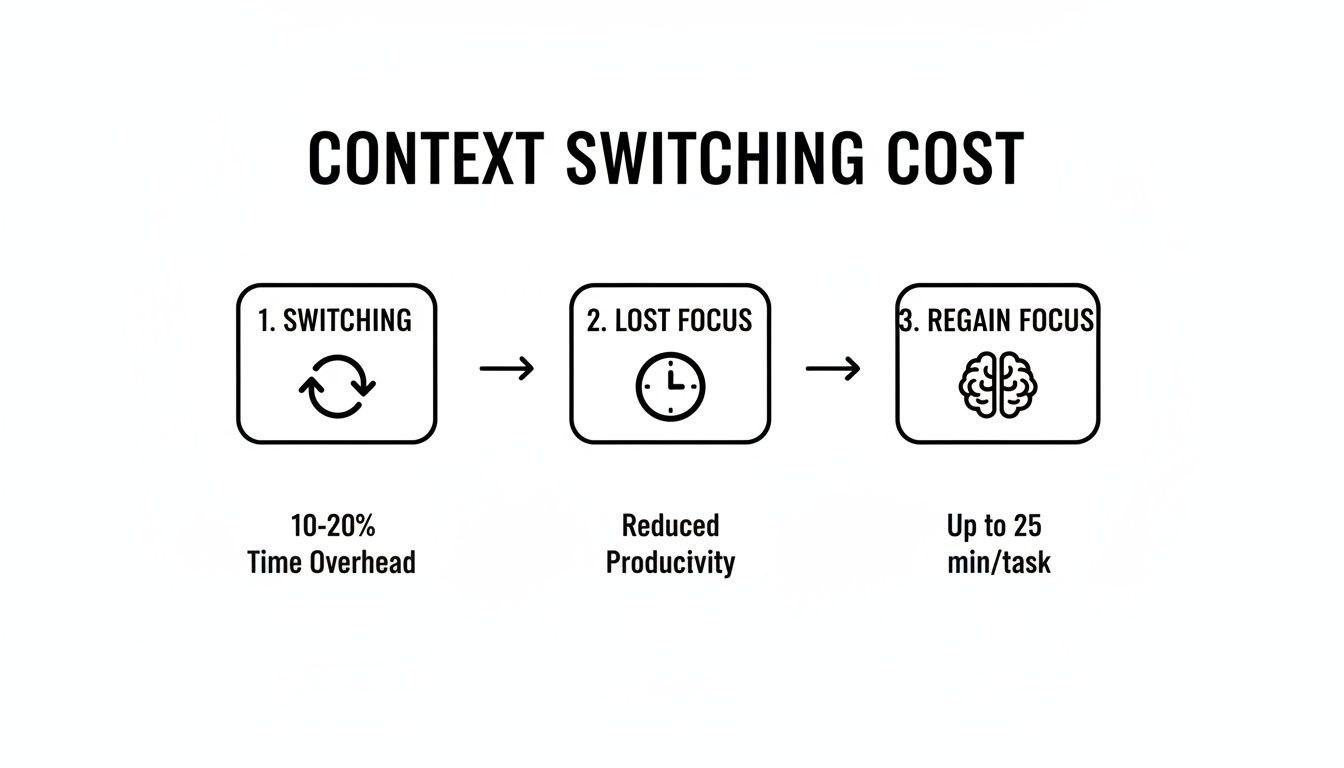
As the visual shows, the real cost is the time it takes our brains to disengage from one task and fully re-engage with another. This integration is designed to minimize that friction.
One of the less obvious but powerful benefits here is the opportunity for immediate team recognition. When a notification for a completed story or a fixed bug pops into a channel, it’s a public signal of progress. This lets team leads and peers react instantly with an emoji or a quick word of praise.
For example, imagine a
TASK-123: Feature X Deployed to Productionnotification appears in the#engineering-updateschannel. A simple "🚀 Great work, team!" from a manager transforms a routine alert into a public high-five, boosting morale and celebrating wins as they happen.
How to Customize Notifications and Eliminate Noise
Once you connect Jira Cloud and Slack, you'll probably get a firehose of notifications. The default settings are built to show you everything, but in reality, that just creates a ton of noise that people quickly learn to ignore.
The real magic happens when you tame that flood. The goal is to turn the integration from a constant distraction into a trusted, high-signal source of information. When every notification is genuinely important, your team will actually pay attention.
This is where you get to put Jira Query Language (JQL) to work.
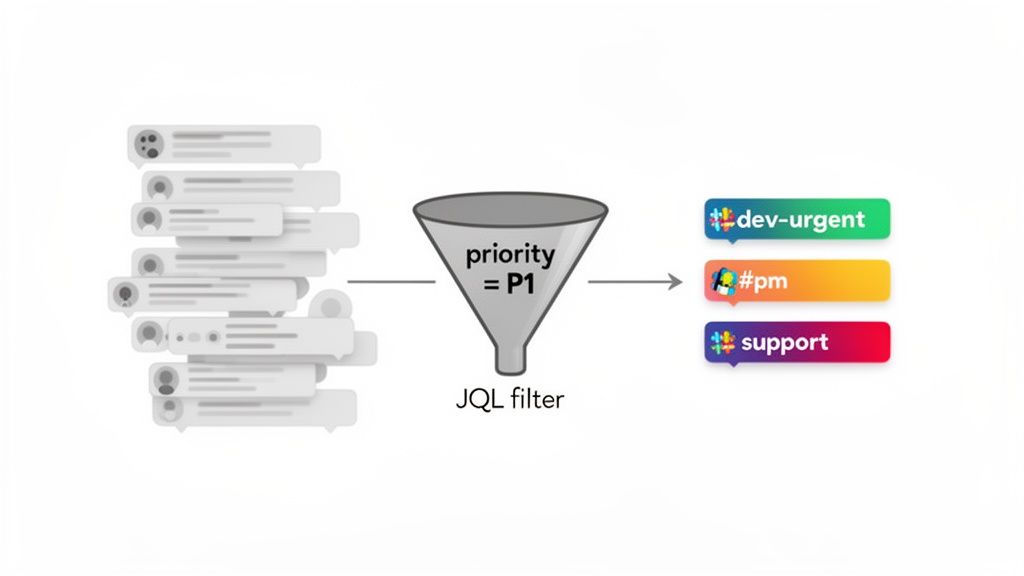
Using JQL to Create Laser-Focused Alerts
Think of JQL as a powerful instruction set for Jira. Instead of just telling Slack, "send me all the updates," you can get incredibly specific, ensuring the right information gets to the right people at exactly the right time.
Let’s look at a few real-world scenarios you can probably use right away:
-
High-Priority Bugs: You can set up a dedicated
#dev-urgentchannel for your on-call team. Just run/jira configurein that channel and apply a JQL filter likeproject = "YourProject" AND priority = "Highest". Now, only critical bugs will ever pop up here, giving your engineers a clean, immediate signal for emergencies. -
Product Management Visibility: For product managers and other stakeholders, create a
#product-updateschannel. A filter likeproject = "YourProject" AND status changed to "Ready for Review"lets them know the second a new feature is ready for their eyes. -
Design Team Handoffs: A designer waiting for their work to be picked up can use a personal notification or a team channel. A JQL filter like
project = "YourProject" AND status = "To Do" AND watcher = currentUser()tells them exactly when their part is done and development is kicking off.
By crafting specific JQL filters, you transform a noisy feed of data into a strategic communication tool. This focus ensures that when a notification does appear, it commands attention and drives action.
Choosing the right combination of Jira events and JQL filters is crucial for balancing signal and noise. This table breaks down some common triggers and how you might configure them for different teams.
Jira Notification Triggers Comparison
| Jira Event Trigger | Recommended Slack Channel | JQL Filter Example | Best For |
|---|---|---|---|
| Issue Created | #triage, #new-bugs |
priority = Highest OR labels = customer-reported |
Catching high-priority new issues instantly for support or triage teams. |
| Status Changed | #product-review, #qa-feed |
status changed TO "In QA" |
Notifying specific teams when an issue enters their part of the workflow. |
| Comment Added | Personal DM via Jira bot | @mention = currentUser() |
Reducing channel clutter; individuals get notified only when they're tagged. |
| Priority Updated | #dev-urgent, #escalations |
priority changed TO "Highest" |
Alerting on-call or leadership when an issue's urgency is escalated. |
| Issue Assigned | Personal DM via Jira bot | assignee = currentUser() |
Direct, personal notifications for new assignments to avoid public spam. |
| Issue Transitioned | #releases, #done-done |
status = "Done" AND resolution = "Fixed" |
Celebrating wins and keeping stakeholders informed of completed work. |
Ultimately, the best setup depends entirely on how your teams work. Don't be afraid to experiment with different JQL filters and channel configurations to find the perfect balance.
Empowering Your Team with Personal Notifications
While channel-wide configurations are powerful, they don't solve everything. No engineer wants a notification for every single comment on every ticket in the project. That's where personal alerts come in.
The Jira Cloud bot allows every single team member to set up their own notification rules. It's incredibly simple.
Just send a direct message to the Jira Cloud bot in Slack and type /jira notify. From there, they can choose to get DMs only for "My issues." This means they'll only get a ping when they are assigned a ticket, mentioned in a comment, or an issue they are watching gets an update.
This one simple command can dramatically cut down on notification fatigue for the entire team.
This level of customization also creates some fantastic opportunities for team culture. When a channel is filtered to only show truly significant events—like a story moving to "Done"—it creates a perfect moment for a team lead to jump in. They can immediately react with a praise emoji or a quick "Awesome work!" This turns a simple system alert into a natural moment of public recognition, weaving appreciation directly into your daily workflow.
Unlocking Powerful Workflows Inside Slack
The best integrations don't just push notifications at you; they let you get things done right where the conversation is happening. This is where the Jira Cloud for Slack integration really shines. It effectively turns your Slack channels into a dynamic command center for managing projects, saving everyone from the constant headache of tab-switching.
You can go from discussion to execution in a matter of seconds. It's more than just a convenience—it’s a fundamental change in how your team can capture and act on important information the moment it comes up.
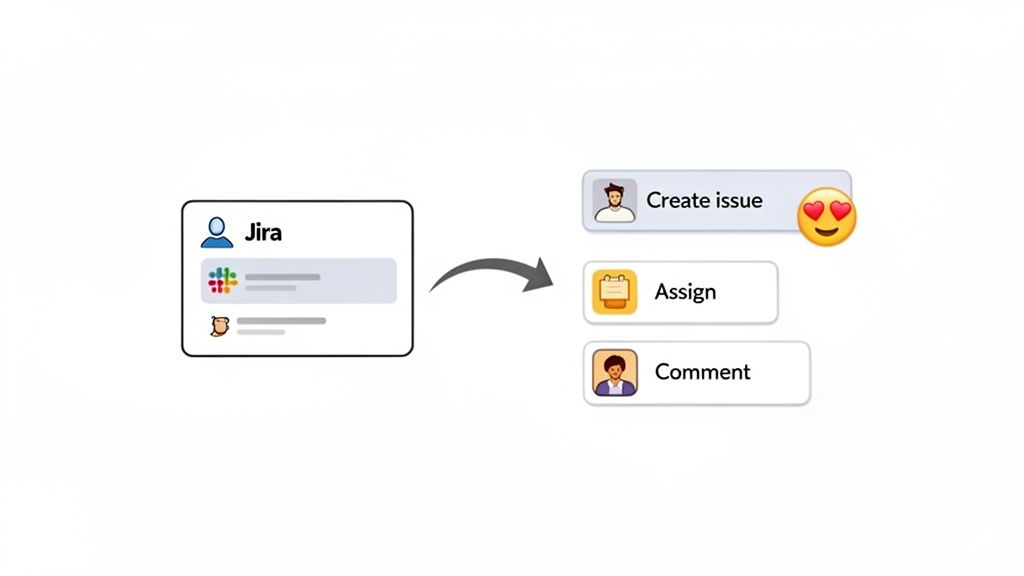
From Conversation to Actionable Ticket
Picture this common scenario. A product manager is in the #product-feedback channel and sees a message from a support agent: "Hey, a few users are reporting that the new checkout button is lagging on mobile." Before this integration, that crucial feedback might get lost in the scroll or require a bunch of manual steps to document properly.
Now, it’s a whole different ballgame.
The PM can just hover over that message, click the "More actions" menu (the three dots), and select "Create issue from message." A Jira form instantly pops up inside Slack. They can quickly give it a title, choose the right project and issue type (like "Bug"), and the original Slack message is automatically pulled into the description field.
That one move transforms a fleeting comment into a trackable, prioritized piece of work. No copy-pasting. No switching windows. No risk of the issue being forgotten. For a closer look at this specific workflow, check out our guide on how to create a Jira ticket from Slack.
Managing Issues with Slash Commands
Creating issues from messages is just the start. The real power comes from using simple slash commands to manage the entire lifecycle of a ticket without ever leaving your Slack channel.
Here are a few of the most impactful commands your team can start using right away:
- /jira [issue-key] comment [your comment]: This is perfect for adding quick context or answering a question about a ticket during a team discussion. No need to open Jira just to add a one-line update.
- /jira [issue-key] transition [status]: A developer can type
/jira DEV-456 transition "In Progress"directly in their team channel to signal they've started the work. Everyone sees it instantly. - /jira [issue-key] assign [@user]: This is a lifesaver for triage meetings that happen in Slack. A team lead can quickly delegate new bugs or tasks as they're being discussed.
These commands are more than just shortcuts; they build accountability and keep the whole team in sync, in real-time. Since its full-featured rollout around 2020, the integration has been a game-changer. In fact, Atlassian and Slack found that 78% of IT teams say they can better support remote workers with these kinds of unified workflows.
Imagine a support agent seeing a customer-reported issue in a shared channel. They can use
/jira createto log a bug, then immediately follow up with/jira ENG-789 assign @dev-on-callto get it in the right hands. The entire process takes less than a minute and happens completely in context.
The visibility this provides also has a surprising effect on team morale. When an engineer transitions a ticket to "Done," that notification in Slack isn't just a status update; it's a small, public victory. It creates a natural moment for a team lead or a colleague to react with a 🎉 emoji.
This simple act of team recognition turns a routine workflow into a chance to celebrate progress and appreciate the effort, reinforcing a positive and collaborative culture.
Best Practices for Admins and Team Leads
Getting the Jira Cloud Slack integration up and running is the easy part. The real challenge—and where you’ll see the most value—is making sure it doesn't devolve into a chaotic mess of notification spam. As an admin or team lead, you need a game plan to keep it organized and effective. A well-managed integration doesn't just work; it scales with your team, boosts productivity, and even helps shape a better team culture.
Think of it this way: without clear rules, you’ll quickly find yourself with dozens of channels named inconsistently, leaving everyone guessing where to find updates for Project Phoenix versus Project Apollo. It's a recipe for confusion.
Establish Clear Governance and Naming Conventions
The first thing I always recommend is to lock down a simple, consistent naming convention for every channel you connect. This tiny bit of upfront effort pays off massively by making information intuitive to find for everyone, from a new hire to a seasoned veteran.
Here are a few practical conventions I’ve seen work wonders:
- For project-specific updates: Start with a
#proj-prefix, like#proj-phoenix-releases. - For team-centric notifications: Use a team identifier, such as
#team-mobile-dev-feed. - For high-priority alerts: Create dedicated channels for critical issues, like
#security-p0-alertsor#dev-urgent-bugs.
Just as important is deciding who holds the keys. Restrict the ability to add or modify project connections to just team leads or designated admins. This simple step prevents well-meaning team members from accidentally breaking a workflow that everyone relies on.
My take: The real magic of a well-governed integration is predictability. When your team knows exactly where to look for updates and who to ask for help, they start to trust the system. That trust is the foundation of widespread adoption.
Foster Adoption and a Culture of Recognition
Simply announcing, "Hey everyone, we have a new tool!" isn't going to cut it. If you want people to actually use the integration, you have to lead by example.
Imagine a notification for a major feature release pops into the channel. As a team lead, you can instantly react with a praise emoji and a quick "Amazing work, team!" message. That small gesture immediately transforms a sterile system alert into a genuine moment of team recognition.
This isn't just a feel-good tactic; it has a real impact on morale and reinforces the value of everyone's hard work. The integration makes progress public, so why not make appreciation public, too? In fact, some studies have shown that this kind of tight-knit integration can contribute to a 57% improvement in team-building gains.
For a deeper dive into guiding your team effectively, these actionable product management best practices offer great context for getting the most out of tools like Jira and Slack. When you weave recognition into your daily operations, you're building a culture where people feel seen and valued for what they do.
Got a Glitch? Common Questions and Quick Fixes
Even the best-laid plans hit a snag now and then. When your Jira Cloud and Slack integration acts up, you don't want to spend an hour sifting through documentation. Let's walk through some of the most common issues I've seen teams run into and how to sort them out fast.
The number one problem? Notifications just stop. Dead silence. Before you sound the alarm, the fix is usually surprisingly simple.
The first thing I always tell people to do is run /jira connect in the channel that's gone quiet. More often than not, this little command reveals a lapsed connection. Re-authenticating fixes it 9 times out of 10. If that doesn't do the trick, have an admin pop into the settings to make sure the app's permissions haven't expired in either Jira or Slack.
Dialing in Your Setup for Maximum Impact
Once you're up and running, you'll want to start fine-tuning the integration to fit how your team actually works.
A question that comes up a lot is whether you can hook up one Jira project to several Slack channels. The answer is not just "yes," but "you absolutely should!" This is where the real power of the integration shines, letting you send the right updates to the right people.
For example, imagine this kind of targeted setup:
#dev-team: This channel gets all the general project updates—a good pulse on everything happening.#product-feed: A much quieter channel, filtered to only announce new user stories and epics. Perfect for product managers.#escalations: A high-priority, low-noise channel that only gets pinged for P0 and P1 bugs. When something pops up here, everyone knows it’s serious.
Setting up your channels this way means developers aren't drowning in product chatter, and product managers aren't getting bug alerts at 2 AM.
Another classic headache is getting bombarded with direct messages from the Jira bot. Thankfully, you can tame it. Just send a DM directly to the Jira Cloud bot and type /jira notify. You'll get a prompt to adjust your personal alerts. I recommend setting this to "My issues"—it's the sweet spot for most people, ensuring you only get pinged when you're directly mentioned or assigned a ticket.
Troubleshooting is more than just fixing a broken link. It's about constantly refining the integration to support your team's unique rhythm. A few small tweaks can make a massive difference in your team's focus and productivity.
Finally, people often ask if they can create different types of issues straight from Slack. Absolutely. When you use the /jira create command, the bot pops up a form with dropdowns for both the Project and the Issue Type. This lets you create a Bug, Story, Task, or Epic right in the middle of a conversation. It's an incredibly fluid way to capture work before it gets lost.
Here's a pro-tip for team leads: when you see someone use this feature to turn a messy discussion into a clean ticket, give them a shout-out right there in the channel. It reinforces great habits and shows the whole team what proactive ownership looks like.
Ready to build a culture of appreciation right inside Slack? AsanteBot makes it easy to celebrate wins, recognize effort, and connect your team. Start building a more engaged and motivated team today by visiting https://asantebot.com.