
Turn Slack messages into trackable tasks — no more missed action items.
Table of Contents
The Slack Asana integration is your solution to the chaos of modern work. Let's be honest: important action items get buried in Slack conversations, great ideas are forgotten, and context switching between your chat app and project management tool kills productivity. This integration fixes that by creating a direct bridge between your team's conversations and your actionable to-do lists in Asana.
This guide provides everything you need: a step-by-step setup walkthrough, essential commands for daily use, best practices for an efficient workflow, and common troubleshooting fixes. By connecting Slack and Asana, you can instantly assign tasks, check project progress, and boost team accountability without ever leaving your chat window.

alt-text: A diagram showing the Slack Asana integration transforming chaotic chat messages into an organized Asana task list.
Prerequisites for Connecting Slack and Asana
Before you begin, make sure you have the following ready to ensure a smooth setup:
- A Slack account with permission to install apps.
- An Asana account with access to the workspaces and projects you want to connect.
- Optional: Workspace admin approval for the app installation.
Note: Some companies restrict app installations for security reasons. If you run into any permission issues, you may need to request approval from your IT department or Slack administrator.
Step-by-Step Guide to Connect Asana to Slack
Getting your tools connected is a straightforward process. Follow these steps to link your workspaces and enable a more productive workflow.
Step 1 — Install the Asana App in Slack
Your journey starts inside Slack.
- Navigate to the Apps section in your Slack sidebar.
- Search for Asana and select it from the directory.
- Click the Add to Slack button on the Asana app page.
- A new window will open asking you to review the permissions the Asana app requires. Click Allow to proceed with the installation.
alt-text: The Asana Slack app page in the Slack App Directory, showing the "Add to Slack" button.
Step 2 — Connect Your Asana Account
Once the app is added to Slack, you need to authorize it to access your Asana account.
- The Asana app will prompt you to connect your account from its Home tab in Slack.
- Click the connect button, and you will be redirected to an Asana login screen in your browser.
- Log in to your Asana account and click Authorize to grant Slack access to your workspace.
- Once authorized, you'll receive a confirmation message in Slack, and the connection is complete.
Core Actions: Using the Asana Slack App
With the setup complete, you can now manage your work directly from Slack. Here are the core actions that will transform your team's productivity.
Create Asana tasks from Slack Messages
This is the most powerful feature. When an actionable item appears in a conversation, you can instantly turn it into a task.
- Hover over the Slack message you want to convert.
- Click the More actions menu (⋮).
- Select Create Task in Asana.
- A form will pop up where you can add details like the project, assignee, and due date. The message content will automatically become the task title.
- Click Create, and a confirmation will appear in the thread.
Use Slash Commands for Quick Actions
For even faster task management, use slash commands directly in any Slack channel.
/asana create "Fix login bug" project:Web due:Friday assignee:@dave– Creates a detailed task instantly./asana list tasks assigned to me– Shows you all of your current tasks./asana help– Displays a full list of available commands.
Receive Asana notifications in Slack
Keep your team informed without them ever needing to leave Slack. You can configure Asana notifications in Slack for key project events:
- A new task is created or assigned.
- A comment is added to a task you follow.
- A due date is approaching or a task becomes overdue.
- The status of a task changes (e.g., from "In Progress" to "Completed").
Link Projects to Specific Channels
To keep communication organized, you can link an Asana project to a relevant Slack channel (e.g., link the "Marketing Campaign" project to the #marketing-team channel). This sends all relevant project updates directly to the team that needs them, reducing noise across your workspace.
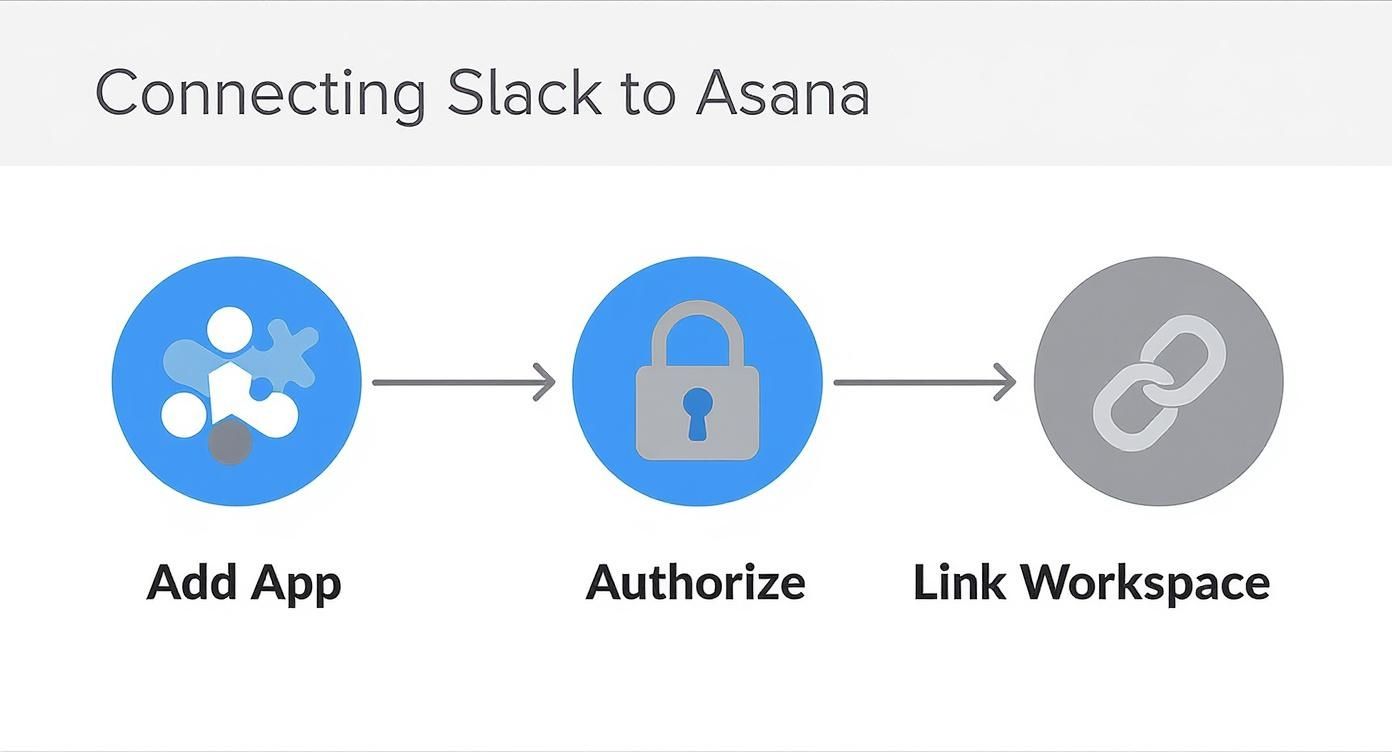
alt-text: A three-step diagram illustrating how to connect Asana to Slack: Install App, Authorize Account, Confirm Connection.
Best Practices for the Slack Asana Integration
- Create a dedicated
#project-updateschannel to pipe in automated notifications and keep your main channels free for discussion. - Convert action items from focused Slack threads, not from general, noisy channels, to ensure tasks have proper context.
- Add descriptive task names and use the automatic link back to the Slack conversation for full context.
- Disable unnecessary notifications to reduce noise and help your team focus on the updates that truly matter.
- Promote team recognition. When a "Task Completed" notification appears, encourage teammates to react with an emoji or a quick "great job!" This small act fosters a positive culture and makes accomplishments visible.
Troubleshooting and Common Fixes
Even the best integrations can have hiccups. Here are solutions to common issues.
- Bot is not in the channel: If Asana commands aren't working in a specific channel, the bot probably hasn't been invited. Simply type
/invite @Asanato add it. - “Action blocked” error: This usually means you don’t have permission to perform that action. Contact your workspace administrator to request the necessary permissions for the Asana app.
- Notifications are missing: If updates stop appearing, check the project's settings in Asana. Go to the project, find App integrations, and ensure the notification rules for Slack are configured correctly.
- Wrong workspace is linked: If you've connected the wrong Asana account, go to the Asana app's Home tab in Slack. You'll find an option to disconnect and reconnect with the correct account.
alt-text: A flowchart of a Slack project management workflow using the Asana integration for tasks and notifications.
Frequently Asked Questions (FAQ)
Is the Slack Asana integration free?
Yes, the integration itself is free to install and use. However, your access to certain features will depend on your specific Slack and Asana subscription plans. For example, using custom fields requires a paid Asana plan.
Can I assign tasks to teammates directly from Slack?
Absolutely. When you create a task from a Slack message or using the /asana create command, you can specify the project, assignee, and due date directly within the Slack interface.
Can multiple Asana projects post in one Slack channel?
Yes. You can configure multiple projects to send notifications to a single Slack channel. This is useful for creating a high-level overview channel for managers or a central update hub for a department.
Does this work with Asana Premium or Business features?
Yes, the integration works with all Asana plans. Features exclusive to paid plans, like custom fields or rules, can be leveraged through the integration, provided you have the appropriate Asana Premium or Business subscription.
Can I add attachments from Slack to Asana tasks?
When you create a task from a Slack message that contains a file, the Asana task will automatically include a link back to that original message. This ensures the assignee has full context and can access the attachment directly from the conversation.
Conclusion
The Slack Asana integration helps teams turn conversations into trackable tasks, ensuring nothing slips through the cracks. By centralizing your workflow, reducing context switching, and automating updates, you empower your team to focus on what matters most: getting work done. For more ways to connect your tools, explore other top integrations like the Slack Jira integration to create a fully synchronized digital workspace.
Recognition is the fuel for great work. With AsanteBot, you can build a vibrant culture of appreciation right inside Slack, celebrating wins and milestones automatically. Start your free trial today and see the difference it makes.