
Setting up an RSS feed in Slack isn't just a tech chore; it's a smart way to pull all your team's essential information into one place and keep everyone in the loop. When you automate updates from news sites, competitor blogs, or even customer review platforms, you're building a live, focused intelligence hub right inside your workspace.
Table of Contents
Why Your Team Needs an Automated Slack RSS Feed
Let's be honest: manually sharing articles is a drag. Every time someone finds something interesting, they have to stop what they're doing, switch tabs, copy a link, find the right Slack channel, and then paste it with some context. That constant context-switching kills focus and flow. A Slack RSS integration fixes this by piping all that crucial information directly into the channels where your team is already working.
Picture this: real-time updates from key industry sites or your main competitors’ blogs, all landing in a dedicated #competitive-intel channel. Everyone stays informed without lifting a finger. To really see how powerful this can be, it's worth understanding what social listening is and how it can bring valuable customer insights right to your team.
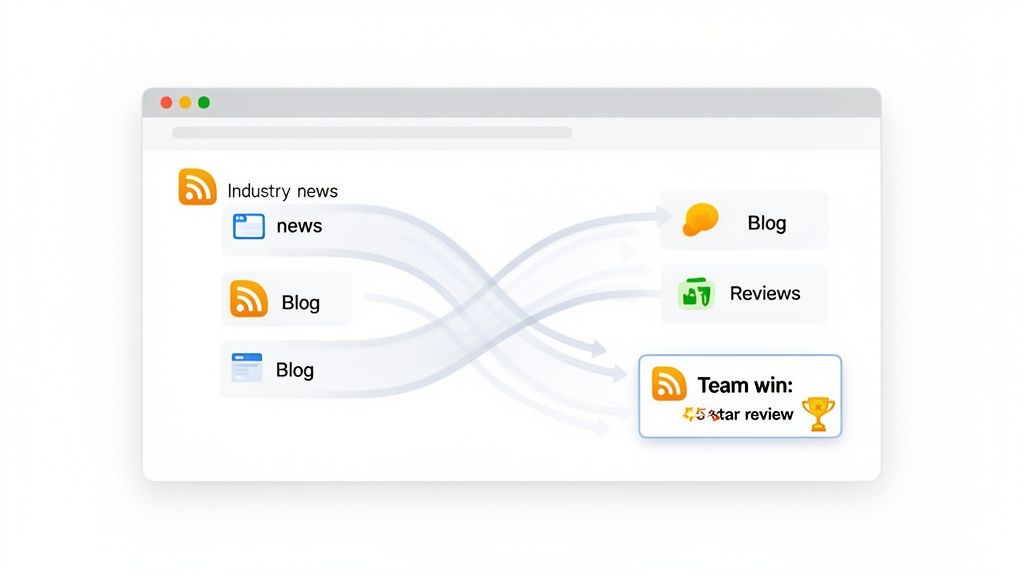
This quick table breaks down the core benefits of integrating RSS feeds. It’s a simple setup with a big impact on daily workflows.
Core Benefits of Slack RSS Integration
| Benefit | Impact on Your Team | Example Use Case |
|---|---|---|
| Centralized Information | No more hunting for links or missing key updates. Everything lands in one predictable place. | A #marketing-news channel gets daily updates from Adweek and TechCrunch. |
| Time Savings | Frees up valuable time by eliminating the manual task of finding and sharing content. | An RSS feed automatically shares new product updates from a competitor's blog. |
| Real-Time Awareness | Keeps the entire team on the same page with the latest industry trends, news, and competitor moves. | The sales team gets instant alerts on industry M&A news in their #deal-intel channel. |
| Improved Culture | Fosters a more connected and celebratory environment by automating praise and recognition. | New 5-star customer reviews are automatically posted in a #kudos channel. |
Ultimately, integrating RSS feeds isn't just about efficiency; it's about building a smarter, more informed, and more engaged team.
Go Beyond News with Team Recognition
While keeping an eye on the industry is a huge win, one of the most powerful—and often overlooked—uses for a Slack RSS feed is celebrating your own team. This is where a simple integration becomes a genuine tool for building a better company culture. Public recognition is a powerful motivator; it reinforces positive behaviors and makes employees feel valued. When this praise is automated and visible, it becomes a consistent part of your team's daily experience.
Practical example: Imagine setting up an RSS feed from your company’s Zendesk or Help Scout knowledge base. When a support agent publishes a new help article, the feed can automatically post a message in a #customer-support-wins channel, like: "🎉 New Guide Alert! Big props to Jane for publishing 'How to Troubleshoot Login Issues'. This will be a huge help for our users!" This not only shares knowledge but publicly celebrates the individual's contribution.
Here's another great one: hook up an RSS feed from a review site like G2 or Trustpilot. When a new 5-star review pops up that mentions a specific team member by name, it can post directly to a #kudos channel. This not only gives that person a well-deserved shout-out but also reinforces the customer-first values you want everyone to see.
When praise is automated and delivered in real-time where the team already works, it becomes a consistent, visible part of the company culture—not just a once-a-quarter event.
The Power of an Embedded Culture Tool
With Slack's user base climbing past 52 million registered users and the average person sending 92 messages per day, it's undeniable that the platform is where work happens. For anyone in HR or People Ops, these numbers highlight a huge opportunity. Slack isn't just for messages; it's the digital foundation where you can build real engagement.
By piping recognition-focused RSS feeds directly into your workspace, you're meeting your team where they are. You’re making appreciation a natural, effortless part of their daily routine, which is crucial for morale and retention.
Getting Started with Slack’s Built-in RSS App
If you want to get an automated content stream flowing right now, the native Slack RSS app is your best bet. It’s built directly into Slack, so there are no extra accounts to create or services to sign up for. Honestly, you can have your first feed running in under five minutes.
Think of it as the most straightforward way to start piping information into your workspace. You just find the app in Slack’s App Directory, add it, and then start plugging in feeds with a simple slash command. It’s the perfect starting point if you’re new to this and don't want to mess with anything complicated.
Installing and Subscribing to Your First Feed
Once the RSS app is added to your workspace, you can do everything right from the channel you want the updates in. The command you’ll live by is /feed. To add a new feed, you just type /feed subscribe followed by the URL of the RSS feed.
Let's say a marketing manager wants to keep her team in the loop on the latest industry news. She can pop into her team’s #marketing-updates channel and type:
/feed subscribe https://techcrunch.com/feed/
Slack will immediately confirm the subscription. From that point on, new articles from TechCrunch will show up in the channel as soon as they’re published. It’s a dead-simple way to get a live content stream going.
You can find the official app listing right here in the Slack App Directory.
As you can see on the app's page, its power really lies in those basic slash commands you'll use to add and manage everything.
Managing Your Feeds with Simple Commands
As you start adding more feeds, you'll obviously need a way to keep them organized. The app gives you a few handy commands to manage everything without creating a mess. This helps you keep the signal high and the noise low.
- /feed list: Type this in any channel to see a full list of all the RSS feeds currently piped into that specific channel. Each one will have a unique ID number next to it.
- /feed remove [ID]: Want to stop a feed? First, use
/feed listto find its ID number. Then, just type/feed removefollowed by that number. Poof, it’s gone. - /feed help: If you ever forget the commands, just type this. It'll give you a quick cheat sheet right inside Slack.
The beauty of the native app is its simplicity. You don't have to leave Slack or log into some other dashboard to manage your feeds. You can make quick tweaks on the fly, which is a huge plus.
Here’s a great real-world example: setting up a competitive intelligence channel. A product manager could create a #competitive-intel channel and subscribe to the RSS feeds for the blogs of their top three competitors.
Now, anytime a competitor drops a new post about a product launch or a big case study, the whole team sees it instantly. This creates a real-time awareness engine, making sure no one on the team misses a key move in the market. That ability to react quickly can be a real strategic advantage, and it’s all powered by a simple Slack RSS setup. It’s a perfect example of turning a basic tool into something genuinely valuable.
Sooner or later, the basic RSS app in Slack just won't cut it. It’s great for simple, unfiltered news, but once you need to sift through the noise or create messages that really stand out, it’s time to level up with a custom workflow. This is where you go from a basic notification feed to a powerful, curated stream of intelligence for your team.
These more advanced methods let you ditch the standard /feed command and build something that perfectly fits your needs. You can connect to almost any feed, filter out articles you don't care about, and design messages that actually get your team’s attention.
Not sure which path to take? This quick decision tree should point you in the right direction.
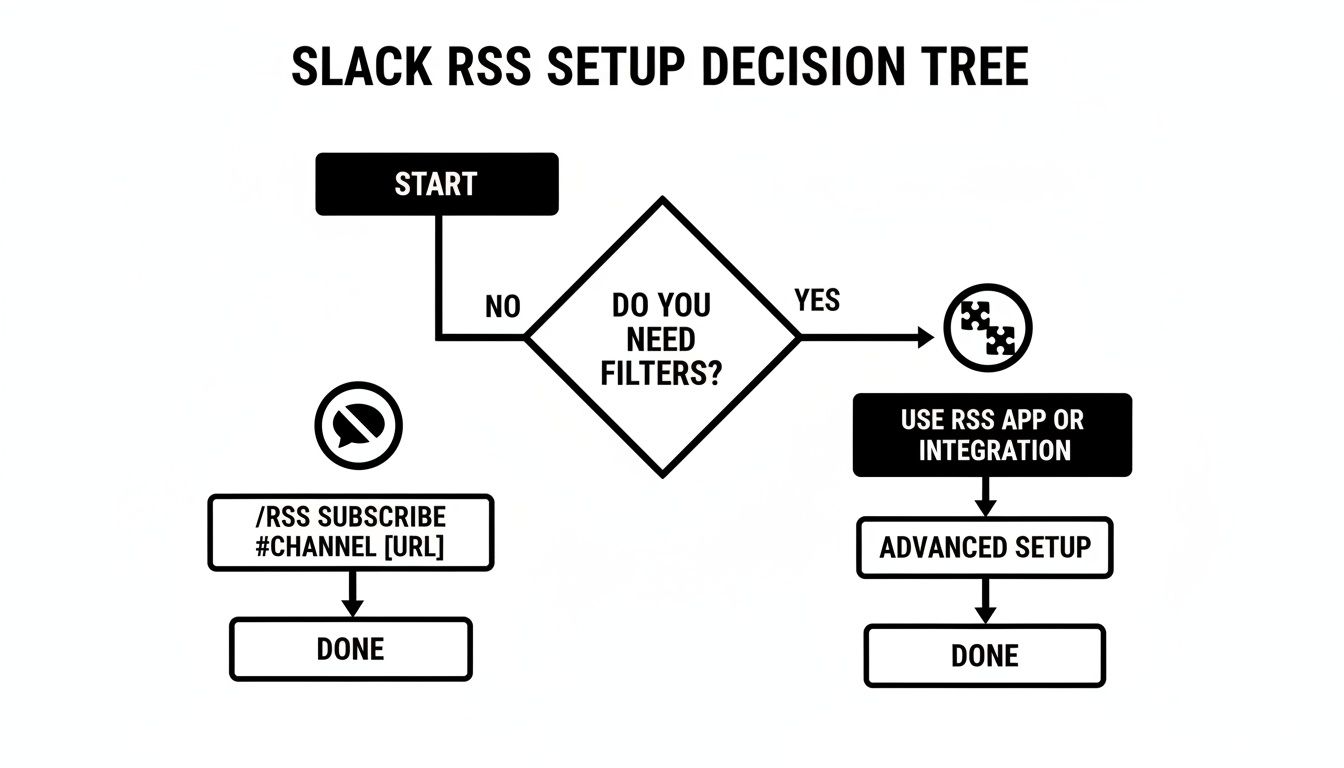
As you can see, the moment filtering or heavy customization enters the picture, you'll want to look beyond the built-in app.
Comparing Slack RSS Integration Methods
To help you choose the best tool for the job, here's a quick side-by-side comparison. It breaks down the most common methods, from dead simple to highly customized.
| Method | Ease of Use | Customization Level | Best For |
|---|---|---|---|
| Slack's RSS App | Very Easy | Low | Simple, unfiltered news feeds and quick updates without any noise filtering. |
| Incoming Webhooks | Moderate (Requires some code) | High | Developers who need full control over message formatting and have a server to run scripts. |
| Zapier/IFTTT | Easy (No-code) | High | Teams that need powerful filtering and custom-formatted messages without writing code. |
Ultimately, the right choice depends entirely on how much control you need. For most teams wanting to filter out noise, an automation tool like Zapier is the sweet spot.
Going Deeper With Incoming Webhooks
If you’re comfortable with a bit of code, Incoming Webhooks are a powerful way to pipe data directly into your Slack channels. A webhook is just a special URL that your app or script can send information to. When your script grabs an RSS feed update and sends a properly formatted message to that URL, it appears instantly in the channel.
This approach is perfect if you already have an external service parsing RSS feeds. You get total control over the message payload—meaning you can add custom formatting, buttons, and attachments to make the feed items look exactly how you want.
Building Smarter Feeds With Zapier
Don't want to mess with code? That's what no-code automation platforms like Zapier are for. These tools act as a middleman between an RSS feed and Slack, letting you build powerful workflows (called "Zaps") with a simple, visual interface. We have a whole guide covering the benefits of integrating Slack and Zapier if you want to dig in further.
With Zapier, you start with a trigger—in this case, "New Item in Feed"—and then set up an action, like "Post Message in Slack." The real power comes from what you can do in between.
The single biggest advantage of using a tool like Zapier is the Filter step. This one feature lets you stop irrelevant noise from ever hitting your channels, turning a firehose of information into a curated briefing.
Let's say you're keeping tabs on a competitor's blog. You probably don't need an alert for every single post, but you definitely want to know when they announce a new product.
Here’s how you’d set that up:
- Trigger: A new item gets published to your competitor's blog RSS feed.
- Filter: The Zap checks if the post title or body contains keywords like "launch" or "new feature." If not, it does nothing.
- Action: If a keyword is found, the Zap shoots a custom message into your
#competitive-intelchannel, maybe even tagging the product team lead.
This kind of smart alerting is impossible with the native RSS app but takes just a few minutes to configure in Zapier.
A Real-World Example: Automating Team Recognition
Let's apply this to celebrating your team's hard work. You can set up an automated system that does way more than just dump links into a channel. Making recognition timely and specific is key to making it impactful, and automation helps you do just that.
Imagine your support team writes tutorials for the company's help desk blog. You could build a Zap that:
- Triggers when a new article shows up in the blog's RSS feed.
- Filters for posts that have "Tutorial" or "Guide" in the title.
- Posts a message to
#team-winsthat says something like: "🎉 New Knowledge Drop! Big thanks to [Author Name] for publishing their new guide: [Article Title]. Let's check it out!" - Adds a reaction like a
💡emoji to the message automatically.
This workflow doesn't just share information; it adds context, gives public recognition, and sparks engagement. For those looking to take it even further, custom workflows are also fantastic for integrating social media monitoring tools, pulling real-time brand mentions and industry news right into Slack.
Tips for Keeping Your Slack Feeds From Becoming Noise
Getting your RSS feeds piped into Slack is the easy part. The real work is making sure they stay useful. If you’re not careful, that #industry-news channel you were so excited about can quickly turn into a firehose of unread notifications that everyone learns to ignore. The goal is to create a valuable signal, not just more static.
A great first step is to create dedicated channels for specific topics. Instead of funneling every update into a broad channel like #general, get specific. Create a #competitive-intel channel for competitor blog posts or a #tech-updates for news from the tools your team uses. This ensures the right information gets to the right people and doesn't get lost in the shuffle.

This also helps keep conversations organized. Nudge your team to discuss feed items in threads. When a fascinating new article pops up, any follow-up questions or hot takes should live under that initial post. This keeps the main channel clean and scannable, making it a high-level briefing instead of a messy free-for-all.
Be Ruthless With Your Curation
Let's be honest: not all RSS feeds are worth your time. The secret to a successful Slack RSS setup is to be incredibly selective about your sources.
Choose quality over quantity, every time. It’s far better to have two high-signal feeds in a channel than ten that are mostly fluff. I make it a habit to periodically review all active subscriptions using the /feed list command. If a feed isn't pulling its weight or has gotten too noisy, I don't hesitate to remove it. It's also a good idea to ask the channel members if the feeds are still hitting the mark.
A well-managed Slack feed should feel like a hand-curated executive summary. It delivers only the most vital information, saving everyone the effort of wading through irrelevant updates. If a feed makes your team do the filtering, it’s not doing its job.
This applies to every feed you set up, whether it’s for tracking industry news, monitoring competitors, or sharing internal updates. The more focused the content, the more likely your team is to actually pay attention.
Put Morale and Recognition on Autopilot
Beyond just news and data, you can use RSS feeds to build a powerful engine for team morale. This is where things get really interesting. You can create automated workflows that celebrate wins as they happen, weaving recognition right into your company's daily fabric. We all know public praise is a huge motivator, and a little automation makes it happen consistently. Feeling seen and appreciated is fundamental to job satisfaction and helps prevent burnout.
Here's a practical way I've seen this work wonders: turning a customer review feed into an automated celebration machine using a tool like Zapier.
- The Trigger: A new review for your company pops up on a site like G2, which luckily offers an RSS feed for new reviews.
- The Filter: The automation checks the rating. If it's a 5-star review, it proceeds. Anything less, and the workflow stops right there.
- The Action: For every 5-star review that comes through, a custom message is instantly posted in a public
#kudosor#winschannel. Think something like: "🚀 Another 5-Star Review! Amazing work, team!" followed by the review text. - The Bonus: To take it a step further, you can configure the automation to tag the relevant product managers or the customer success team, ensuring they see the praise they earned.
This simple setup turns a passive stream of feedback into an active, real-time recognition tool. It directly connects your team's hard work to happy customers, reinforcing a culture of excellence and making every win visible to the whole company.
Troubleshooting Common Slack RSS Issues
Even the best-laid automation plans can hit a wall. When your Slack RSS integration suddenly stops working, it can throw a wrench in your team's workflow and cut off access to important updates. But don't panic—most of these issues are surprisingly easy to fix once you know where to look.
A classic problem, especially with Slack's built-in RSS app, is the "invalid RSS feed" error. This almost always boils down to one simple thing: the URL you pasted isn't a direct link to a valid XML feed. Websites don't always make these easy to find. You might have to peek at the site's source code for a URL ending in .xml or /feed. A quick pro-tip is to run your URL through a free online RSS validator first to make sure it's good to go.
When Your Feed Mysteriously Goes Silent
What about when a feed that was working perfectly just… stops? It's a common and confusing scenario, especially when you haven't changed anything on your end.
Before you start tearing your hair out, run through this quick diagnostic checklist:
- Check the Source: The problem often isn't with Slack at all. Head over to the source website. They may have changed their feed URL, or the feed itself could be temporarily down.
- Check Slack's Status: It's rare, but Slack outages do happen. It’s always a good first step to see if Slack is down right now before you go any further. This can save you a ton of time.
- Check Permissions: Did the person who originally set up the feed leave the team or have their permissions changed? This is a sneaky one that can easily break an integration. To avoid this, I always recommend having a general admin account or a dedicated service account manage critical RSS feeds.
Fixing Advanced Workflow Glitches
If you’re using more powerful tools like Zapier or custom webhooks, you can run into a different set of quirks. A frequent headache is seeing the same article pop up multiple times, flooding your channel with duplicate posts.
The Problem: My Zap is spamming the channel with the same post over and over.
The Fix: Jump into your Zap's trigger step—the "New Item in Feed" part. Look for the deduplication setting. You need to make sure it's using a unique identifier from the feed, like the article’s link (often labeledguidorlink). This tells Zapier to fire only once for each unique item.
Another issue with custom setups is webhook authentication failure. This is usually just a fancy way of saying your secret key or token is old or incorrect. The fix is straightforward: generate a new webhook URL in your Slack settings, pop that new URL into your script, and your custom-formatted messages should start flowing again.
Got Questions About Your Slack RSS Feeds?
Once you have your RSS feeds flowing into Slack, you'll probably start wondering how to fine-tune things. It's one thing to get the data coming in, but another to make it truly useful. Let's tackle some of the most common questions that come up.
How Can I Filter an RSS Feed?
This is a big one. You want industry news, but not all of it. While Slack’s native RSS app is great for simplicity, it doesn't have a built-in filter.
For this, you’ll want to turn to an automation tool like Zapier. Think of it as putting a bouncer in front of your Slack channel. You can set up a simple rule—a "Filter" step in their workflow—that only allows posts through if they meet your criteria. For instance, you could tell it to only post articles where the title contains "product launch" or "case study." This is a fantastic way to cut through the noise and keep your channels focused.
Can I Add a Private or Password-Protected RSS Feed?
If you have an internal or subscription-based feed that requires a password, you've probably noticed that the standard Slack RSS app can't connect. It's designed for public feeds only.
Again, this is where third-party automators save the day. Tools like Zapier or IFTTT can often handle the basic authentication needed to access these protected feeds. You can securely pull updates from a private source and pipe them directly into the right Slack channel, keeping your internal information flowing without compromising security.
For anything more sophisticated than just pulling a basic, public feed, an automation tool is your best bet. Filtering, connecting to private sources, and other custom tweaks are where they really shine, giving you control the native app just can't offer.
Is There a Limit to How Many Feeds I Can Add?
Technically, Slack doesn’t publish a hard cap on the number of Slack RSS feeds you can add to a channel. But the real limit isn't technical—it's human.
The goal is to provide value, not to create a firehose of information that everyone ignores. As a rule of thumb, I always suggest sticking to 3-5 highly relevant, top-tier feeds for any single channel. This keeps the updates meaningful and prevents your carefully curated feed from becoming just another source of background noise. Quality over quantity is key.
Keeping your team informed is one thing, but making them feel appreciated is another. While RSS feeds bring in external news, a tool like AsanteBot helps you celebrate the wins happening right inside your team. It makes recognition a seamless, fun part of your daily Slack routine. You can celebrate accomplishments, keep a pulse on team morale, and build a stronger culture. Get started with AsanteBot for free.