Instantly see your schedule, get meeting alerts, and update RSVPs — without ever leaving Slack. The Slack Google Calendar integration is a top-tier productivity combo that syncs your schedule directly into your team’s communication hub. By connecting these two essential tools, you eliminate the constant tab-switching that drains focus and wastes time. This guide covers the entire process, from initial setup and core features to best practices and troubleshooting. The key benefits are clear: you’ll get smart meeting reminders, have your availability status sync automatically when you’re busy, and be able to join calls with a single click. Let’s turn two separate apps into one seamless workflow.
Table of Contents
Prerequisites
Before diving in, let’s do a quick pre-flight check to ensure a smooth setup. Having these things ready will save you time and prevent common hiccups.
- ✅ Permission to install apps in Slack: Your workspace settings must allow you to add new applications.
- ✅ A Google account: This can be a professional Google Workspace account or a personal Gmail account.
- ✅ (Optional) Zoom/Meet installed: For one-click “Join” buttons to work on reminders, you’ll need the corresponding Google Meet or Zoom app installed in Slack.
Note: If you see a “Request to Install” button instead of “Add to Slack,” it means app installations are restricted. Simply ask your Slack admin to approve the official Google Calendar app for your workspace.
Step-by-Step Setup Guide
Connecting your Google Calendar to Slack is a straightforward process that takes just a few minutes. Follow these steps to get everything running.
Step 1 — Install the Google Calendar App in Slack
First, you need to add the official app to your workspace.
- In Slack, navigate to Apps in your sidebar.
- Search for “Google Calendar” and select the official app.
- Click Add to Slack. You will be redirected to your browser.
- Review the permission scopes the app requires and click Allow to approve them.

alt=”An illustration showing the digital workflow of a Slack Google Calendar integration.”
Step 2 — Connect Your Google Account
With the app installed, you need to link it to your personal or work calendar.
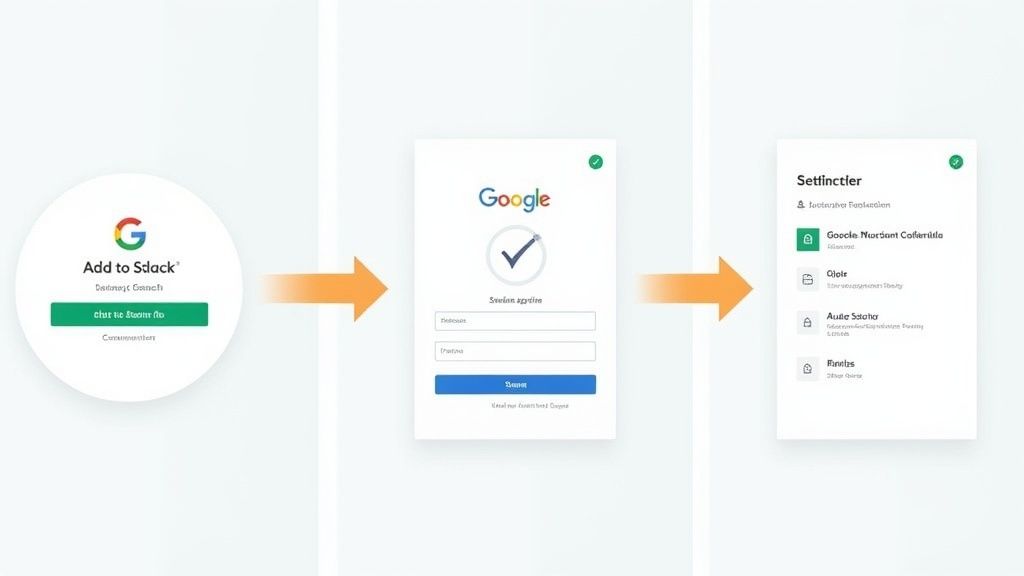
- The Google Calendar app in Slack will prompt you to connect your Google account.
- Follow the prompts to log in to Google using its secure authentication process, similar to Google Single Sign-On integration.
- Select the specific calendar(s) you want to sync with Slack.
- Confirm the final permissions to complete the connection.
alt=”A diagram showing the Google connection process for the Slack Google Calendar integration.”
Step 3 — Enable Event Notifications + Status Sync
This is where you customize the integration to fit your workflow. The app will present several toggles to control its behavior.
- Smart Meeting Reminders: Enable these to get Slack event reminders from Google Calendar before a meeting starts.
- Status Sync: Turn this on to have your Slack meeting status automatically set to “In a meeting” when an event begins. This is a game-changer for reducing interruptions.
- Join Buttons: Ensure this is active to get convenient Join with Meet or Join with Zoom buttons directly in your reminder notifications.
How to Use Google Calendar in Slack
Once your Slack Google Calendar is set up, you can manage your schedule with simple commands without leaving your conversations.
Create and Schedule Meetings via Slack
Need to book a quick meeting? Just type a command directly into any channel or DM. For example:
/gcal create 2pm "Design Review"
The Slack GCal bot will instantly create a 30-minute event on your primary calendar. It’s like having a personal assistant built right into Slack, making scheduling faster and more efficient.
Respond to Calendar Invites
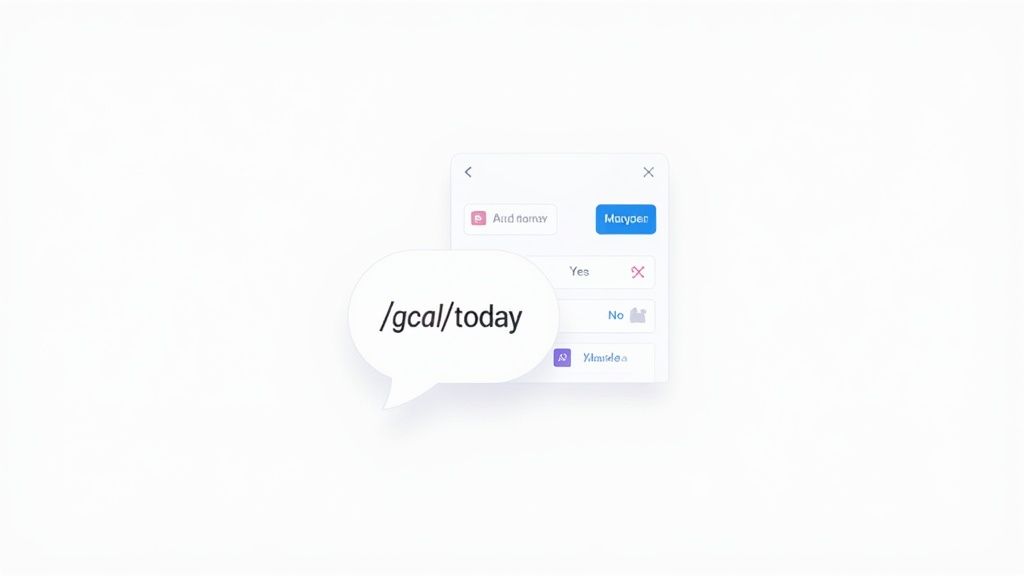
When someone invites you to an event, you’ll get an interactive notification in Slack. The message will include buttons to Yes, No, or Maybe, allowing you to RSVP instantly. This simple action saves clicks and keeps your schedule perfectly in sync.
alt=”A screenshot of a Slack command for Google Calendar, showing /gcal today.”
Join Meetings from Slack Reminders
The most immediate benefit is joining calls with a single click. Your meeting reminders will include a prominent button like Join with Meet or Join with Zoom, letting you jump into calls without hunting for links.
View Your Schedule in Slack
Get a quick overview of your day or the next without opening your calendar tab. Use these simple slash commands:
/gcal today– Shows all scheduled events for the current day./gcal tomorrow– Displays your schedule for the next day.
Best Practices for Team Productivity
To truly leverage the Google Calendar Slack integration, encourage your entire team to adopt these practices.
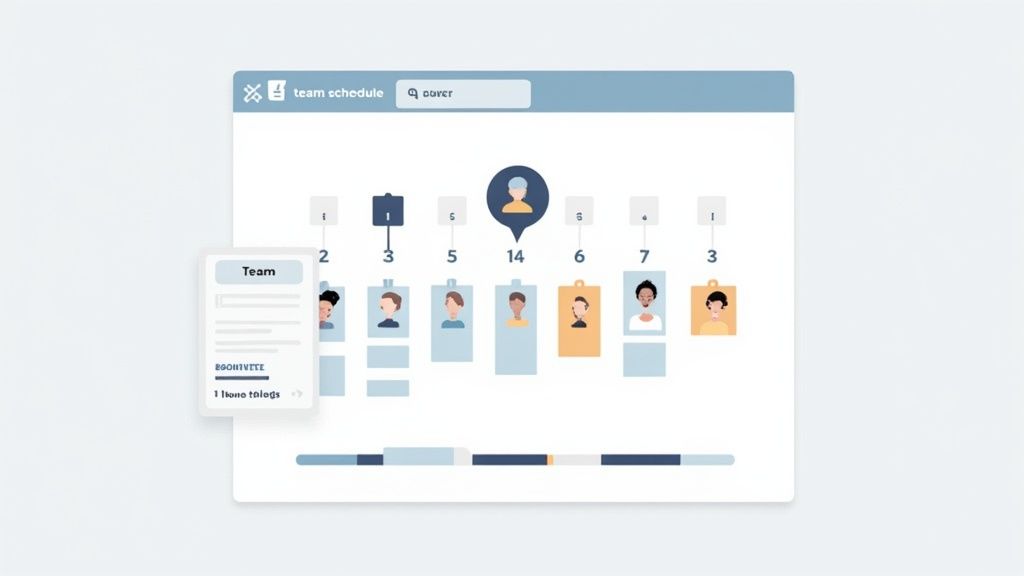
- Create a #team-schedule channel: Designate a central channel where the @Google Calendar bot can post daily summaries from shared project calendars, giving everyone a transparent view of team availability.
- Turn on focus mode: Encourage team members to block out “Deep Work” sessions in their calendars. The automatic status sync will signal to others not to interrupt, protecting valuable focus time.
- Pin a command cheat sheet: In your team channel, pin a message with key commands like
/gcal todayand/gcal createso everyone can easily access them. - Use the work location feature: For hybrid teams, using the “working location” feature in Google Calendar provides visibility on who is in the office versus at home, simplifying coordination.
alt=”An example of a team schedule view after you sync Google Calendar Slack.”
Troubleshooting Common Issues
If your Slack Google Calendar sync isn’t working as expected, these quick fixes solve most common problems.
- Missing bot in a channel? The bot needs to be a member of a channel to post notifications. Use the command
/invite @Google Calendarto add it. - Notifications stopped? Go to the Google Calendar app’s Home tab in your Slack sidebar. From there, you can re-enable any notifications that were accidentally turned off.
- Wrong calendar syncing? You can adjust which calendars are connected in the app’s settings. Go to the Home tab to add or remove calendars from your Google account.
- Blocked by admin restrictions? If you can’t install the app, you’ll need to contact your Slack administrator and request that they approve the official Google Calendar app for the workspace.
Frequently Asked Questions
Is the Slack Google Calendar integration free?
Yes, the official Google Calendar app is free to install from the Slack App Directory. However, to access advanced features like automatic status syncing, you will typically need a paid Slack plan and a Google Workspace account.
Can Slack automatically update my meeting status?
Absolutely. This is one of the most powerful features. Once enabled in the app’s settings, your Slack status will automatically change to “In a meeting 🗓️” when a calendar event begins, letting colleagues know you’re unavailable without any manual effort.
Can I use multiple calendars in Slack?
Yes. During setup and in the app settings, you can select multiple calendars from your Google account to sync. This is perfect for managing both personal and professional schedules in one place and getting all your Slack event reminders from Google Calendar centrally.
Does Slack support Google Calendar for shared rooms?
Yes, the integration works well with shared resources. If you have permission to view a shared calendar in Google—such as a conference room booking calendar or a team vacation schedule—you can connect it to Slack to receive notifications.
Conclusion
With the Slack Google Calendar integration, your day stays organized, focused, and efficient—without you constantly switching tabs or worrying about missing meetings. By bringing your schedule directly into your primary communication tool, you reclaim valuable time and mental energy. This simple connection streamlines everything from scheduling and joining meetings to communicating your availability, helping both you and your team work smarter. To further boost your team’s workflow, consider exploring other powerful integrations like Zoom, Jira, Notion, and GitHub. A well-connected workspace is a productive one.
A productive team thrives on recognition as much as it does on efficient scheduling. Recognizing your team’s hard work and celebrating milestones builds a positive culture. With AsanteBot, you can automate appreciation and make recognition a seamless part of your Slack workflow. Start for free and see the impact on your team’s morale.