Create automated alerts, tasks, and cross-app workflows — no coding required.
Table of Contents
If you're tired of bouncing between apps and manually copying and pasting information all day, the Slack Zapier integration is a game-changer. This integration is all about eliminating those tedious, repetitive tasks by letting your favorite apps talk directly to Slack. By using Zapier, you can build powerful automated workflows—called “Zaps”—without writing a single line of code.
Think of this integration as turning Slack from a chat app into the central hub for your entire workflow. Instead of constantly checking different platforms for new leads, support tickets, or project updates, you can have all that crucial information fed directly into the right Slack channels. It's about reducing manual work, getting cross-tool alerts, and keeping your team focused. For example, you can send Slack alerts from new form submissions, CRM updates, support tickets, and emails. This guide covers the full setup, your first Zap, best practices, and troubleshooting tips.
One of the biggest wins here is the ability to improve team communication by automating routine updates and alerts, making sure nothing slips through the cracks. It also allows you to automate team recognition, ensuring good work never goes unnoticed. This transforms occasional praise into a reliable system that keeps team morale consistently high.
Prerequisites Checklist
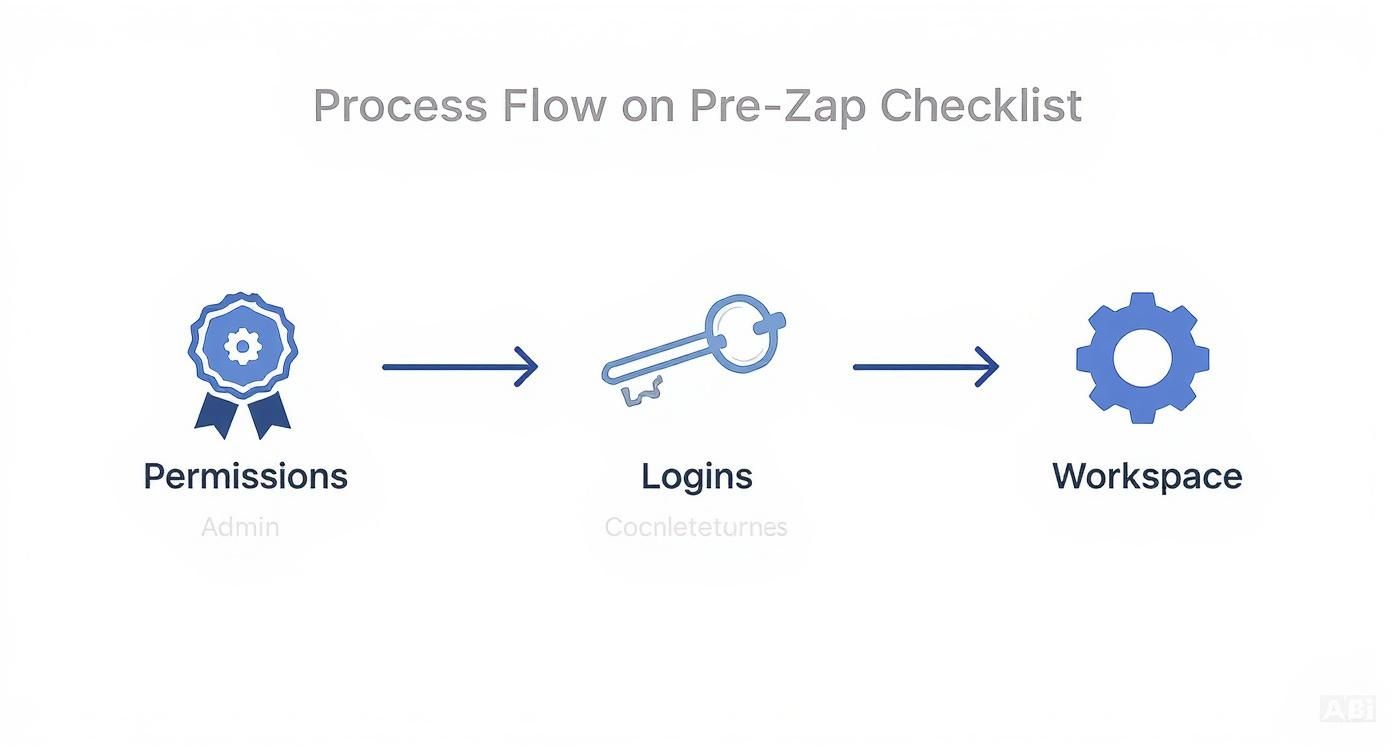
Before you start connecting apps, a quick check will ensure a smooth setup. Here’s what you’ll need:
- A Slack workspace with member access.
- A Zapier account (the free plan is perfect for getting started).
- Permissions to install apps in your Slack workspace.
- Logins for any other apps you want to connect (e.g., Gmail, Google Sheets, HubSpot).
Note: If app installation is restricted in your workspace, you’ll need to request approval from your Slack administrator.

Step-by-Step Guide to Connect Slack to Zapier
Alright, let's get these two powerhouse tools talking. Follow these steps to set up the connection and build your first automated workflow.
Step 1 — Connect Your Slack Account to Zapier
First, you need to authorize Zapier to access your Slack workspace. This is a secure, one-time setup.
- Log in to your Zapier account.
- Navigate to My Apps in the left-hand menu.
- Click the + Add connection button and search for "Slack".
- Select Slack from the list. A new window will open, prompting you to authorize the connection.
- Choose the correct Slack workspace and click Allow to grant Zapier the necessary permissions.
Once connected, Slack will appear in your list of apps, ready for automation.
Step 2 — Create Your First Zap and Choose a Trigger
Now for the fun part: creating a "Zap." A Zap is an automated workflow that connects your apps. It always starts with a Trigger—an event that kicks off the workflow.
- Click the Create Zap button in your Zapier dashboard.
- Choose your Trigger App. This is the application where the initial event happens. It could be Slack itself, or another tool like Gmail, Notion, Jira, or Google Forms.
- Select the specific Trigger event. For example, if you chose Slack as the trigger app, you might select "New Message Posted to Channel." If you chose Google Forms, the trigger would be "New Form Response."
Step 3 — Choose an Action App
With the trigger set, you now tell Zapier what to do when that event occurs. This is the Action. Since our goal is to send notifications to Slack, we'll choose Slack as our Action App.
- In the Action step, search for and select Slack.
- Choose the specific action you want to perform. Common Slack actions include:
- Send Channel Message
- Send Direct Message
- Add Reminder
- Update Profile (e.g., changing your status)
- Send Ephemeral Message (a temporary message only one user sees)
For a classic example, let's say our goal is to send a message to a #notifications channel every time a new row is added to a Google Sheet. The Trigger is "New Row in Google Sheets," and the Action is "Send Channel Message in Slack."
Step 4 — Customize Your Slack Action
This is where you design the automated message. You can pull in data from your trigger step to create dynamic, contextual notifications.
- Channel Selection: Choose the specific Slack channel where the message should be posted (e.g.,
#notifications,#sales-leads). - Message Text: Craft your message using a mix of static text and dynamic fields from your trigger app. For example: "New lead just added: [Name from Google Sheet] – [Email from Google Sheet]."
- Formatting Options: Use markdown (
*bold*,_italics_) and add dynamic elements like @mentions, emojis, or even advanced Slack Blocks for richer layouts. - Bot Settings: Decide if the message should be posted as a bot and whether it should notify everyone in the channel (
@hereor@channel).
Step 5 — Test and Turn On Your Zap
Before activating your workflow, it’s crucial to test it.
- Click the Test step button in the Zap editor.
- Zapier will send a real message to your selected Slack channel using sample data from your trigger.
- Check Slack to verify the message looks exactly as you intended.
- If everything is correct, click Publish to turn your Zap on.
Your Slack Zapier automation is now live!
Popular Zap Templates to Get Started

You don't have to build every workflow from scratch. Here are some popular pre-built templates to inspire your first automations.
- New CRM Lead → Slack Sales Alert: Instantly notify your
#saleschannel when a new lead is added in Salesforce or HubSpot. - New Support Ticket → Slack Support Channel: Create an immediate alert in your
#support-triagechannel when a new ticket is logged in Zendesk or Jira Service Management. - Google Calendar Event Reminder → Slack DM: Send yourself a direct message 10 minutes before a Google Calendar event is about to start.
- New GitHub Issue → Slack Triage Channel: Post new GitHub issues directly into a
#dev-triagechannel so your engineering team can review them quickly. - New Form Submission → Slack Inbox Channel: When someone fills out a Typeform or Google Form, send their responses to a dedicated
#form-responseschannel. - Add Slack Message to a Task Tool: Save important Slack messages as new tasks in project management tools like Asana or Trello.
Best Practices for Your Slack Zapier Integration
As you build more Zaps, follow these tips to keep your automations clean, efficient, and useful.
- Use dedicated channels: Create specific channels for automated notifications (e.g.,
#alerts,#ops-notifications) to avoid cluttering team conversations. - Avoid over-notifying: Use Zapier's Filter or Paths features to create advanced workflows that only run when specific conditions are met (e.g., only alert for "high-priority" tickets).
- Add context to messages: Include timestamps, links back to the source (like a CRM record or support ticket), and clear information so your team can act quickly.
- Use clear naming conventions: Name your Zaps descriptively (e.g., "Google Forms → Slack for New Leads") so you can easily manage them later.
Troubleshooting Common Issues
Even the best automations can hit a snag. Here are fixes for the most common problems.
- Slack messages not showing up: The connection between Zapier and Slack may be stale. Go to My Apps in Zapier, find Slack, and click Reconnect to re-authorize it.
- Bot not allowed in a private channel: You must manually invite the Zapier bot into private channels. In the private channel, run the command:
/invite @Zapier - Permission errors: If you see an error during setup, you likely need a Slack admin to approve the Zapier app for your workspace.
- Duplicate messages: Check your Zap list to ensure you don't have multiple Zaps firing from the same trigger event.
- Zap is throttled or held: This often happens on free plans when you exceed the task limit. You may need to upgrade your Zapier plan or add a "Delay" step to your workflow.
Frequently Asked Questions (FAQ)
Is Zapier free for Slack integrations?
Yes, Zapier offers a free plan that allows you to create single-step Zaps for Slack. For more complex, multi-step Zaps or a higher volume of tasks, you will need a paid plan.
Can Zapier send Slack messages to private channels?
Absolutely. However, you must first invite the Zapier Slack bot into the private channel. Simply go to the channel and type the command /invite @Zapier.
Can Zapier read all my Slack messages?
No. Zapier's access is limited to the specific channels or events you authorize for each Zap. It cannot read messages from channels, private messages, or workspaces that you have not explicitly given it permission to access.
How many Slack Zaps can I create on a free plan?
Zapier's free plan typically allows you to create up to 5 active Zaps at a time.
Does Slack Zapier integration work with Slack Enterprise Grid?
Yes, the integration is fully compatible with Slack Enterprise Grid, allowing organization admins to manage the app centrally and enforce security policies.
Conclusion
The Slack Zapier integration is one of the most powerful ways to automate workflows and save your team hours of manual work every week. By connecting Slack to the other tools you use daily, you can centralize notifications, streamline processes, and ensure critical information never gets missed—all without writing any code.
Ready to get started? Explore Zapier's pre-made Slack templates or check out our other guides on integrating Slack with tools like Jira and Google Calendar.