
Let’s be real for a moment: GIFs are way more than just a fun little distraction in Slack. They’ve become a surprisingly important part of how modern teams talk to each other. Plain text can be so flat, and it’s easy for tone and emotion to get lost, which is a recipe for misunderstandings.
Table of Contents
A well-timed GIF, on the other hand, can instantly inject context, humor, and a bit of personality into any conversation. It’s the difference between typing out “Good job” and dropping in a GIF of a cheering crowd after a huge project launch. That little animation packs a much bigger punch, making your teammates feel genuinely seen and appreciated. This visual praise is crucial for morale, as team recognition reinforces positive contributions and motivates everyone to do their best work.
Weaving Connection and Recognition into Every Message
In a world of remote and hybrid work, this kind of casual, visual communication is gold. It’s one of the easiest ways to bridge the digital gap and build a company culture that feels connected and alive. Recognizing achievements, big or small, is essential for keeping employees engaged, and GIFs are a simple yet powerful tool for doing just that.
Think about how you can use them:
- To acknowledge effort: When a colleague posts a detailed project update, a ‘mind blown’ or ‘slow clap’ GIF is a quick, visual way to show you’re impressed with their hard work.
- To celebrate wins: A quick ‘fist bump’ or ‘celebration’ GIF makes shouting out a team success a shared, memorable moment. For example, after a successful product release, a manager could post a “We did it!” GIF in the team channel, making the recognition public and exciting.
- To boost morale: Let’s face it, some days are a grind. A funny, relatable GIF can break the tension and remind everyone they’re on the same team.
And this isn’t just a feeling; the data backs it up. Research from Slack shows that over 72% of employees would rather use informal tools like GIFs and emoji than corporate jargon. What’s more, 50% of Gen Z workers say it actually helps them feel more connected to their colleagues.
By turning simple messages into chances for connection, GIFs become a low-effort, high-impact way to build team spirit. They are a cornerstone of many successful virtual team building activities that strengthen bonds and just make work a better place to be.
For many organizations, Slack isn’t just a chat tool — it’s the central hub for **Slack for teams**, where collaboration, recognition, and daily communication all happen in one place. Knowing how to quickly **find and share** the right reaction, whether it’s a celebration, thank you, or quick morale boost, helps teams communicate faster and more naturally. When used thoughtfully, the ability to **send GIFs** becomes a simple but powerful way to add emotion, clarity, and personality to everyday conversations.
Mastering the Giphy Integration for Slack
When it comes to livening up Slack channels, the Giphy app is pretty much the gold standard. For most teams, it’s the quickest way to get access to a massive library of animations, letting you drop the perfect reaction or inside joke into a conversation in seconds.
Getting it set up is a breeze. Just head over to the Slack App Directory, search for “Giphy,” and click “Add to Slack.” It’s one of the platform’s most-used integrations—and for good reason. Slack supports over 750,000 custom apps, and Giphy is almost always at the top of the list for engagement. If you’re curious about Slack’s app ecosystem, you can find more stats at SQ Magazine.
Using Giphy in Your Channels
Once Giphy is installed, you have a couple of ways to bring GIFs into your chats. The go-to method for most people is the /giphy slash command. It’s fast and easy.
Just type /giphy followed by a keyword or phrase into the message box and press Enter. A GIF will pop up instantly, ready to send.
- For a project launch: You could type
/giphy mission accomplishedto celebrate a big win. - For a quick thank you: When a colleague helps you out, a simple
/giphy thank you so muchadds a personal touch.
This makes it easy to quickly find and share the right animation without leaving Slack. Whether you’re celebrating a win or reacting to an update, the ability to instantly send GIFs keeps conversations fast, expressive, and engaging.
Sometimes, a GIF communicates better than words, especially when you want to convey emotion or celebrate a team member’s success. This quick decision tree can help you figure out when a GIF is the right move.

As you can see, GIFs are perfect for adding that extra layer of emotional context, which is a huge part of building a strong, connected team. A simple “great work” message becomes more meaningful with a “standing ovation” GIF, making the praise more visible and impactful for the entire team.
Finding the Perfect Animation
What happens if the first GIF that appears isn’t quite what you had in mind? No problem—you’re not stuck with it.
After the /giphy command shows you a preview, you’ll see a Shuffle button. Just click it. Giphy will swap out the current GIF for a new one based on your original search term. You can keep shuffling until you land on the perfect one.
This shuffle feature is a lifesaver. It helps you avoid any awkward or off-brand moments by giving you the final say, ensuring the GIF you send perfectly captures the tone you’re going for.
This level of control is especially important for things like team recognition. For example, instead of a generic emoji, you can find a specific “you rock” GIF that really celebrates a colleague’s contribution, making your praise feel more genuine and memorable.
Comparing GIF Methods in Slack
With a few different ways to get GIFs into your Slack channels, it can be helpful to see them side-by-side. Each method has its own strengths, depending on what you’re trying to do.
| Method | Best For | Speed | Customization |
|---|---|---|---|
/giphy Command |
Quick, spontaneous reactions and fun. | Very Fast | Low (relies on search results) |
| Giphy/Tenor App | More control and browsing for the perfect GIF. | Fast | Medium (shuffle and search options) |
| File Upload | Sharing a specific GIF you’ve saved. | Slower | High (you choose the exact file) |
| Custom Emoji | Frequently used, team-specific reactions. | Very Fast | High (you create and upload it) |
Ultimately, the best method is the one that fits your workflow. The /giphy command is great for speed, while uploading your own files gives you total control. It’s worth trying them all to see what works best for you and your team.
Beyond Giphy: Other Great Ways to Share GIFs in Slack
The /giphy command is a classic for a reason—it’s fast, easy, and usually gets a laugh. But sometimes, you need more control, or you have a very specific GIF in mind. For those moments, you have a couple of other fantastic options.
Maybe you’ve got a custom animation for a product launch or a perfect reaction GIF saved on your desktop. In that case, manually uploading it is the way to go. This guarantees your team sees the exact animation you intended, which is perfect for branded content or important team recognition moments where a random Giphy result just won’t cut it. For instance, creating a custom GIF with your company logo to celebrate hitting a quarterly sales target makes the recognition feel unique and special.
Thankfully, it couldn’t be simpler. Just drag the GIF file from your computer and drop it right into the Slack message box. You can also click the paperclip icon (📎) to browse and select the file from your computer. Easy.
Turn Your Best GIFs into Custom Animated Emojis in Slack
For a more lasting impact, you can turn a favorite GIF into a custom animated emoji. This adds the animation directly to your workspace’s emoji library, so anyone on the team can use it in messages or as a reaction. It’s a killer way to bake your company culture and team recognition right into your daily Slack conversations.
There are a couple of ground rules, though. Your GIF needs to be square and, more importantly, 128KB or less to keep Slack from slowing down. If you want to make your own from a video clip, Mac users will find this guide on how to convert video to GIF on Mac really helpful.
Once you have your perfectly-sized GIF, here’s how to add it:
- First, click your workspace name in the top-left corner of Slack.
- From the menu, choose “Customize Slack.”
- Then, click the “Add Custom Emoji” button.
- Upload your GIF file and give it a name your team will remember, like
:party-parrot:or:deal-closed:.
Custom emojis are how inside jokes and team wins become a part of your company’s DNA. Imagine celebrating a major milestone with an animated emoji of your mascot giving a thumbs-up. It’s those little details that make communication feel personal and fun, turning recognition into an interactive part of the workday.
This kind of customization is what turns a good digital workspace into a great one. If you’re looking to add more tools that build connections and make work smoother, checking out the best Slack apps is a significant next step.
Setting Up GIF Guardrails for Your Slack Workspace
GIFs are a fantastic part of workplace culture, but without some ground rules, they can feel a bit like the wild west. If you’re a team lead, HR manager, or Slack admin, your job is to keep things fun while making sure communication stays professional and inclusive. Thankfully, a few simple guardrails can make all the difference.
The most critical step you can take is to configure the content rating for your Giphy integration. This one setting is your first line of defense, preventing inappropriate or distracting animations from ever popping up in a channel. It’s all about creating a safe and predictable environment for everyone.
If your organization uses Slack Enterprise Grid, these controls become even more important. On Enterprise Grid, administrators can manage app permissions, content settings, and usage policies across multiple workspaces. This ensures teams can continue to find and share GIFs in a fun and safe way while maintaining consistency and compliance at scale.
Adjusting Content Ratings
As a workspace administrator, you have direct control over these settings. Just head to your workspace’s administration page and look for the “Apps” section to find your Giphy configuration.
From there, you can set the maximum GIF rating allowed across the entire workspace. The options are pretty straightforward and mirror standard movie ratings:
- G: The safest bet, suitable for all audiences. This is what I recommend for most companies.
- PG: Generally fine, but might contain some mild thematic elements.
- PG-13: Could include suggestive content or language.
- R: Definitely not recommended for a professional setting.
Here’s a look at where you can manage app configurations within your Slack workspace.
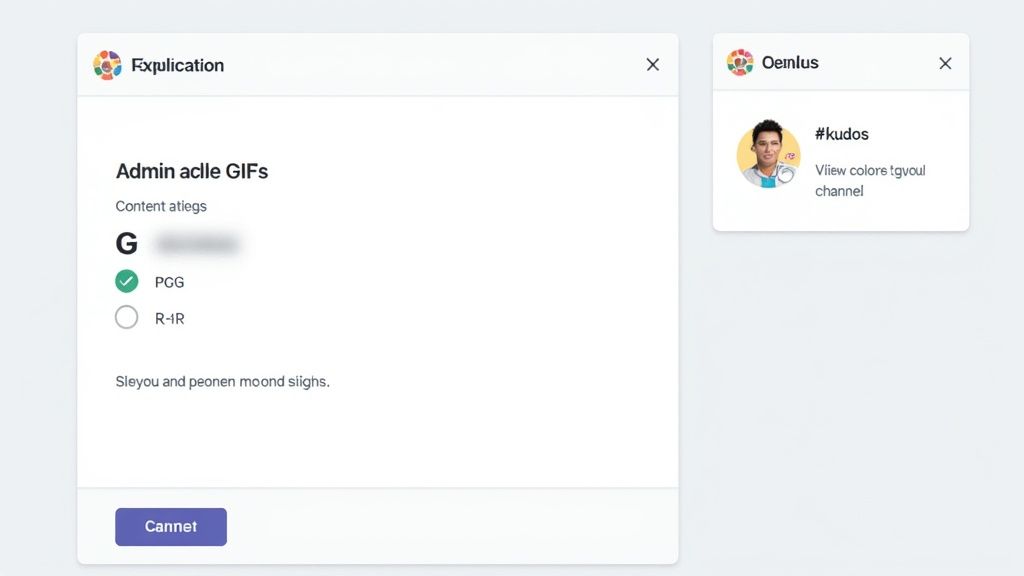
Simply setting the filter to G or PG will proactively block the vast majority of potentially unprofessional content before anyone even sees it. It’s a set-it-and-forget-it solution.
Beyond technical controls, it’s a good idea to establish shared guidelines for GIF usage. This doesn’t need to be a long, formal policy document. Instead, aim for a simple, shared understanding that GIFs should add to the conversation, not just create noise. The goal is to enhance communication, not replace it.
A huge part of this is leading by example. When leaders use GIFs to amplify recognition or celebrate wins, it shows everyone how to use them constructively. For example, a well-timed “success” GIF from a manager after a big project launch makes that praise feel more visible and genuine, reinforcing the value of hard work.
A great way to put this into practice is by creating a dedicated #kudos or #wins channel. You can actively encourage celebratory GIFs there, which channels all that creative energy in a positive direction. It’s a simple strategy that turns a fun feature into a powerful tool for reinforcing team achievements and building a culture of recognition.
What to Do When Your Slack GIFs Stop Working
So you’ve mastered the art of the perfect reaction GIF, but suddenly, it’s not working. Don’t worry, it happens to the best of us. When your GIFs go on strike, a few quick checks will usually get them back in action.
The /giphy Command Isn’t Responding
This is probably the most common GIF-related hiccup. You type /giphy [text] and… nothing. Nine times out of ten, this means the Giphy app hasn’t been added to that specific channel or conversation yet.
Before you dig deeper, check the channel’s integration settings to see if Giphy is enabled. Problem solved.
My Uploaded GIF Isn’t Animating!
Another classic issue: you upload what you think is a brilliant animated GIF, but it just sits there as a static image. It’s a real letdown. When this happens, the problem is almost always with the file itself.
Slack has a couple of ground rules for uploads to keep everything zipping along smoothly:
- Check the file size. Is your GIF enormous? Slack has an upload limit, and overly large files can get stuck or fail to animate properly.
- Confirm the file format. Make sure the file actually ends in
.gif. It’s surprisingly easy to save or download a file with the wrong extension accidentally.
Here’s a real-world scenario: you’re trying to celebrate a team win with a big, flashy GIF. If it fails to load, the whole moment falls flat. Taking two seconds to check the file size beforehand can make sure your praise lands with the excitement it deserves. Consistent recognition is key to a positive team environment, and technical glitches shouldn’t get in the way.
If you’ve checked the app integrations and you know your file is good to go, try the oldest trick in the IT book: a quick restart of the Slack app. A simple refresh can often clear out any temporary glitches and fix almost any lingering GIF issue you’re facing.
Got Questions About Slack GIFs? We’ve Got Answers
Let’s tackle some of the common questions that pop up when teams start using GIFs in Slack. Getting these right will make you look like a pro.
Can I Add GIFs From My Phone?
You bet. The Slack mobile app lets you keep the GIF game going even when you’re away from your desk. The The /giphy command works the same as it does on your computer.
You can also upload any GIF you have saved in your phone’s photo library. This is super handy for sharing something you’ve saved for the perfect moment or a custom animation your team made. Imagine your sales team closing a huge deal—they can instantly upload that victory dance GIF right from their phones into the #wins channel. This immediacy makes recognition timely and powerful.
Is There a Way to Preview Giphy GIFs Before Posting?
Yes, and this is a lifesaver. After you type /giphy [your search term], Slack will show you a preview of the GIF that only you can see. You’ll get two options: Send or Shuffle.
This little preview step is more important than you might think. It prevents you from accidentally sending an off-brand or awkward “congrats” GIF. You can hit Shuffle until you find one that perfectly captures the team’s vibe, making any praise feel much more genuine. This ensures your recognition lands exactly as intended.
A Quick Word of Advice: Always, always preview your GIF. That extra second can be the difference between a funny, morale-boosting message and a cringey one that misses the mark entirely.
How Can I Disable Giphy in a Specific Channel?
Sometimes you need to keep a channel strictly business, and that’s easy to do. For a space like #announcements-only where you need to keep things focused, you can disable the Giphy integration for that specific channel.
Just head into the channel’s details, click on the “Integrations” tab, and find Giphy in the list of apps. From there, you can remove it for that conversation only. This gives you the best of both worlds—fun in the social channels, focus in the important ones.
Great recognition is the cornerstone of a thriving team culture, and AsanteBot makes it happen. Our Slack app helps you build a habit of appreciation with fun rewards and automated celebrations for key milestones. Start building a stronger team with AsanteBot.
Whether you’re working in a small startup or a large organization using Slack for teams, learning how to find and share the right GIFs helps build stronger connections and a more human workplace.