
How To Remove Someone From Slack Workspace
Dusan Milovanovic

To remove someone from Slack workspace, you can either remove them from a specific channel or deactivate their account in the workspace. Your ability to do this depends on your role within the Slack workspace.
Table of Contents
- Removing a User from a Channel
- Deactivating a User’s Account in the Workspace
- How to leave Slack workspace
In this article, we have described the most common situations you will need when removing someone from Slack, leaving Slack workspace or removing a member from Slack.
Removing a User from a Channel
On Desktop or Web App:
- Open Slack and go to the desired channel.
- Click on the channel name at the top to view details.
- Select “Members” to see the list of members.
- Find the member you want to remove and click the three dots next to their name.
- Choose “Remove from channel” and confirm.
On Mobile App:
- Open the channel from which you want to remove a member.
- In the message box, type
/remove @[member's username]or/kick @[member's username]. - Tap the paper plane icon to send the command, removing the member from the channel.
Deactivating a User’s Account in the Workspace
- Sign in to your Slack account.
- Click on your workspace name in the top left corner.
- Go to Settings & Administration > Manage Members.
- Find the user you want to remove, hover over their name, and click the three dots next to it.
- Select “Deactivate Account” and confirm. This will prevent them from signing in to the workspace, though their previous messages will remain visible.
How to leave Slack workspace
- Click on your avatar inside the Workspace sidebar
- Click on Profile
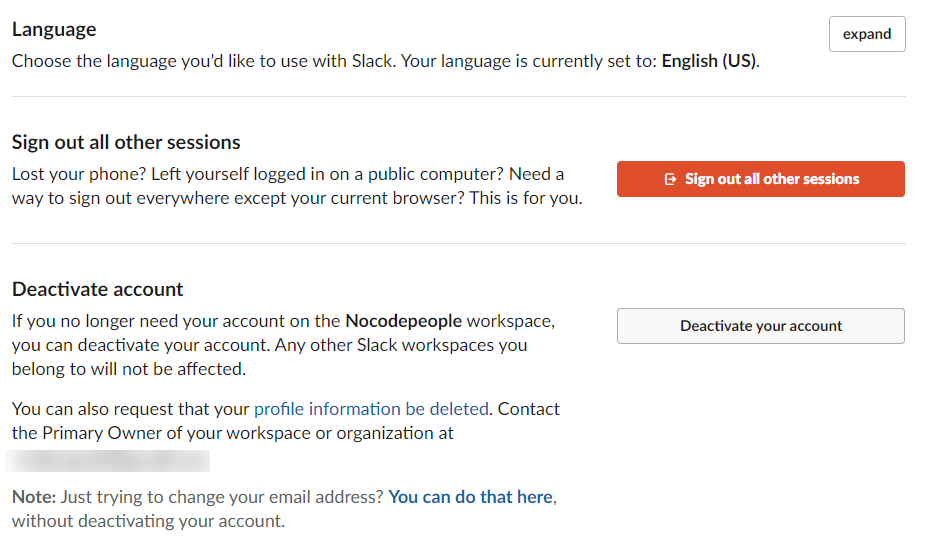
- Inside Profile, you will find “…” you need to click on “Account settings.”
- Look for the “Deactivate account” section
- Click on the “Deactivate your account” button
Important Notes
- Only Workspace Owners, Admins, and sometimes members (depending on the channel’s privacy settings) can remove users from channels.
- When a user is removed from a channel, they receive a notification, but their messages will still be visible under a “removed account” label if the account is deactivated.
- To thoroughly delete a user’s profile and data, first deactivate their account, then choose the “Delete profile” option.
These steps should help you manage user access and maintain the security of your Slack workspace. If it is the whole workspace you want gone rather than one person, see how to remove old Slack workspaces.
About the author

Keep reading
More from the blog
 Asante Bot
What's New in Asante Bot: Summer 2026
Bots can now give recognition points, celebrations go out on your schedule and timezone, and birthday messages write themselves. Plus a rebuilt help center, glossary, and honest comparison library.
 Asante Bot
Unlocking Pipedream Slack Automation for Team Recognition
Connecting Pipedream and Slack is a game-changer for automating team recognition. It lets you turn manual shout-outs into consistent, triggered celebrations that land right in your team's main communication hub.
 slack task management
Wrangle for Slack: What It Is and How It Works
If your team practically lives in Slack, you know the feeling. Important to-dos and action items get instantly buried under a mountain of messages, GIFs, and channel chatter.